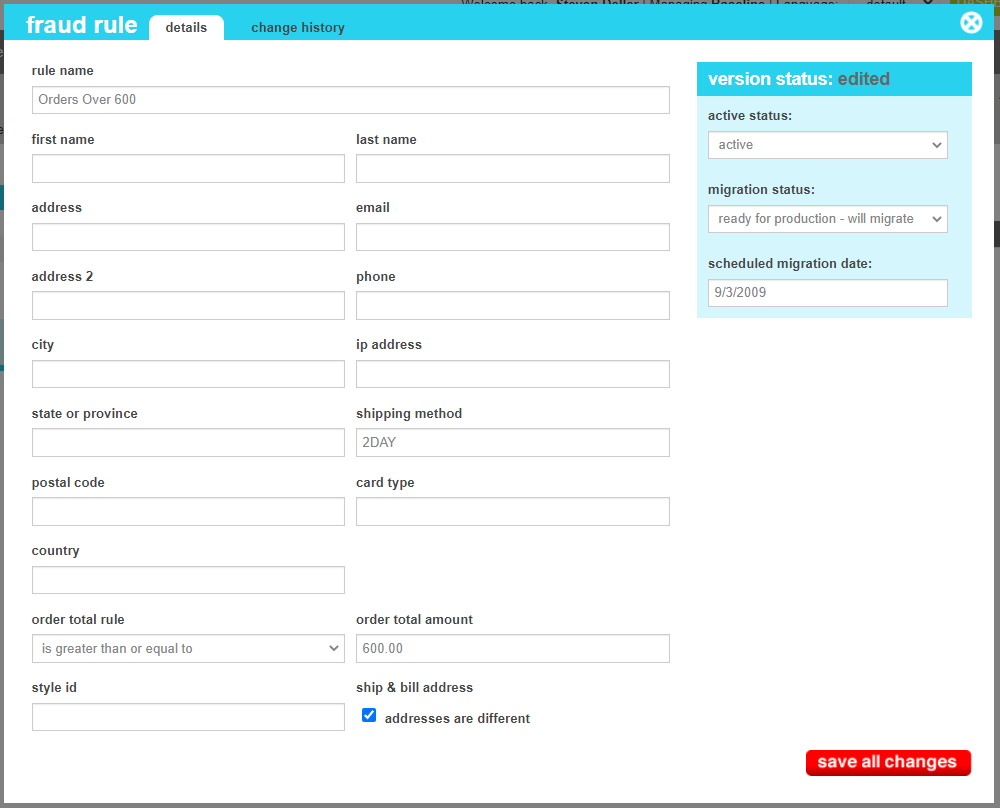
| Rule Name |
The name that uniquely identifies the rule. This will also appear in the order notes if this rule triggers a review. |
| First Name |
Match if the first name of the shipping or billing address is this value |
| Last Name |
Match if the last name of the shipping or billing address is this value |
| Address |
Match if the address line 1 of the shipping or billing address is this value |
| Address 2 |
Match if the address line 2 of the shipping or billing address is this value |
| City |
Match if the city of the shipping or billing address is this value |
| State or Province |
Match if the state or province of the shipping or billing address is this value |
| Postal Code |
Match if the postal code of the shipping or billing address is this value |
| Country |
Match if the country code of the shipping or billing address is this value |
| Email |
Match if the email address of the shipping or billing address is this value |
| Phone |
Match if the phone number of the shipping or billing address is this value |
| IP Address |
Match if the ip address of the shopper is this value. Supports IP4 or IP6 addresss. |
| Shipping Method |
Match if the shipping method code of the shipping address is this value |
| Card Type |
Match if the payment type code matches of any payment in the order is this value |
| Order Total Rule |
Used in conjunction withe the order total amount, this indicates the comparitor that should be used when comparing the order total to the value. Values are
- Less than
- Less than or equal to
- Equals
- Does not equal
- Greater than
- Greater than or equal to
|
| Order Total |
Match if the order total combined with the order total rule match this value |
| Style Id |
Match if the order contains this style id |
| Ship and Bill Address |
When checked, the rule will match if the shipping and billing address are different from each other. |
| Active Status |
Indicates whether the rule is active or inactive. If the rule is inactive, it will not be evaluated when orders are placed. |
| Migration Status |
Indicates whether the current state of this rule is visible only on staging, will be migrated to production, or is currently on production. |
| Scheduled Migration Date |
For items that are ready to migrate, this is the date that the changes should be migrated to production. For items that are on production, this date indicates when the change was actually migrated. |