The automations tool allows an administrator to configure automatic merchandising rules that will be applied to products after they have been saved to the marketAgility
content repository. Used in conjunction with feeds, this provides a powerful merchandising aid, allowing a number of characteristics to be defined and merchandised
before your team starts their processes. The end result is increased time savings, and a more consistent finaly product
An example would be to map abbreviated or coded brand names into their customer friendly variatians that your merchandising team would otherwise have to type by hand
for every new product. Another could be to automatically place brand or gender specific products into their appropriate categories (product groups) when they are
loaded or updated.
Automations can also be performed on orders, such as to notify your fraud team when an order is placed over a certain amount. Likewise, when used in conjunction with
the fraud rules tool it can be used to notify your team when an order is placed that needs a review.
Searching
To find an automation method or automations that share a common attribute value, a search block has been provided. To add a new one, use the "Add New" button
Searching for a automation
These attributes are as follows:
Property
Description
Name
All or part of the automation rule name
Active Only
Filters your result to only show currently active rules
Rows
Limits the results to the indicated number.
Details
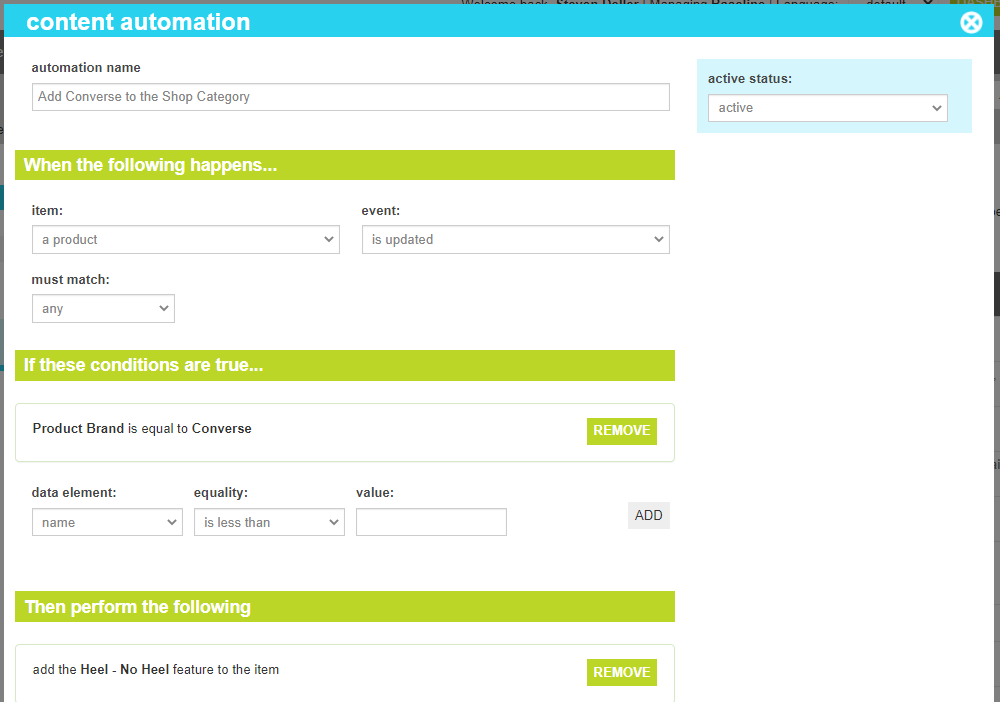
The details screen allows you to manage the automation rule information, including the name, triggers, conditions and actions to be performed.
Automation Details
These attributes are as follows:
Property
Description
Automation Name
The name that uniquely identifies the automation rule.
When the following happens...
The section defines the trigger that the rule listens for.
Trigger Item
What content element should be watched for this rule. Currently this can be an order or a product.
Trigger Event
What event should occur for this rule to be fired. Currently this is on creation or when updated
Must Match
This indicates whether all of the conditions must be met for the actions to be performed with whether just one (any ) of them need be true.
If these conditions are true...
The section defines the the conditions that must be true during the defined event that would predicate performing the actions below.
Data Element
The content element to be observed.
Equality
The comparitor to be invoked when comparing the data element to the value (Equals, Not Equal to, Less than, Greater than, etc).
Value
The value to be compared to the data element.
Add
This button adds the condition to the set of conditions for the rule.
Remove
This button removes the condition from the set of conditions for the rule.
Then peform the following...
The section defines the the actions that will be peformed if the conditions are true for the event that has been defined above.
Action To peform
This defined the action to be performed when the conditions are true for the event. The list of actions is content specific.
Product Actions
Add to category - Adds the product the the specified category if not already present
Remove from category - Removes the product from the specified category if present
Add badge - Adds the badge to the product if not already present
Remove badge - Removes the badge from the product if present
Add feature - Adds the feature to the product if not already present
Remove feature - Removes the feature from the product if already present
Deactivate the item - Sets the product to "Inactive"
Activate the item - Sets the product to "Active"
Set as Ready to Migrate - Sets the product to "Ready to Migrate"
Send email to - Sends an email the the indicated email address
Add Size Chart - Sets the size chart to the provided value
Remove Size Chart - Clears the size chart value
Order Actions
Send Email - Sends an email the the indicated email address
Add
This button adds the action to the set of actions for the rule.
Remove
This button removes the action from the set of actions for the rule.
Active Status
Indicates whether the rule is active or inactive. If the rule is inactive, the automation will not be processed.