The email lists tool allows an administrator to manage the various email marketings lists provided to your customers
for signup. It also provides the linkage between a 3rd party email provider's lists and the plugin that is needed to communicate with it.
Searching
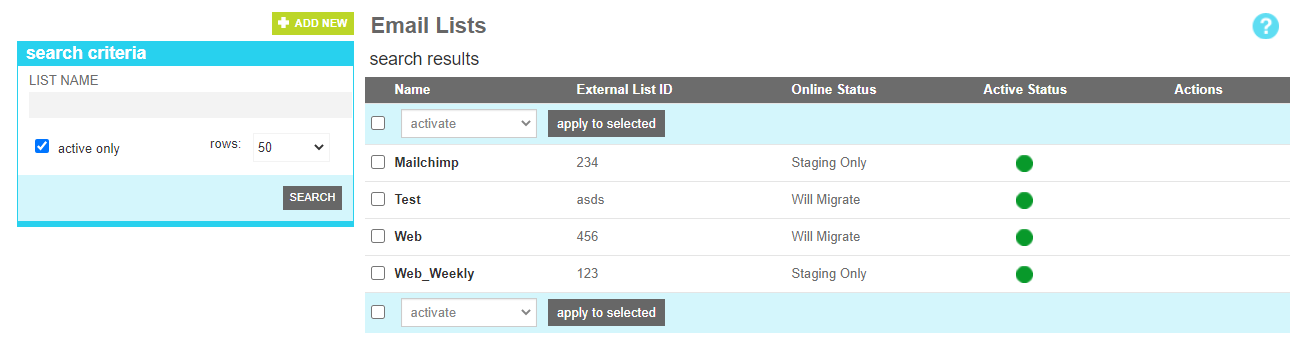
To find a mailing list or lists that share a common attribute value, a search block has been provided. If you wish to create a new one, click the "Add New" button above the search block.
Searching for an email list
These attributes are as follows:
Property
Description
List Name
All or part of the email list name
Active Only
Filters your result to only show currently active users
Rows
Limits the results to the indicated number.
Details
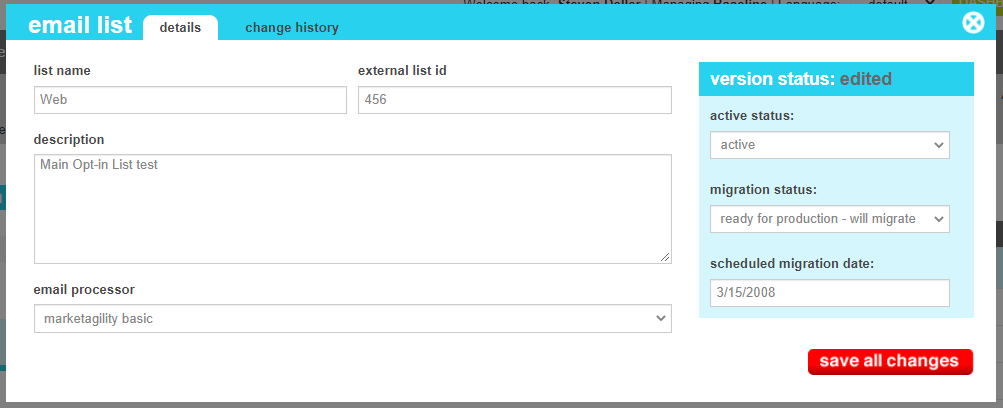
The details screen allows you to manage the email list information, including the name, description, provider and list Id.
Email Lists Details
These attributes are as follows:
Property
Description
List Name
A friendly name for the email marketing list
External List ID
A unique id for identifing the list to other systems. If using the marketAgility Basic processor, this can be any number of your
choosing. If you are using a 3rd party email provider, this should be the unique identifier of the list in their system.
Description
A customer friendly description of the mailing list, to aid them in deciding if this is the correct list to subscribe to.
Email Processor
The plugin that will service subscribe and unbsubscribe requests. By default, this is set to marketAgility Basic. If you do not see your
third party provider listed, make sure you have registered the email provider in the Service Provider tool.
Active Status
Indicates whether the email-ists is active or inactive. If the email list is inactive, it will not appear on the website
Migration Status
Indicates whether the current state of this method is visible only on staging, will be migrated to production, or is currently on production.
Scheduled Migration Date
For items that are ready to migrate, this is the date that the changes should be migrated to production. For items that are on production, this date indicates when the change was actually migrated.
Change History
The change history tab shows all of the changes that were made to this content item and by whom. It is useful for diagnosing unexpected changes to your content.