The roles tool allows you to group a collection of admin tool permissions and give it a name so that
it can be easily identified and applied to individual users. A user can only be associated with a single role, but a
role can be shared by multiple users.
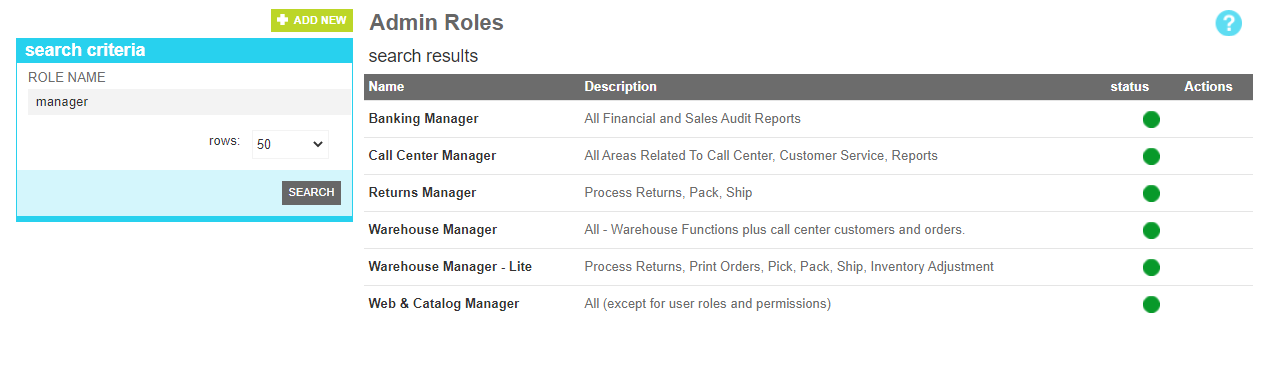
Searching
To find an existing role, a search block has been provided. To create a new role, use the "Add New" button above the search box.
Searching for a role
These attributes are as follows:
Property
Description
Role Name
All or part of the name of the targeted rule
Details
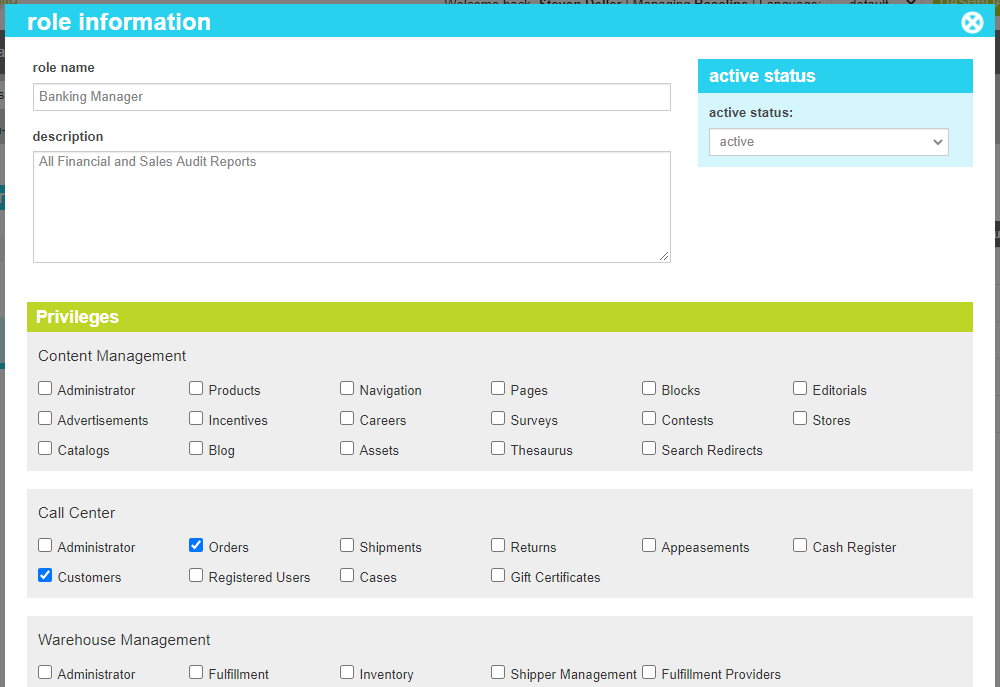
The details screen allows you to manage the discrete access permissions for the given role.
Each tool in the marketAgility admin suite is indicated as a checkbox. If the role has access to that tool,
the box will be checked, if users in this role should not see a particular tool, it remains unchecked.
Role Details
These attributes are as follows:
Property
Description
Role Name
The name of the role that will appear in the user profile
Description
A description of the role to help the viewer in understanding what the user should have access to.
Privileges
The individual tools that the role has access to. A check means the role has access, and unchecked means they do not have access.
Active Status
Indicates whether the role is active or inactive.
Change History
The change history tab shows all of the changes that were made to this role and by whom. It is useful for diagnosing unexpected changes to your administrator accounts.