
Introduction
The marketAgility administration tools allow you to manage all of the dynamic content used on your site. It also serves as the primary source of information about your customers, orders, inventory and all of your data integrations with 3rd party systems.
Login
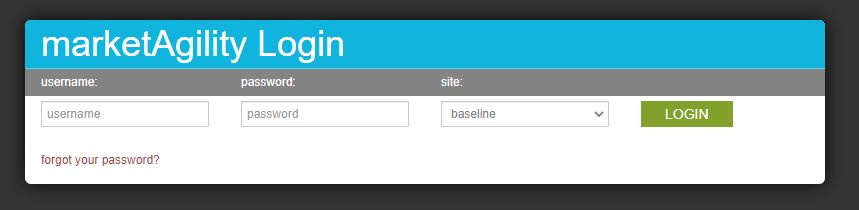
To log in, enter your username, password and select the storefront you wish to manage. When you are ready, click the login button.
Authentication
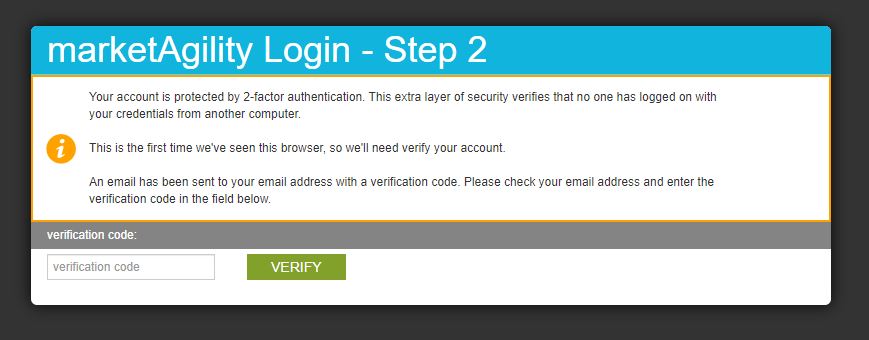
The tool suite uses a 2-factor authentication system that requires a username and password combination as well as a secure token installed on the client browser. If this is your first time logging in from this device, a 6-digit code will be emailed to you. When you receive the code, enter it in to the authentication screen to complete the authentication process.
Forgotten Password
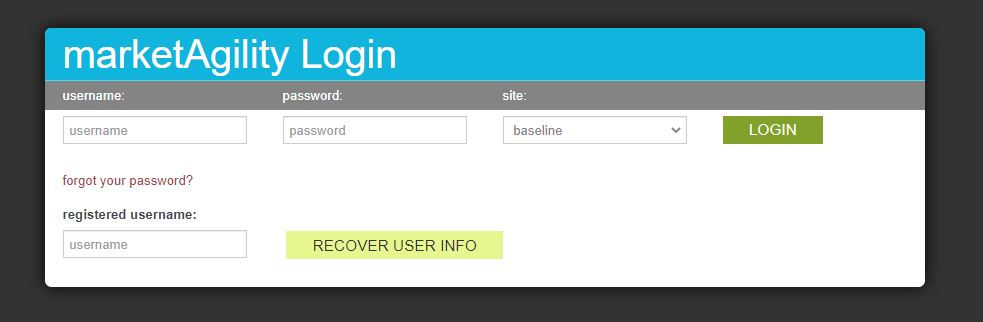
If you have forgotten your password, you may have to reset your password. To do this, click the "forgot password" link in the bottom left corner of the login screen. You will be presented with new form to enter your email address. Once ent4ered, click the recover user info and a password reset email will be sent to you.
Connecting AI Assistants (MCP)
marketAgility exposes an MCP (Model Context Protocol) server that lets AI assistants such as Claude and ChatGPT work with your store data — products, orders, customers, and content — using natural language, the same way they would through the marketAgility Admin API.
The marketAgility MCP server endpoint is:
https://api.marketagility.com/api/mcp
Unlike the REST API, the MCP server uses OAuth for authentication. Instead of registering an app and copying a token, you simply add the endpoint to your AI client and sign in with your marketAgility admin credentials when prompted. The assistant is then only able to see and do what your marketAgility user account is permitted to.
Claude (Desktop & Web)
- In Claude, go to Settings > Connectors.
- Click Add custom connector.
- Paste in the marketAgility MCP server URL above and give it a name (e.g. "marketAgility").
- Click Add, then Connect. A marketAgility sign-in window will open — log in and approve access.
- Once connected, you can ask Claude questions about your store, and it will use the marketAgility connector to answer.
Claude Code
Add the server from the command line:
claude mcp add --transport http marketagility https://api.marketagility.com/api/mcp
Then, from a Claude Code session, run /mcp to authenticate. This opens your browser to the marketAgility login page —
sign in and approve access to complete the connection.
ChatGPT
- In ChatGPT, go to Settings > Connectors.
- Enable Developer mode under advanced settings if you don't already see an option to add a custom connector.
- Click Add connector / Create, give it a name, and paste in the marketAgility MCP server URL above.
- Save the connector, then click Connect. You'll be redirected to marketAgility's login page to sign in and authorize access.
- You can now enable the marketAgility connector from within a chat to let ChatGPT use it.
Note
Because access is tied to your marketAgility login, an AI assistant connected this way can only see and change what your user account has permission for. Review your user's role and permissions before connecting an assistant if you want to limit what it can access.
Troubleshooting
If you are still having trouble logging in, your account may have been deactivated. The marketAgility system deactivates user accounts automatically if they have not been used for over 90 days. If you believe your account may have been deactivated, reach out to your account manager who can re-activate your account. You will be required to change your password once your account is reactiveated.