The orders tool allows a call center administrator to manage orders placed on the website or through the apis. Included in this information
are order and item statuses, shipping and billing information and payment transaction history.
It also provides tools for revising shipping addresses, processing returnes, resending transactional emails and issuing appeasement credits.
Searching
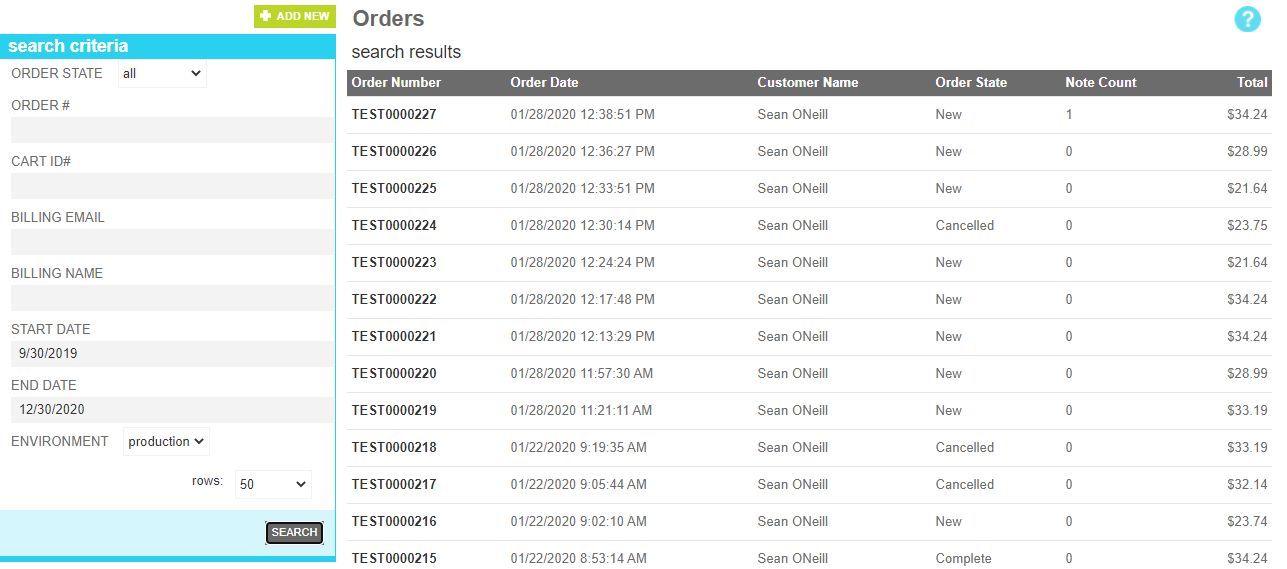
To find an order or orders that share a common attribute value, a search block has been provided. To create a new order, use the "Add New"
button above the search block.
Searching for an order
These attributes are as follows:
Property
Description
Order State
The fulfillment status of the targeted order. Valid values include:
All - All orders regardless of status
Unplaced - Orders that are currently in process of being placed
New - New Orders
Picking - Orders that are in the picking stage of fulfillment.
Packing - Orders that are in the packing stage of fulfillment.
Shipping - Orders that are in the shipping stage of fulfillment.
Reviewing - Orders that are being held for review.
Verifying - Orders that are being held for credit verification (Triggered by Fraud Rules).
Processing - Orders that are in the process of being fulfilled by an external fulfillment provider.
Complete - Completed orders.
Cancelled - Cancelled that have been cancelled
Rejected - Order that were rejected after the reviewing process.
Order #
The customer-friendly order number
Cart ID#
The internal shopping cart ID.
Billing Email
The email address used in an order payment
Billing Name
All or part of the name used in an order payment
Start Date
Include orders placed on or after this date
End Date
Include orders placed on or before this date
Environment
The environment where the order was placed (Staging or Production)
Rows
Limits the results to the indicated number.
Details
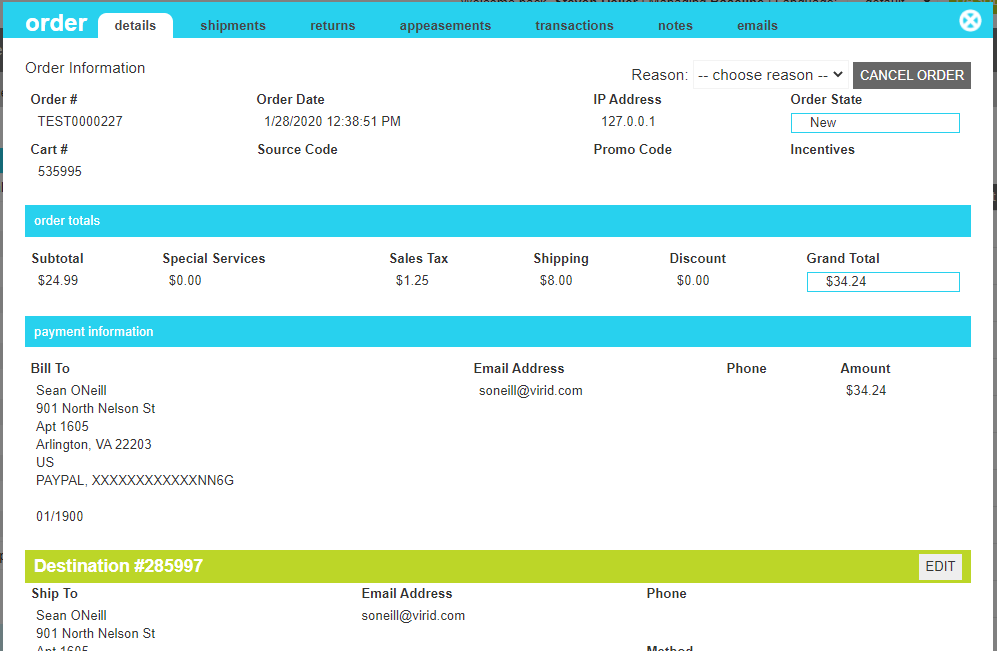
The details screen allows you to review the order information.
If the order is in a "new" state and has not started the fulfillment process, a cancel button will appear in the top right corner of the screen.
To cancel the order, select a reason and click the button. The order will be cancelled, any refunds for payments that have been collected will
automatically be issued, and if configured, a cancellation confirmation email will be issued to the customer.
If the order is in a "verifying" or "reviewing" state, a cancel button will appear in the top right corner of the screen along with an "Approve Order"
button. After review, if you wish to cancel the order, select a reason and click the button. The order will be cancelled, any refunds for payments that have been collected will
automatically be issued, and if configured, a cancellation confirmation email will be issued to the customer.
If you wish to approve the order, click the approve button and the order will change to a "New" state. It will the be visible to the marketAgility fulfillment
system, and any API calls used by a 3rd party fulfillment provider.
Order Details
These attributes are as follows:
Property
Description
Reason
The reason that this order is being cancelled. Additional reason codes can be configured in the Site Settings tool.
Cancel Order
This button will cancel the order, issue any necessary credits to the customer and if configured will send an order cancellation email.
Approve Order
This button will approve an order that is in a reviewing or verifying state, making it visible to the fulfillment systems.
Cancelling Items
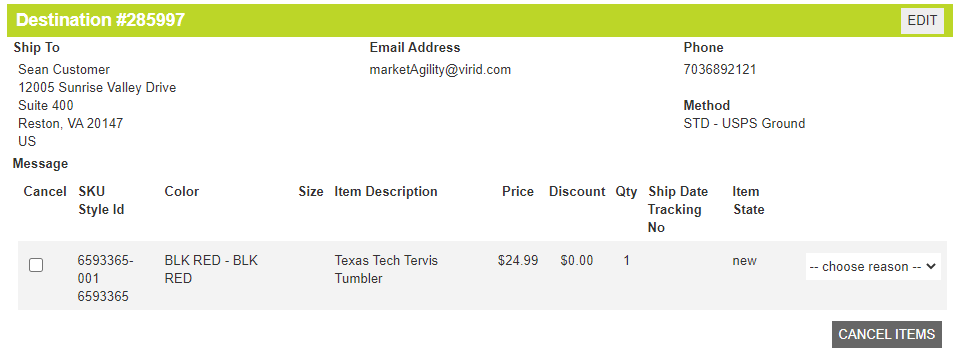
For each destination (shipping address) in the order, the items going to that address are listed along with their descriptive information and current
shipping status. If the item has not yet been shipped or cancelled, it will appear with a checkbox and dropdown allowing the call center representative to
cancel the item if desired.
To cancel one or more items, click the checkbox next to each item that should be cancelled, choose a reason code for its cancellation and click the
"Cancel Items" button. The items in question will be cancelled, any required refunds will be issued, and if configured, the customer will be sent
a cancel confirmation email.
Order Detail Items
These attributes are as follows:
Property
Description
Reason
The reason that this order is being cancelled. Additional reason codes can be configured in the Site Settings tool.
Cancel Items
This button will create a cancellation transaction with the items selected, issue any necessary credits to the customer and if configured will send an order cancellation email.
Shipments
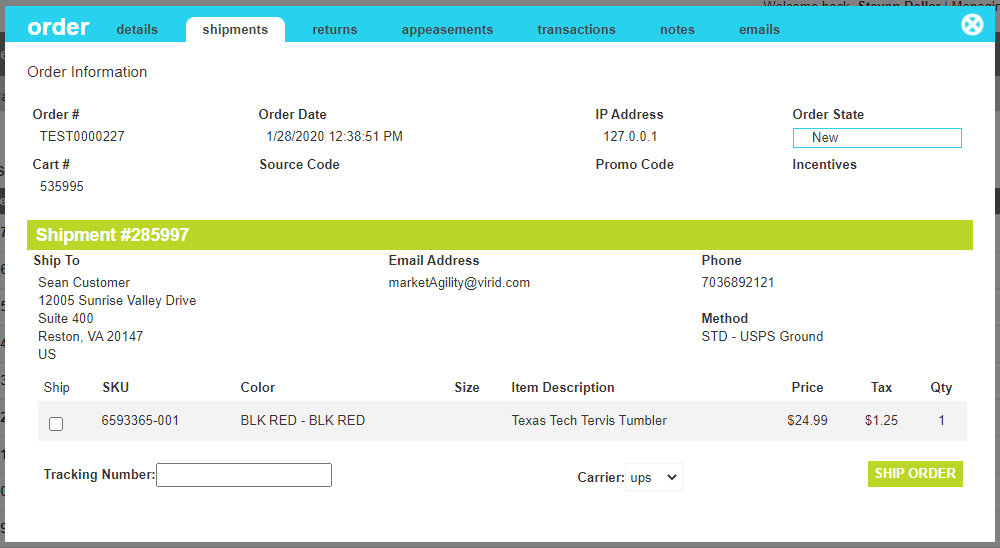
The shipments screen allows you to create and manage shipments for an order. Each destination will be listed as a shipment, along with the items
that are to be included in that shipment. For each unshipped and uncancelled item, a checkbox will be provided allowing the call center representative
to include the item in the shipment.
Once all of the items have been selected, enter the tracking number and select the carrier that genereated the tracking number. Finally, clicking the
"Ship Order" button will confirm the shipment, bill/capture any necessary funds from the customer's payment methods, and if configured, a ship confirmation
email will be sent to the customer.
Order Shipments
These attributes are as follows:
Property
Description
Tracking Number
The Tracking number provided by your fulfillment provider, if available
Carrier
The carrier that provided the tracking number. This will aid in providing the correct tracking url to the customer to track the progress of their shipment.
Ship Order
This button will confirm the shipment, bill/capture any necessary funds from the customer's payment methods, and if configured, a ship confirmation
email will be sent to the customer.
Returns
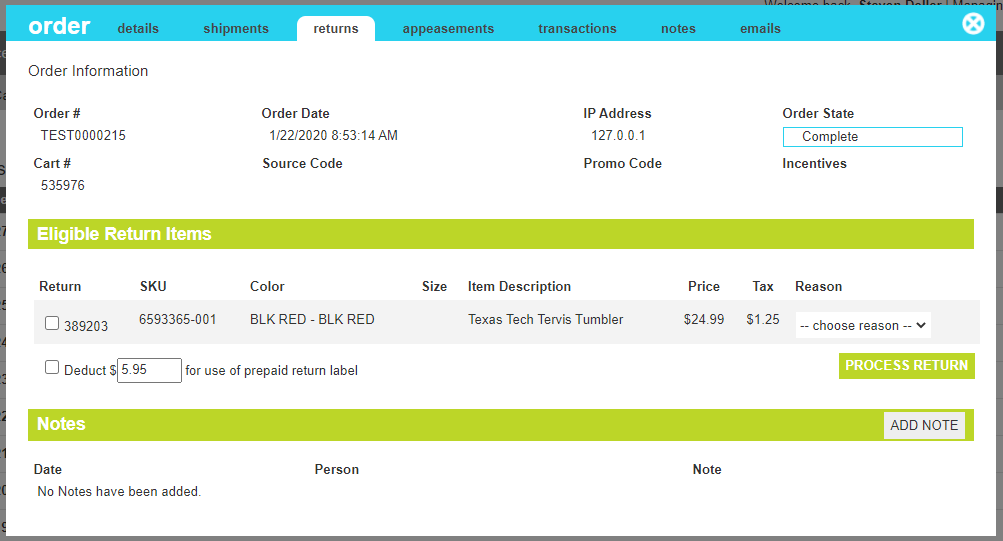
The returns screen allows you to create and manage customer resturns for an shipped order. Each item that is elegible for a return will be
listed in the "Eligible Return Items" section. For each return-eligible item, a checkbox will be provided aloing with the reason for the return.
Once all of the items for the return been checked and ther return reasones selected, clicking the "Process Return" button will confirm the shipment,
issue any necessary credits to the customerand if configured, a return confirmation email will be sent to the customer.
If defined in the Store Settings, an option deduction may be applied to account for the customer's use of a
prepaid return label. To reduce the refund by that amount, click the checkbox next to the "Deduct" line and confirm the deduction amount
prior to clikcing the "Process Return" button. You may also revise the amount of deduction as needed.
Past returns, if any, will be displayed below the "Eliblie Return Items" section, along with the date processed and any refunded amounts.
Order Returns
Appeasements
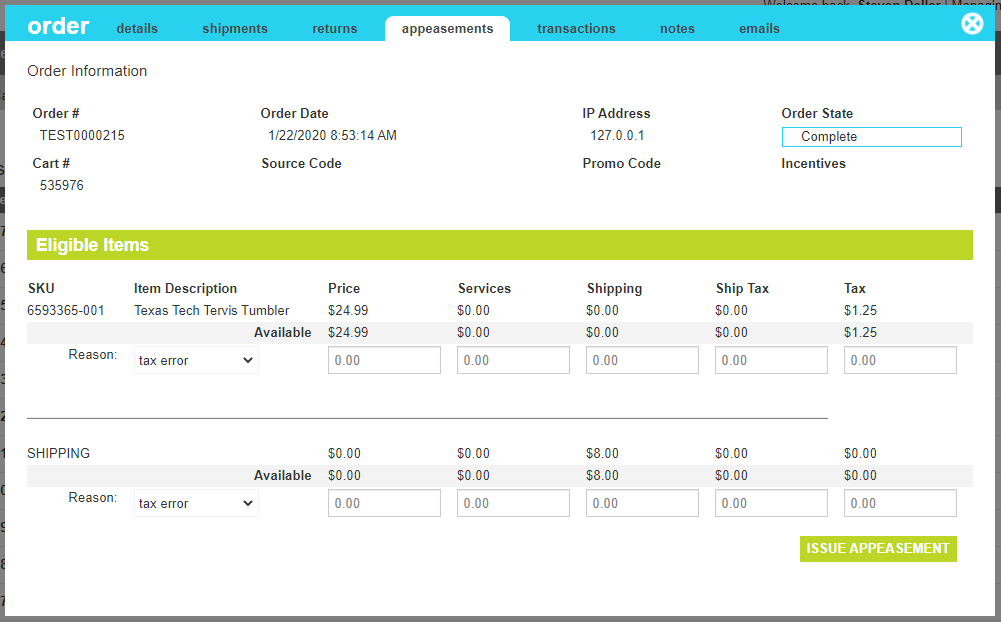
The appeasements screen allows you to create customer appeasements for an order. An appeasement is a discretionary credit issued to a customer
by a callcenter representative to account for any number of issues, including pricing issues, problems with coupon redemention,
delays in shipping, or other order/customer reasons.
Each item in the order will be listed along with the amounts initially charged and any historical credits for returns or prior appeasements. If
there are remaining balances that can be appeased, a box will appear in the appropriate amount column along with a reason for the appeasment. To issue
the appeasement, enter one or more values in the provided input boxes and click the "Issue Appeasement" button. An appeasement confirmation will be
created, any necessary credits will be issued, and if configured, an appeasement confirmation email will be sent to the customer.
Order Appeasements
Transactions
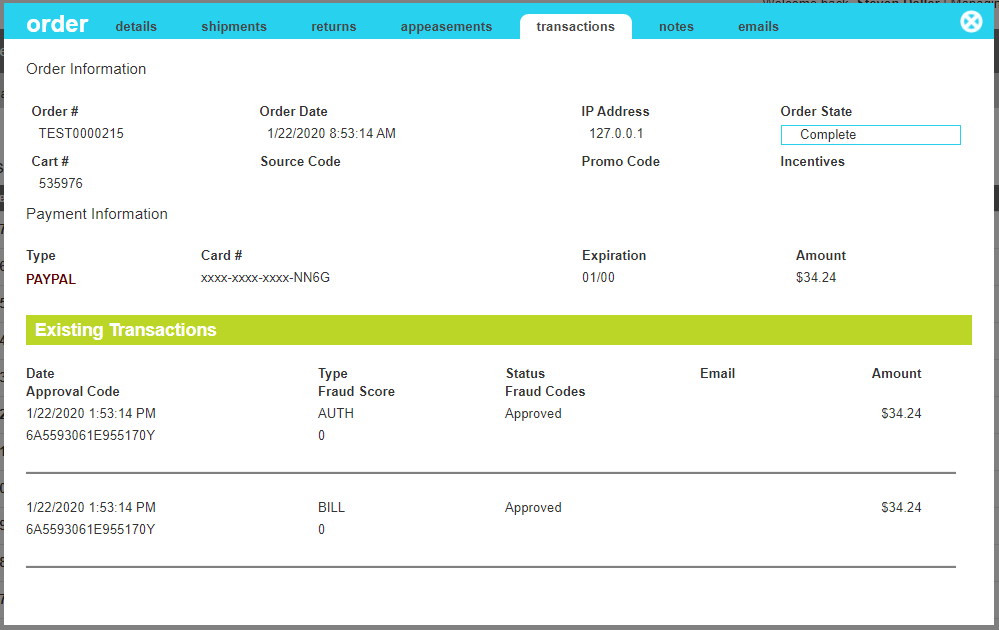
The transactions screen allows you to view historical payment transactions for an order, including authorizations, settlements(Bills) and credits.
The top half of the screen lists the various payments used to place the order, while the bottom half lists the individual transactions for the selected
payment method. For orders with multiple payment methods, clicking the desired payment method Type will display the transactions for that method.
In the event that a settlement, credit or reauthorization has failed, a "Resubmit" button will appear to the right of the failing transaction. Occaisionally
payment transaction failures can occure due to issues communicating with 3rd party payment providers or timing limits with submitting credit requests before
the corresponding settlement batch has been completed. For each of these failing transactions, an email is sent to the fulfillment method owner and can
be resumbitted here.
Note
When resubmitting multipl failed transactions for an existing order, make sure to resubmit them in the order which they occurred. Submitting them out
of chronological sequence could create conflicts with your payment processor that prevent you from fully settling your outstanding transactions. The
recommended process is to click the first resubmit button. Allow the transaction to complete with a success, and then move on to the next transaction.
Order Transactions
Notes
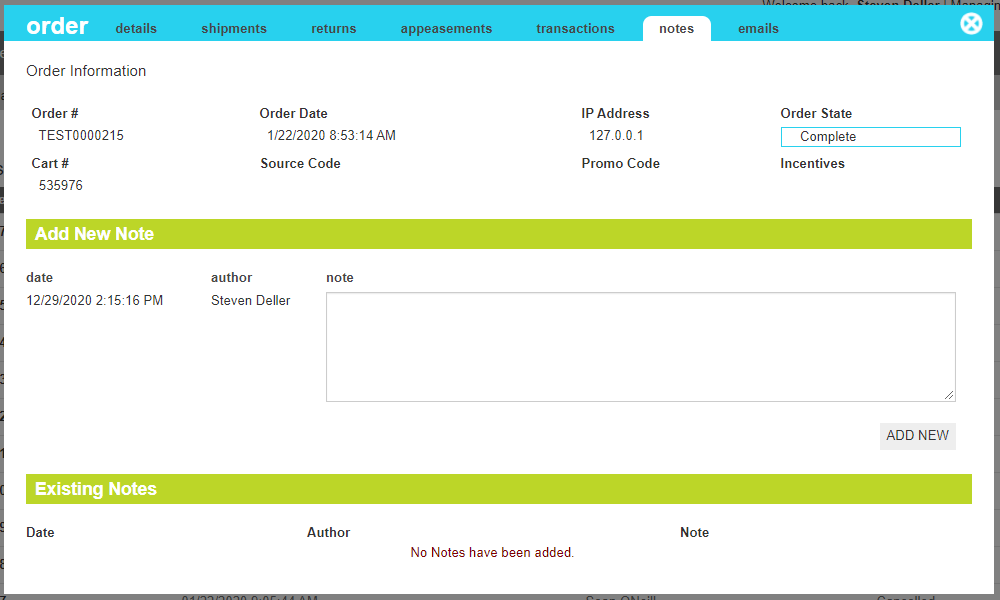
The notes screen allows you to view and create notes as interactions occur with the customer.
Order Notes
These attributes are as follows:
Property
Description
Date
The date of the new note. This is provided automatically and cannot be edited.
Author
The author of the new note. This is provided automatically and cannot be edited.
Note
The content of the note.
Add New
Adds the note to the order record.
Emails
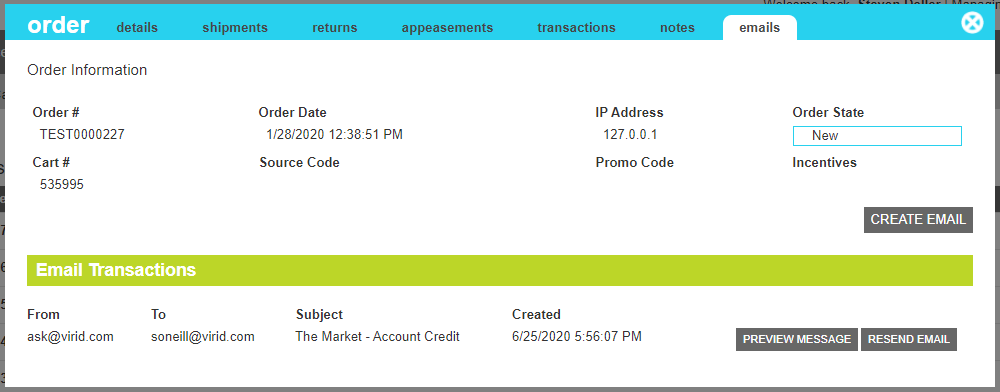
The emails screen allows you to view the history of emails that were sent regarding this order. Additionally, the email can be resent if necessary.
Note
When resending an email, the email will be sent exactly as it was originally created, including the same frome email, to email, and message body. It is not regenerated from updated information.
Order Emails
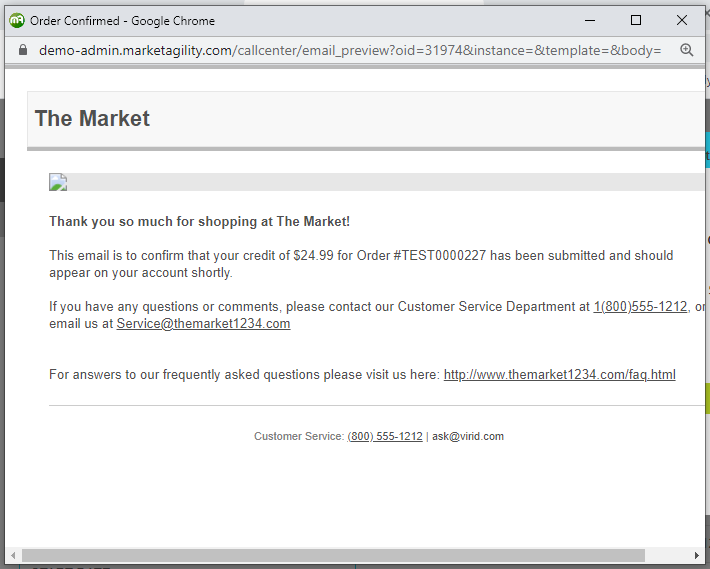
By clicking the Preview Message, the HTML content of the email can be viewed