Logs

The logs tool allows an administrator to review the various logs that the website and its collective plugins generate over the normal course of operation. Logs are kept for 90 days and can be reviewed at any time prior using this tool.

Standard logs include:

  • Error - Includes any unhandled exceptions by the marketAgility Core, BackOffice, Website or Admin Tools. These are automatically sent to the marketAgility Engineering team daily for triage and remdiation.
  • Info - Includes any informational messages generated by the marketAgility Core, BackOffice, Website or Admin Tools. These messages typically include emails sent from the system but can also contain other custom informational messages from the website as needed.
  • Automation - Includes any messages sent by the autmoation system.
  • DataExport - Includes any error messages generated by a marketAgility BackOffice data export.
Searching

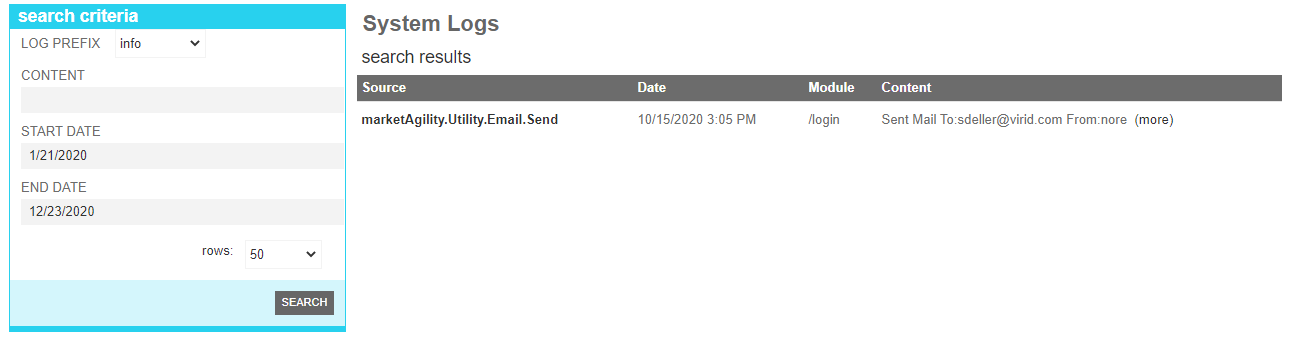
To find a log entry or entries that share a common attribute value, a search block has been provided. To add a new one, use the "Add New" button

Searching for a log entry

These attributes are as follows:

Property Description
Log Prefix The specific log container that should be searched. All Avaialible logs are listed in the dropdown automatically.
Content A keyword or phrase that is contained in the log message or component reference
Start Date The starting date/time of the search window.
End Date The ending date/time time of the search window
Rows Limits the results to the indicated number.

Details

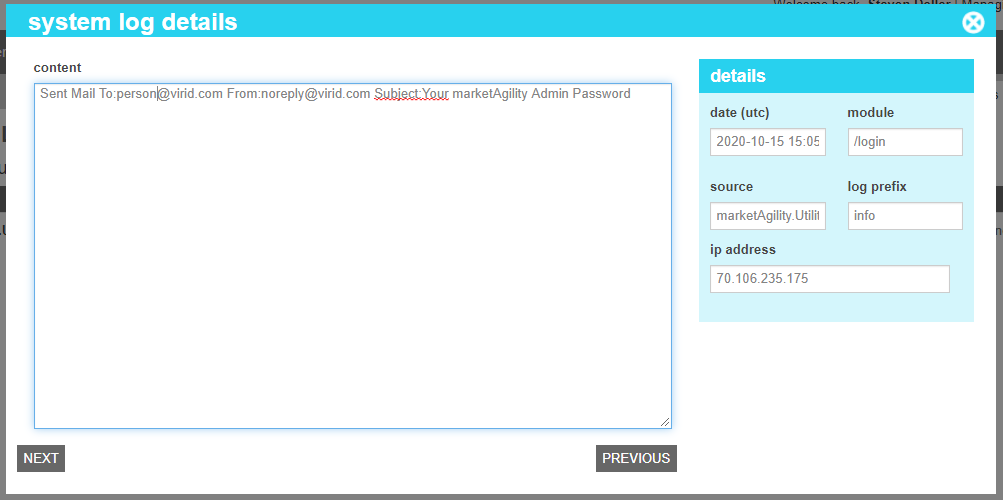
The details screen allows you to view the various details of the log entry including date/time, IP Address, reporting module and the error content itself.

Log Details

These attributes are as follows:

Property Description
Content The full message from the reporting component.
Date (UTC) The date and time of the reported log message.
Module This indicates which module or page triggered the message
Source This indicates the method or procedure that triggered the message
Log prefix This indicates the log that the message appears in
IP Address If the message was triggered by a web component, this will indicate the IP address of the caller.
For BackOffice and internal messages, this will appear as 0.0.0.0.
IP Addresses that appear as ::1 are from developers working on new features on their development workstation.