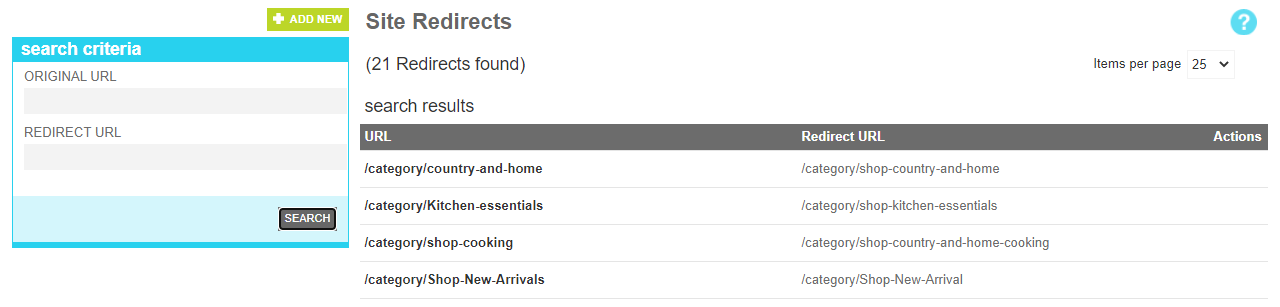
The site redirects tool allows you to create a redirect to handle when content is not found on the site. This is particularly useful when
a category url changes its name, but has built up a significant number of backlinks that you would like to preserve.
Searching
To find a redirect or redirects that share a common attribute value, a search block has been provided. To add a new one, use the "Add New" button
Searching for a site redirect
These attributes are as follows:
Property
Description
Original URL
All or part of the old url
Redirect URL Only
All or part of the new url
Details
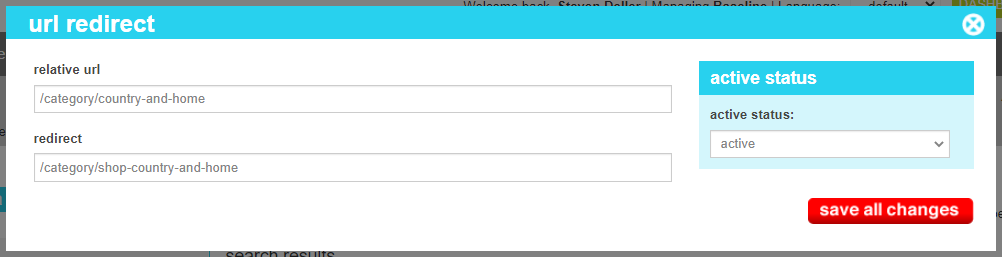
The details screen allows you to create and manage the redirects. A completed redirect simply consists of the old url
that a customer would have used to reach a 404 page, and the new url that you would like them to be sent to instead.
Site redirects are only activated if the original content request generates a 404. If the original content
still exists, it will be displayed as usual.
Note
Unlike many content elements, site redirects do not migrate. They are updated on both staging and
production simultaneously. On production you may see a delay of up to 15 minutes depending on the
caching rules for your site.
Site Redirect Details
These attributes are as follows:
Property
Description
Relative Url
The relative url of the content that would generate a 404. Note do not include the https:// or the host name.
Start with the first slash character of the path and page
Ex: "/product/my-missing-product"
Redirect
The url that the customer should be sent to when the relative url productes a 404. This can be another relative url to related
content on the site, or it can be an absolute url to another site.
Active Status
Indicates whether the rule is active or inactive. If the rule is inactive, it will not fire when a 404 is generated