The feeds tool allows an administrator to manage the data feeds coming into the marketAgility system from outside sources.
Each feed of data must conform to the distinct field naming of the content type it will supply.
Feeds are loaded through an On-Demand task that polls the root folder of your marketAgility FTP location for any files
that match the naming convention defined for the feed, and then attempts to load that data into your content repository.
Each file will that matches the naming convention will be processed in date order from when it was received. Additionally,
to ensure that parent content elements exist before processing child content feeds, each feed type is processed in a specific order.
Product
Category
Career
Cross Sells
Promotion Codes
Store
Inventory
Inventory Delta
Staging Inventory
Staging Inventory Delta
Markdowns
Staging Promotion Codes
Zipcodes
Store Holiday Hours
Store Inventory
Staging Store Inventory
Offers
Product Bundles
Searching
To find a feed or feeds that share a common attribute value, a search block has been provided. To add a new one, use the "Add New" button
Searching for a feed
These attributes are as follows:
Property
Description
Feed Name
All or part of the feed name
Active Only
Filters your result to only show currently active feeds
Rows
Limits the results to the indicated number.
Details
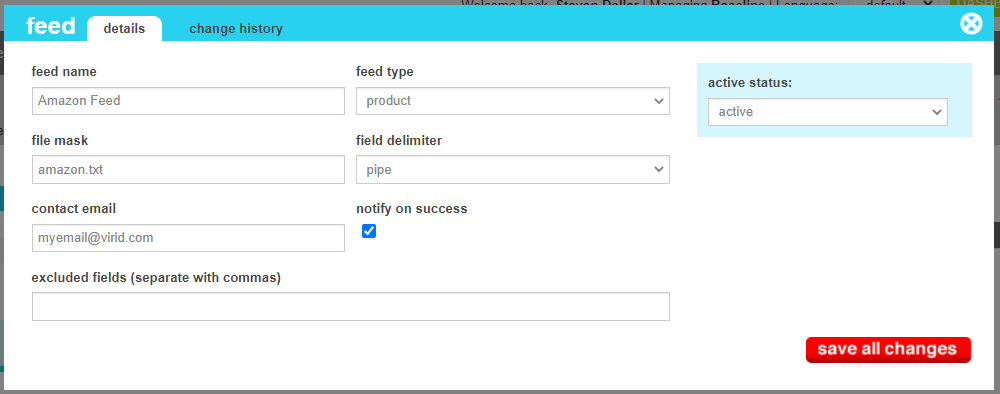
The details screen allows you to manage the feed attributes configuration, including the type of feed, contact emails, file mask and delimiters.
Feed Details
These attributes are as follows:
Property
Description
Feed Name
The name that uniquely identifies the feed.
Feed Type
The type of content that the feed will contain. Note that the column names must match the attributes of the content type. If a column name does not match, it will be ignored.
File Mask
The file mask is a pattern of characters and wildcards used to match the filenames that should be processed using this feed definition.
EX: "product*.txt" will match all files that start with "product" and end with ".txt"
Field Delimiter
This indicates the character that will separate data values in your file. Currently only Pipe (|), Comma (,), and Tab delimiters are supported.
Contact Email
The email address of the party that should be notified if the feed fails to process successfully.
Notify On Success
When checked the party identified in Contact Email will also be notified when a feed is processed successfully.
Excluded Fields
By default any value provided in the feed will overwrite the corresponding value of a content element that already exists in your marketAgility
content repository. For some content elements, such a product descriptions that are manually merchandised, you may want to protect
those values from being updated subsequent feed updates.
Identifying those attributes in the Excluded fields field causes them to be read from the feed when creating, but ignored when updating,
leaving your merchandised content intact.
Active Status
Indicates whether the feed is active or inactive. If the feed is inactive, it will not be processed during the on-demand task.
Migration Status
Indicates whether the current state of this nexus is visible only on staging, will be migrated to production, or is currently on production.
Scheduled Migration Date
For items that are ready to migrate, this is the date that the changes should be migrated to production. For items that are on production, this date indicates when the change was actually migrated.
Change History
The change history tab shows all of the changes that were made to this user and by whom. It is useful for diagnosing unexpected changes to your administrator accounts.