The marketAgility System allows you to mange the time and frequency of a number of built-in processes as well as custom process that have been added
to your site. This page is the command center for controlling their various schedules as well as providing a tool to run them ad-hoc when needed.
Task Status
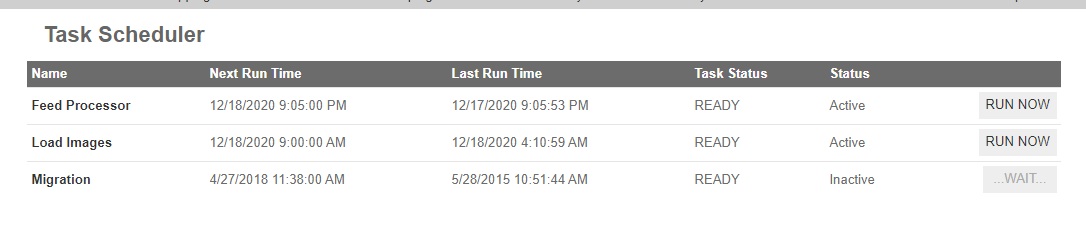
The main screen is the master list of all tasks, along with their current and recent execution history.
On-Demand Main view
These attributes are as follows:
Property
Description
Process Name
An identifier to help you readily identify the process or task
Next Run Time
The time the task is scheduled to run again. In the case that multiple runs have been scheduled this will be the date and time that is closed to the
current time. If there is no schedule defined for a task, this will show "No Scheduled Run".
Last Run Time
The time the task was last executed.
Task Status
This indicates the execution status of the task. READY means it is available to started. RUNNING means that it has been started either by a manual process, or
by a scheduled process and is still executing. A RUNNING process cannot be started until the prior run has been completed.
Status
This indicates the status of the process itself. Active means that is it able to be executed. Inactive means that it is paused and no scheduled or manual executions will be performed.
RUN NOW
The RUN NOW button allows you to manuall start a process and queue it to start immediately. Once a process has been started either by a manual click of this button, or by a scheduled event,
this button will become disabled and display "...WAIT...". Once the process has completed, the button will become active and again display "RUN NOW".
Details
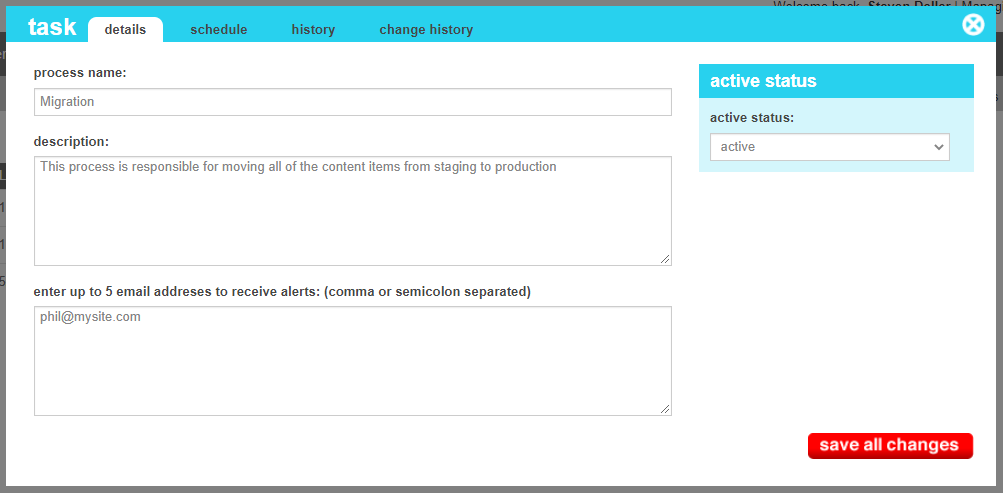
The Details screen allows you to configure general descriptive information about the process, including the name of the process,
a short description, and the person(s) that should be notified when the process executes.
On-Demand details view
These attributes are as follows:
Property
Description
Process Name
An identifier to help you readily identify the process or task
Description
A more verbose description of the process. This is used to help other that aren't familiar with the process understand what it does.
Notification Emails
Up to 5 email addresses that should be notified if the process fails or succeseeds
Active Status
A toggle allowing you to temporary pause the scheduled execution from running. Note marking something as inactive also prevents it from being manually executed from the "run" button
Scheduling
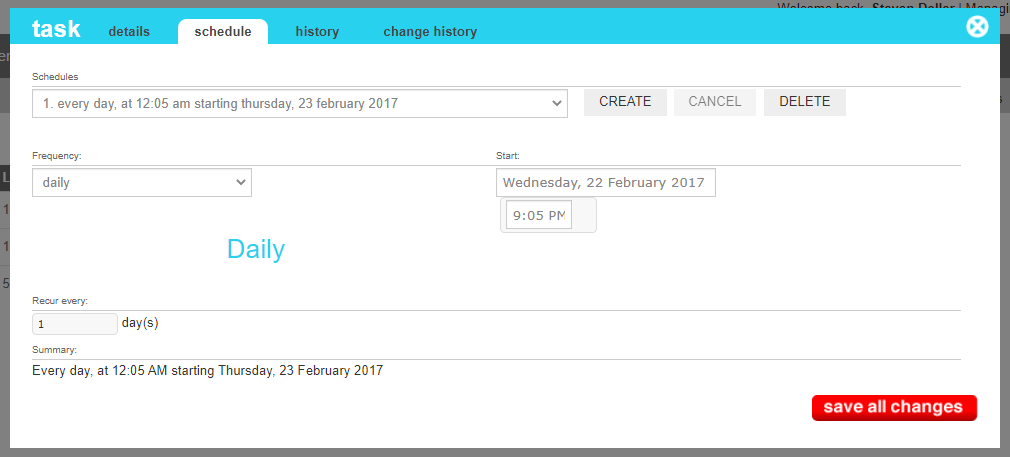
The scheduling tab is used to set up recurring tasks or single execution times that occur at a time in the future. A task can be schelude hourly, daily, weekly or once, and can start at any time in the future.
Note
A task cannot be scheled to run in the past. If you need to run a task immediately, you can use the RUN NOW button on the main screen.
On-Demand schedule view
The scheduling attributes are as follows:
Property
Description
Frequency
This indicates when or if the task should be re-run. Options are Once, Hourly Daily, or Weekly
Start
This is the date and time that the task should first be executed. All future runs for this schedule
will be relative to this date and time. For example, If you would like this task to run every day at 10:15 AM you would set the frequency to be Daily, and the Start to be today at 10:15 AM (or tomorrow if the current time is after 10:15 AM).
Recur Every
The recurrence field appears when a frequncy other than "Once" is selected.
If the Frequency is hourly, the field will allow you to define how many hours to skip between runs. (Default:1)
If the Frequency is daily, the field will allow you to define how many days to skip between runs. (Default:1)
If the Frequency is weekly, the field will allow you to define on which days of the week the task should be run how many weeks to skip between runs. (Default: Every week on Monday)
Once the schedule has been saved, it will appear in the Schedules dropdown. From there, it can be selected and edited or deleted.
History
The history tab shows the results of the last 20 runs of your process. Included in this list is the
person that executed the process, when it was completed, what the return code was (0 typically indicates
a success), and how long the process took to complete.
Note
For scheduled processes, the Author field indicates the person that last edited the schedule that
initiated the process. For manually triggered processes, the Author field will show the person that clicked the "RUN NOW" button.
Change History
The change history tab shows all of the changes that were made to this task and by whom. It is useful for diagnosing unexpected changes to the execution time of your processes.