Products

A product is any good that is for sale on your website. It may be a physical asset, digital download, or service such as gift-wrapping or dry cleaning. Within the product section, you can manage all of the elements needed to sell your product or service, from imagery, descriptions, sizes, colors pricing and relationships to other products.

Attributes

The product contains all of the elements that are shared across the various size and color variations. These attributes are as follows:

Property Description
Style Id A unique identifier for the product style. This is typically how your product is referred to in catalogs or on the hang tag, and is provided by the manufacturer
Product Name The name of the product.
Promotional Text A brief teaser sentence about the product. For eample "As Seen on The Morning Show!".
Product Type The type of product. Typically one of "Product", "Bundle", "Digital Download", "Kit", etc.
Url Identifier This is the ending part of the url that your customers will use to find your product. If you don't enter a value, one will be created automatically from your product name.
Long Description This is the main descriptive text about your product. More is better here. Try to give an accurate and enticing description of your product.
Keywords These are words and phrases that help customers find your products. They are used by the marketAgility site search as well as embedded in your product page to help search engines catalog your product.
Short Description This a shorter version of your product description. Typically this is used to help search engines describe your page in search results (SERPs).
Vendor/Brand This is the product manufacturer's brand name.
Season Indicates the season that this product is most suited to. e.g. "Spring, 2020".
Material The primary material that consitutes the product. e.g. "Leather"
Pattern A recognizable pattern that might help customers narrow thier search. e.g. "Polka Dots"
Department the general grouping this product is considered part of. e.g. "Mens Shoes"
Size Chart Sometimes customers are concerned about how a product will fit them. If you have defined a size chart for this product, you can select it here
Google Category Google has its own taxonomy for products that may not match your own. Select the Google category to ensure your products show up correctly in Google shopping.
Badges Badges are visual cues to your customers that tell them something special about your product, such as "New Arrival" or "Airport Friendly". If you have defined product badges in the store settings, they will appear here. Simply tick off the badges that apply to this product.
Product Features If you have defined any custom product features, a section will

More Settings

Products also contain a number of settings that dictata how they are priced or offfered on the site. These aren't customer facing elements but important to ensure that they are handled properly. These attributes are as follows:

Property Description
Exclude from Shipping Rules This indicates if the product should be excluded from any price or quantity based shipping charges rules you define.
Hazmat This indicates that the product may contain hazardous materials, which would exclude the customer from choosing certain shipping methods
Oversize This indicates if the product needs special handling because of its size
Shipping Charge This is a surcharge that may be assessed to the custoemr in addition to the normal calculated shipping charge. For example palletization or insurance
Can Discount Can this item be discounted?
Can Return Can this item be returned?
Can Purchase Is this item purchasable?
Can Gift Wrap Can this item be gift wrapped?
Is MAPP Indicates whetehr the manufacturer has required a MAP policy on this product. This can be used on the site to display pricing differently for these products, or to exclude them from exports to 3rd parties.
Searchable Can this item be found by customers when using the product search?
Tax Code This is the SIC code for the product that lets your tax plugin know how to apply the proper tax amount. Check with your tax provider for the required value.
Reference Number This is typically a number that your company may use internally to describe the product
No Longer Available This flag indicates that the product is no longer available and will not be replenished when the inventory runs out. It can be used on the website to indicate that an item will go away soon, or hide the product from external feeds.

Searching for Products

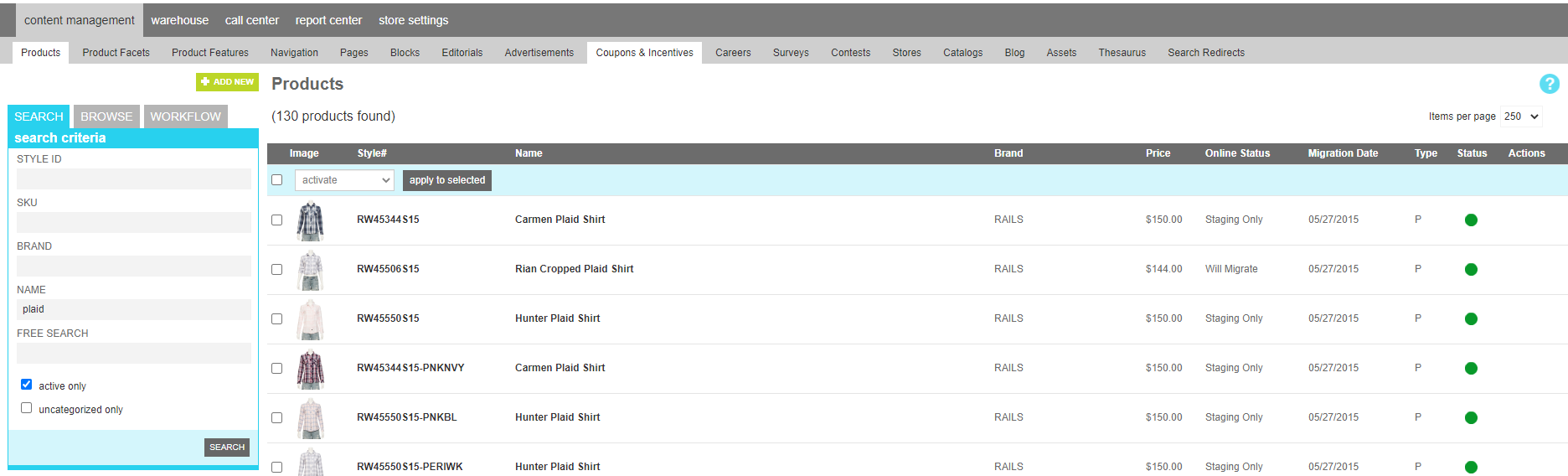
To find a product or group of products, a search block has been provided. Here you can search by a specfic Style ID, Sku, or Brand, all or part of the Product Name

Alternatively, you can enter a word or phrase into the "free search" field and search the name, description, and keywords fields to narrow your result.

The Active-only option filters your result to only show currently acvtive produdcts. The uncategorized checkbox allows you to show only products that are not in any product categories.

Searching for a product

Browsing Product Categories

If you wish to work with all of the products in a particular category, you can switch to the browse tab. This will give you an interactive product category navigation tool to locate the category you are looking for. Use the arrows to expand subcategories. Once you have found the desired category, click the name to see the products assigned to that categoy.

To edit the category attributes, click the pen icon. A window will open with the various category elements that can be altered.

To delete the category, click the trash can icon.

Note

Deleting a category will not delete the products in it. It simply removes the category association from any products, then removes any associated navigation elements that reference the category, and finally removes the category itself.

Assets

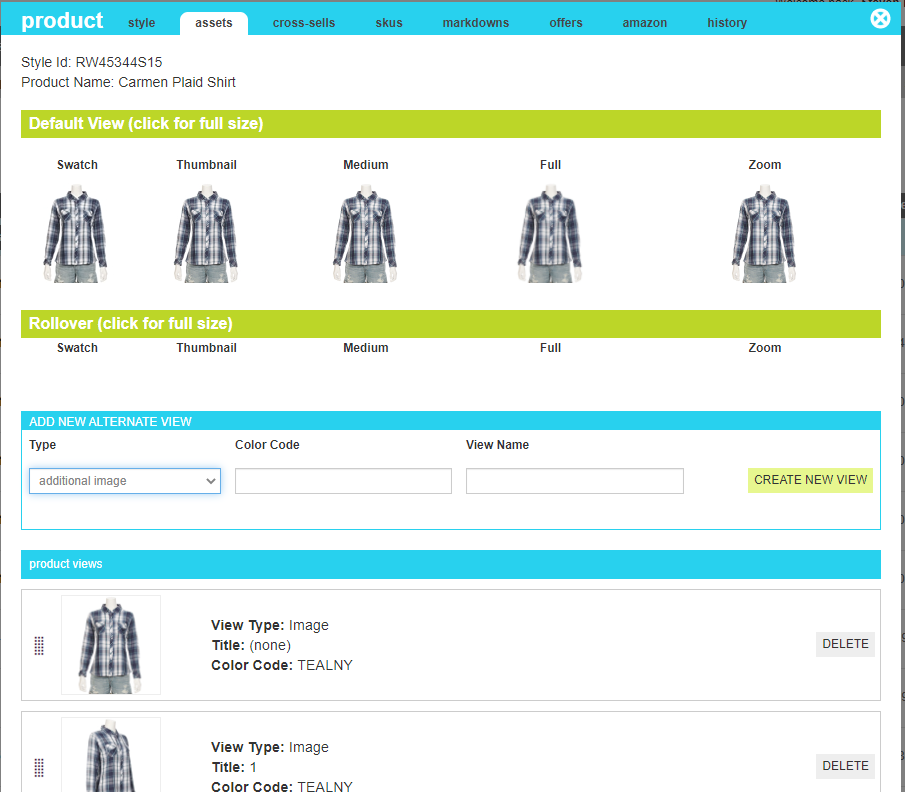
Assets include any images, videos or supporting documents for a given product. Assets are encapsulated into named "views", and can be displayed with the product throughout your site pages. Asset Views can be sorted by dragging the view into the desired order using the grabber icon. THe first image in the sorted list will always be the default view shown on listing, search and cross-sell pages. If your site has been configured to use a rollover, any images that match the configired ROLLOVER VIEW NAME will appear in the Rollover preview.

Editing Product Assets

To add a new view, select the type of view (Image, Youtube Video, Video, 360 View, or Asset Link), provide a view name, color code and click "create new view". For images, you can upload your image assets once the view has been created. For all other image types, you will be asked to provide a url to the location of your asset. Make sure to use a secure url to your content to prevent security warnings from being presented to your customers when the link is presented.

Property Description
Type The View type lets your website know what the asset is and how it should be displayed. Some assets need special players, while others can be displayed using simple HTML elements. Once the image type has been selected and the view created, it cannot be changed.
Color Code Assigning a color code to your asset allows your product detail to tailor the views shown to your customer when different color variations are selected. If your product does not contain color variations, this field can be left blank.
View Name This field is the name of the view. It is recommended that you use something descriptive to help with both accessibility and SEO, such as "Side View", or "Closeup"
External Url This is the url to the content that should be displayed in the player for video types or in the hyperlink for asset links. This field will not appear for image views. The url can be to an asset you have created within marketAgility, or to a 3rd party service that houses additional content.

Cross-Sells

A cross-sell is a relationship between a product and another product or an advertisement. Typically shown on a product detail page, these relationships can be grouped into sections to give the customer alternative selectiosn that are similar or complimentary to the product they are looking at. For example, creating a group of "More Ideas' or "You may Also Like" can help your customer find exactly what they are looking for and increase your store's conversion.

Editing Cross Sell

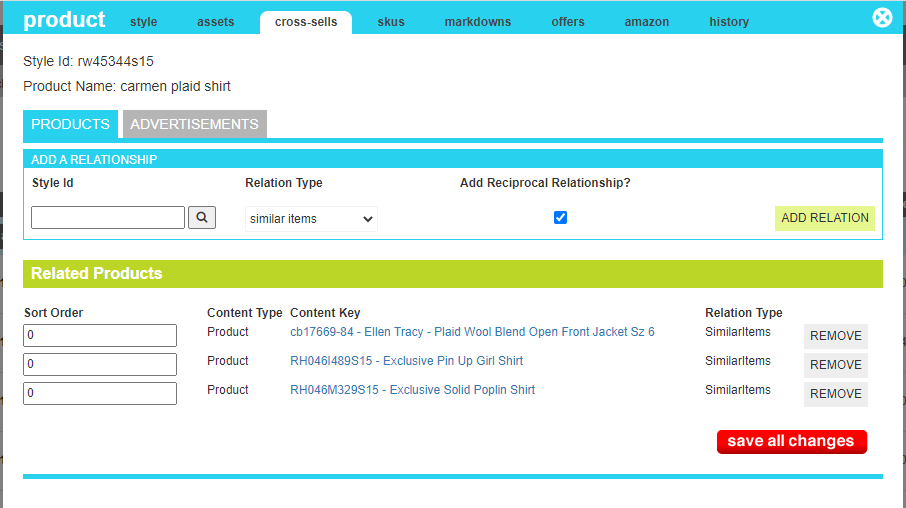
To create a product relationship, enter the complimentary style id, choose a releation type grouping, and click the "Add Relation" button. If you want to create a reciprocal cross sell from the target product back to the product you are editing, make sure the "Add Reciprocal Relationship?" checkbox is checked.

If you do not know the style ID of your target product, you can use the quick search tool. Click the magnifying class next to the style ID field to pull up the search tool and enter any keywords that will help you find the product(s) you are looking for. Put a check neaxt to each product you would like to link and click "Add Selected". The window will close and your Your configured relationships will appear in the list below.

Once the related products are in the list, you can change their sort orders by entering a numeric value in the Sort order field next to each relationship. Click "Save All Changes" to appy your sort orders

Property Description
Style Id the Product Style of another product that you would like to link this product to
Relation Type A grouping of similar items allowing you to create different classes of relationships and present them in different places on your product detail pages.
Add Reciprocal Relationship? When checked the targeted product will also be updated with a cross-sell back to the current product, creating a 2-way relationship.
Sort Order The order in which the relationships should appear within their relation grouping.

Skus

Skus are the purchasble element of a style. The true Stock Keeping Unit, a sku has inventory, pricing, barcode, size, weght and color attributes assigned to it. In contrast, a style maintains the descriptive elements that are common to all skus, such as description, material, imagery and categorization.

Editing SKUs

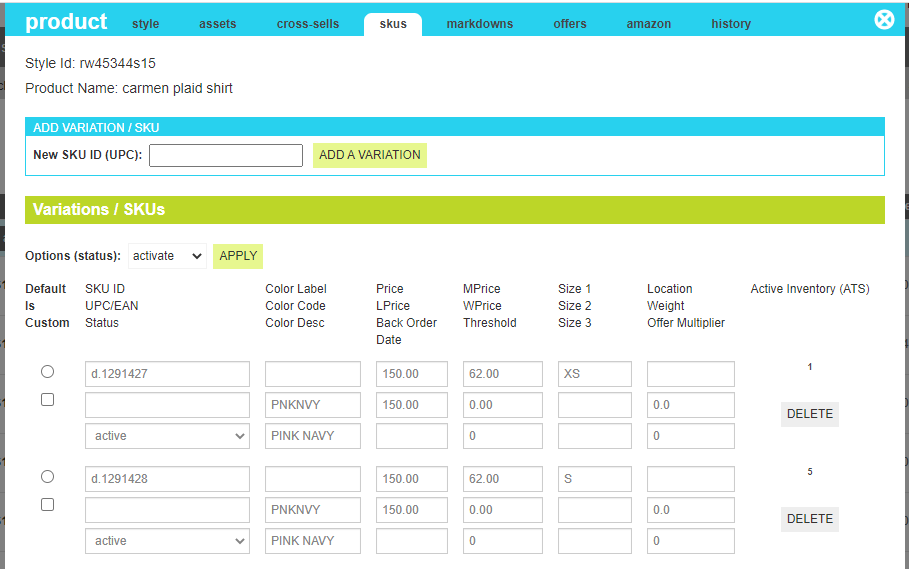
To create a new sku, enter the SKU into the provided field and click Add Variation. Typically the SKU ID is a UPC code, but if your organization uses a different sku number it may be used instead. SKUs must be unique and can only be tied to a single style. Additionally a SKU and another Style cannot have the same identifier. If the SKU you provide is already in use, you will be presented with an error message.

ONce the SKU has beeen created, you can apply any pricing, color, barcode and other inventory control elements ising the fields provided.

Each style has a one sku that is defined as its "default sku". The designated deafult sku will cascade any pricing information to the main style for use in listing pages, and in choosing the listing's color image when a style comes in multiple colors. If you do not select a default sku, the first available active sku will be selected. As your default skus deactivated or deleted over time, the system will automatically choose a new one as needed.

Property Description
Default Indicates if the selected sku is the default for the style.
Is Customizable Indicates whether the sku can be customized.
SKU Id The unique identifer for the SKU
UPC/EAN The registered UPC or EAN code for this product. Typically this is required to sell on 3rd party marketplaces such as eBay or Amazon.
Status Indicates whether the product should be visible on the website. (Active or Inactive)
Color Label An optional descriptive name for the color indicator. eg: Shade, Hue, Scent, or left blank for "Color"
Color Code The codified version of the color as it is used for your warehouse system. Often something like "BLK" or "BROWN"
Color Desc The customer-friendly representation of the color. e.g. "Dark Brown"
Price The price that the customer will pay for this item
List Price (LPrice) The advertised list price of the item
Back Order Date The date that an out of stock item will be back in stock. Useful for presenting to customers to indicate that their item may not be received in a timely manner.
Ignore Inventory Indicates whether the site should ignore inventory levels when purchasing.
Manufaturer Price (MPrice) The price the merchant paid for the item. This is typically used for sell-through reporting to demonstrate profit margins
Wholesale Price The price offered to B2B, Volume or VIP club members that provides a discoutnt over the price offered to regular customers
Threshold An inventory undersell or oversell value that allows you to stop selling a product before it hits a zero-invnetory level, or to allow you to sell over the absolute invnetory by a set number of units. To undersell, enter a positive number that will be effectively subtracted from your on-hand inventory. To oversell, enter a negative number that will be effectively added to your current on-hand inventory.
Size 1 The principle size attribute
Size 2 A secondary size attribute
Size 3 A tertiary size attribute
Location An optional inventory location attribute to help with fulfillment routing when a customer has placed an order for this item.
Weight A numeric value to indicate the weight of the item. Typically in lbs. This value is communicated to your shipping provider when supported.
Package Size Used when the sku represents a pack of items, such as "25 or "50". Typically used for clarity in the customer shopping cart, but also can be used to translate a single marketAgility sku into "eaches" when communicating with a 3rd party fulfillment system.
Active Inventory (ATS) This read-ony field shows the current inventory for this sku as it exists in your live environment. It is helpful for determining if you should deactivate out of stock SKUs so they don't distract from your customers when checking out.

Markdowns

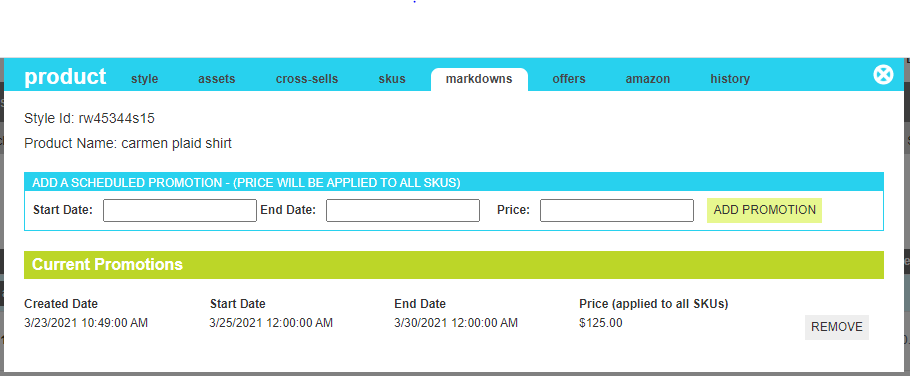
Markdowns are pricing changes that you can schedule in advance and to run for a specified period of time. These markdowns will apply to all skus within a given style.

Editing Markdowns

To create a markdown, enter the start and end date of the promotion, the price that the product should be sold at during the period, and click add promotion. When the start date arrives, the price of all skus will be changed to the price indicated. When they promotion ends, the price will revert to any encompassing promtions. If no promotions are active the price for all skus will remain at the promotion price until changed by a future feed, API or admin tool update.

Property Description
Start Date The Date/Time that the promotional price should start
End Date The Date/Time that the promotional price should end and fall back to any encompassing promotional price
Price The price that all skus should be changed to on the start date

Offers

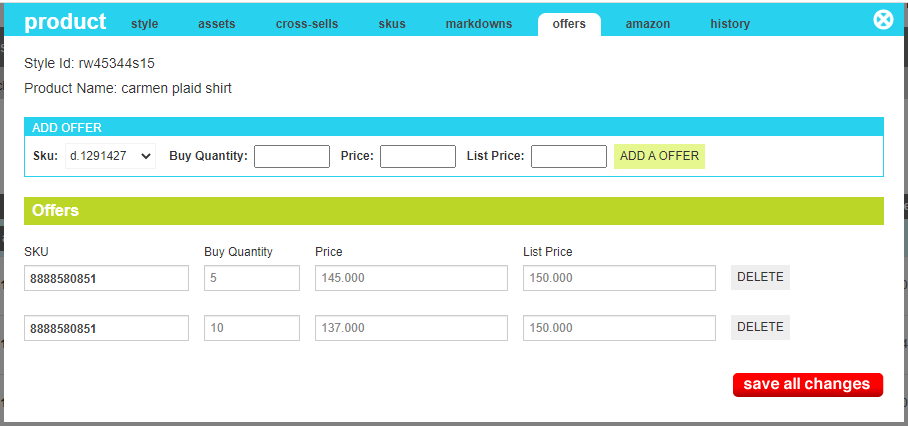
An offer is an advertised volume discount that can be displayed to the customer and used to incentivize a customer to increase their order size. Once created, you can use this table of price breaks to apply your own custom rules and display metaphors to upsell your customer.

Editing Offers

To create an offer, select a sku from the provided dropdown, enter the quantity the customer much have in their cart to receive the volume discount, and finally choose the price the customer will pay per unit. Once the offers are created, the collection of offers can be displayed on the product detail page to assist in providing upsell incentive.

When doing shopping cart operations such as add or update, this list of offers can be utilized to calculate and override item pricing as well as provide "buy 2 more to get $off" incentive messaging.

Property Description
SKU The SKU that qualifies for the offer
Buy Quantity The number of units the customer must buy to receive the price break
Price The price that customer will receive if they purchase the number of skus/td>
List Price The advertised price that customer would have received without the price break for comparison purposes/td>

Change History

The change history tab shows all of the changes that were made to this content and by whom. It is useful for diagnosing unexpected results on your site.