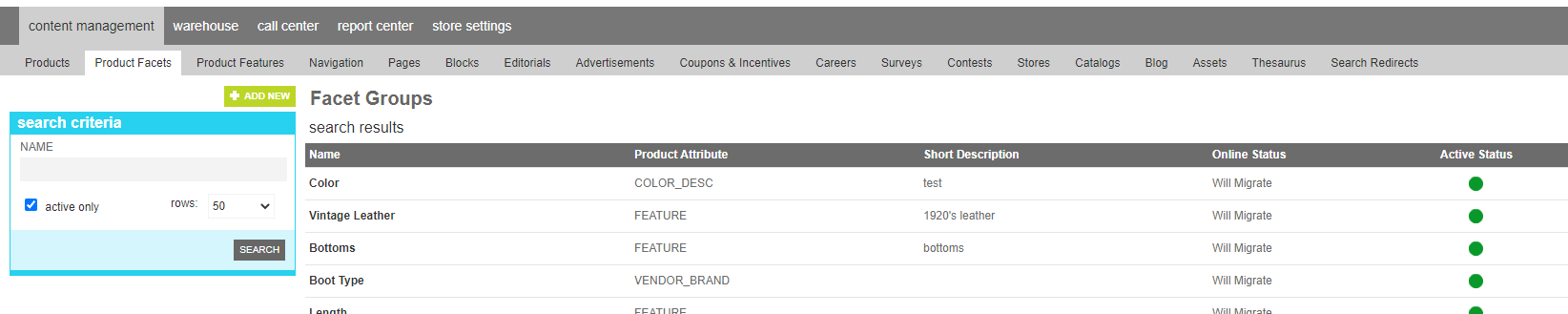
Product Facets
A product facet is customer facing search parameter that is based on one or more product attributes. When customers are searching for their desired product in your store they may not know the specific attribute naming or vernacular that you use for classifying your products. Additionally, they may not be looking for a specific color, but simply a color family that emcompasses many similar colors.
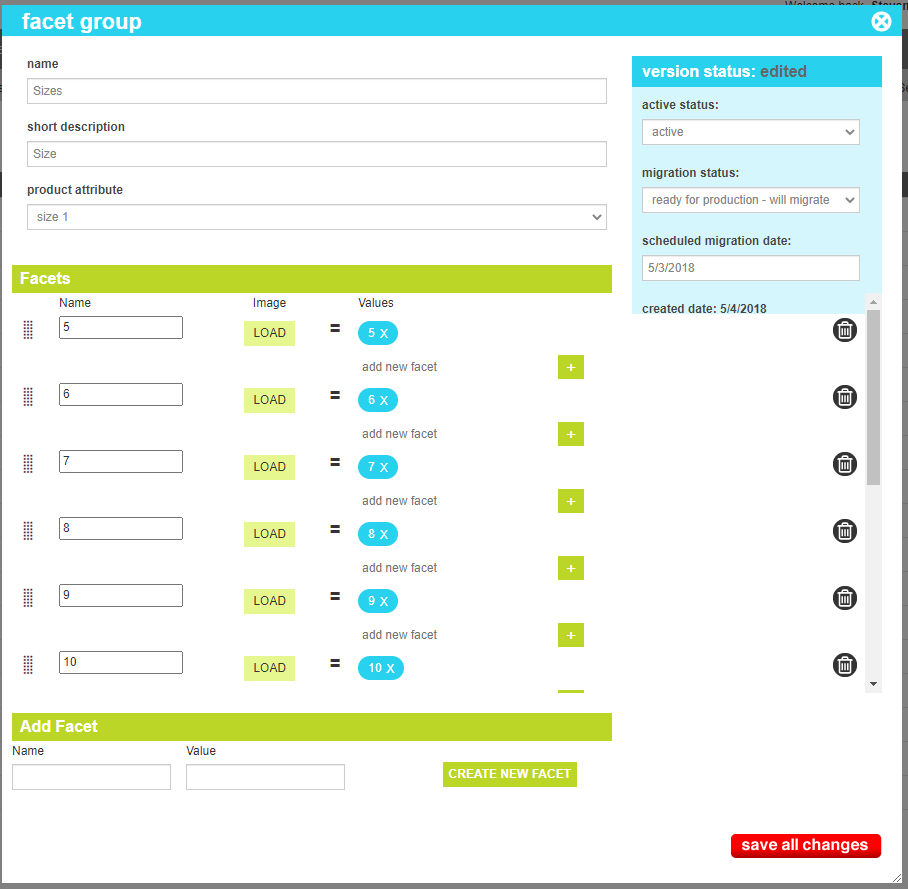
Facets are grouped into facet groups that have similar characteristcs. For example a Facet group could be named "Color Family". Within the group, each selectable customer-facing option is created and then mapped to real product attributes, allowing a single facet value to encompass a variety of different product values. This helps simplify the customer experience and guide customers to what they are looking for
Attributes
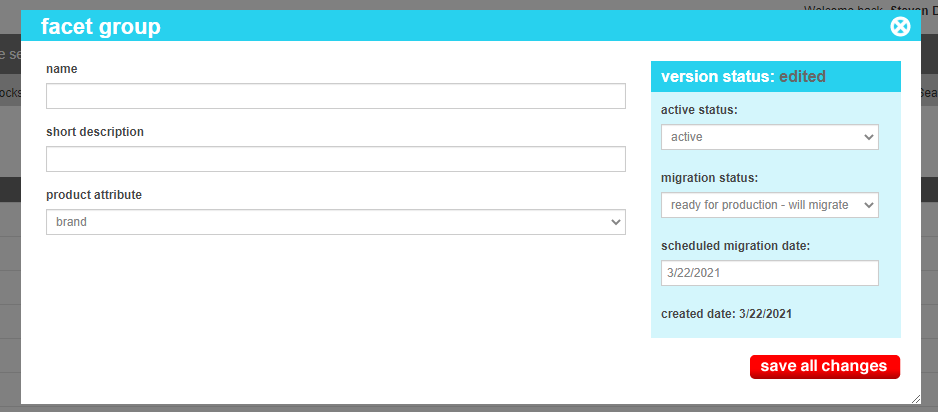
Facet Group attributes are as follows:
| Property | Description |
|---|---|
| Name | The name of the group of attributes as it will appear in the search navigation or heading. eg.g. "Color Family" or "Price Range" |
| Short Description | Brief descriptive text for providing the customer more information about a group |
| Product Atribute |
The product attribute that the facets of this group should map to. Possible values are:
|
| Facet Name | The name of the facet as it should apear to the customer. |
| Image | An optional image asset for displaying images instead of text values. |
| Values | The list of product data values that when present in the designated "product attribute" field should tie the product in this facet. |