Editorials

An editorial is a large body of unlimited content. Common uses for an editorial are privacy policies, size charts, press releases, and Frequently Asked Questions.

Attributes

These attributes of an editorial are as follows:

Property Description
Ediorial Name A unique identifier for the piece of content. This is used in the site to reference the editorial
Publication Name A customer-friendly name for the content. Typically this is a magazine name or other title.
Publication Date The date that the content was published or relates to. This is not an eforced date and can be an issue name, like "Fall, 2021"
Short Description A brief description of the content. If images are assignged to the editorial, this is freqently used as the alternate/tool tip text.
Keywords Used for meta tags and site search, if configured.
Long Description A detaileed description of the editorial content. Ususally used on index pages to preview the content.
External Url Optional link to external supporting content.
Content Unlimited length body of text content. Can be static text or dynamically rendered HTML.

Searching for Editorials

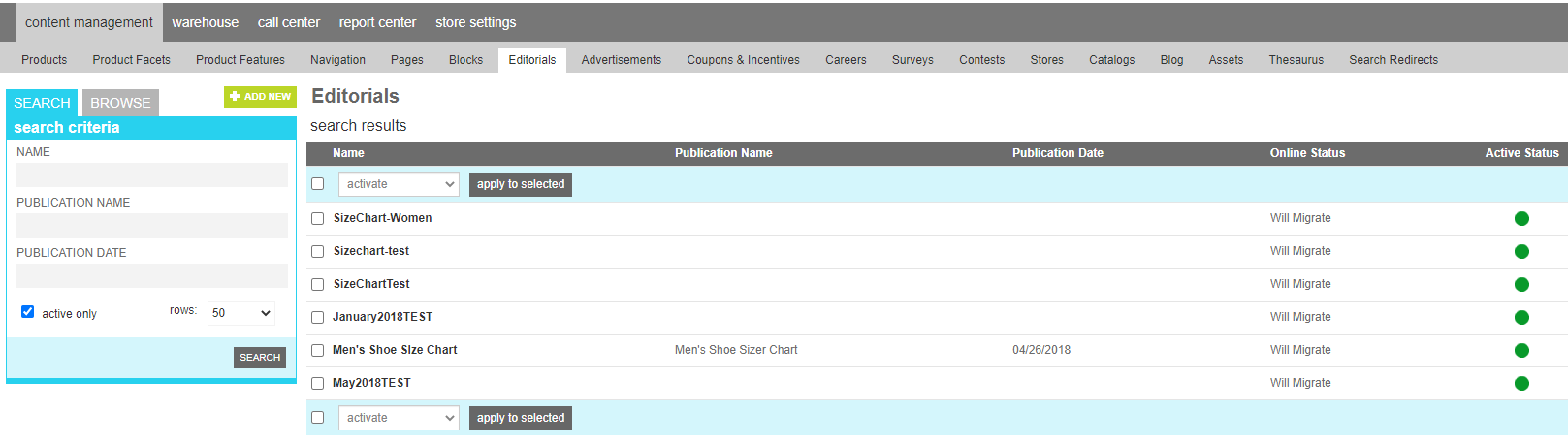
To find an editorial or group of editorials, a search block has been provided.

The Name field allows you to filter your results to only contain editorials that share the characters entered in their name. The Publication Name field allows you to filter your results to only contain editorials that share the characters entered in their publication namename. The Publication Date field allows you to filter your results to only contain editorials that share the characters entered in their publication date. The Active-only option filters your result to only show currently acvtive produdcts.

Searching for an editorial

Browsing Editorial Categories

If you wish to work with all of the editorials in a particular category, you can switch to the browse tab. This will give you an interactive product category navigation tool to locate the category you are looking for. Use the arrows to expand subcategories. Once you have found the desired category, click the name to see the editorials assigned to that category.

To edit the category attributes, click the pen icon. A window will open with the various category elements that can be altered.

To delete the category, click the trash can icon.

Note

Deleting a category will not delete the editorials in it. It simply removes the category association from any editorials, removes any associated child elements that reference the category, and finally removes the category itself.

Details

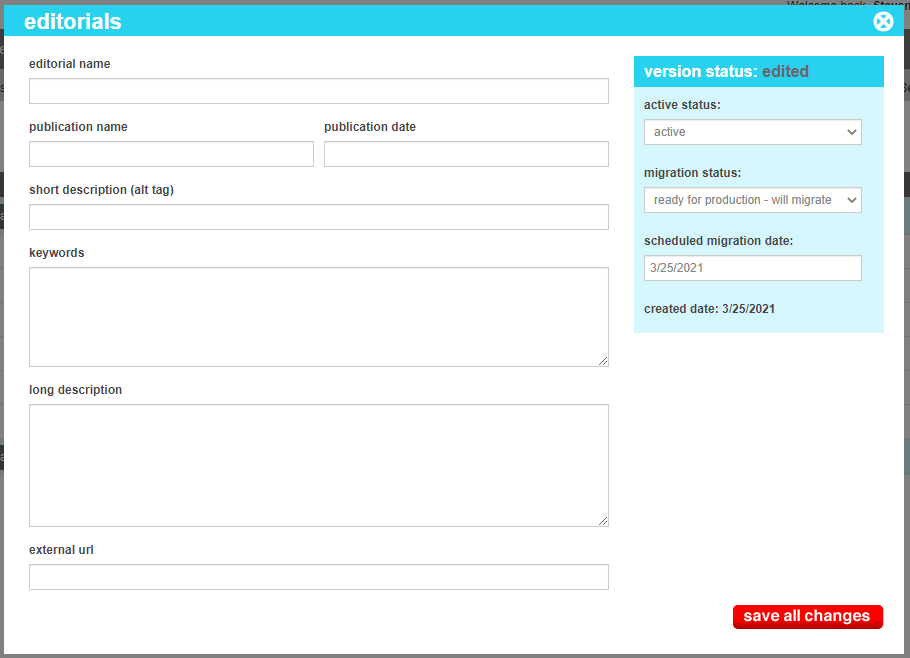
To create a new editorial, click the Add New button above the search criteria. Choose a name and any supporting content.

Adding an editorial

Once all of your revisions have been made, click "Save All Changes" to commit them to the site. Once the editorial is created, you will be able to add the full body of the article, assets and any related content.

Content

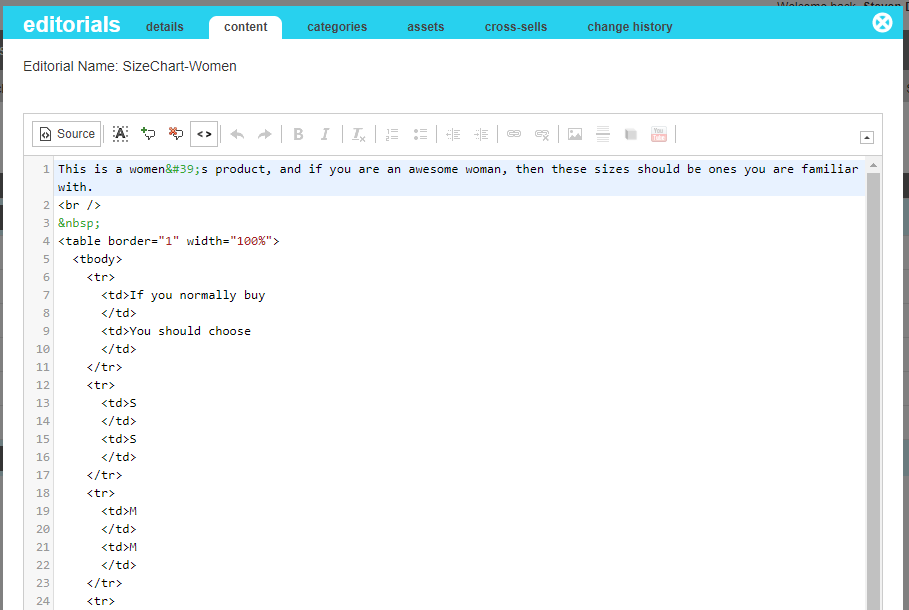
The Editorial content tab is used to manage is the full length HTML content. It can be simple text, or HTML, including dynamic blocks.

For convenience an HTML editor has been provided to allow you to preview your content, and to assist with cleansing any improper or unclosed HTML tags. Click the Source button to toggle between the raw and preview modes.

Editing Editorial Content

Click "Save All Changes" to save your content.

Categories

The categories tool allows you to group similar editorials into categories. These can be used for administrative organization purposes, allowing you to quickly navigate to groups of similar editorials.

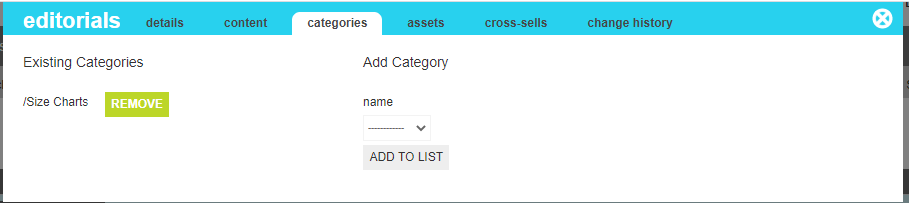
Editing Editorial Categories

The categories that this block has been associated with can be seen on the left side of the screen. Clicking the Remove button next to the desired category will remove the current editorial from that category.

To add this current page to an existing editorial category, select the desired category from the drop down and click "Add To List"

Assets

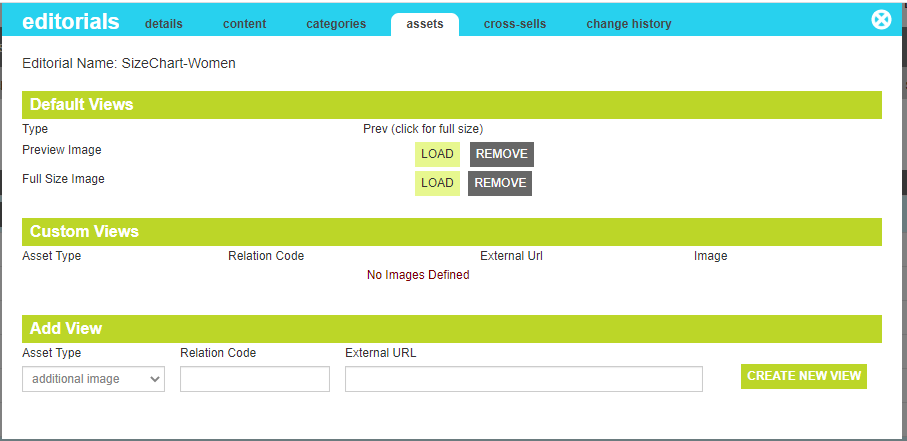
Assets include any images, videos or supporting documents for a given editorial. Assets are encapsulated into named "views", and can be displayed with the page throughout your page content blocks.

Editing Editorial Assets

To add a new view, select the type of view (Image, Youtube Video, Video, 360 View, or Asset Link), provide a view name an optional url to the asset and click "create new view". For images, you can upload your image assets once the view has been created. For all other image types, you need to provide a url to the location of your asset. Make sure to use a secure url to your content to prevent security warnings from being presented to your customers when the link is presented.

Property Description
Asset Type The Asset type lets your website know what the asset is and how it should be displayed. Some assets need special players, while others can be displayed using simple HTML elements. Once the image type has been selected and the view created, it cannot be changed.
Relation Code This field is a code that keeps the image names unique and relates the image within your HTML. It is recommended that you use something descriptive but following in web image naming rules to ensure that browsers do not have difficulty locating the image. For example, avoid spaces and non url-safe characters.
External Url This is the url to the content that should be displayed in the player for video types or in the hyperlink for asset links. This field will not appear for image views. The url can be to an asset you have created within marketAgility, or to a 3rd party service that houses additional content.

Cross-Sells

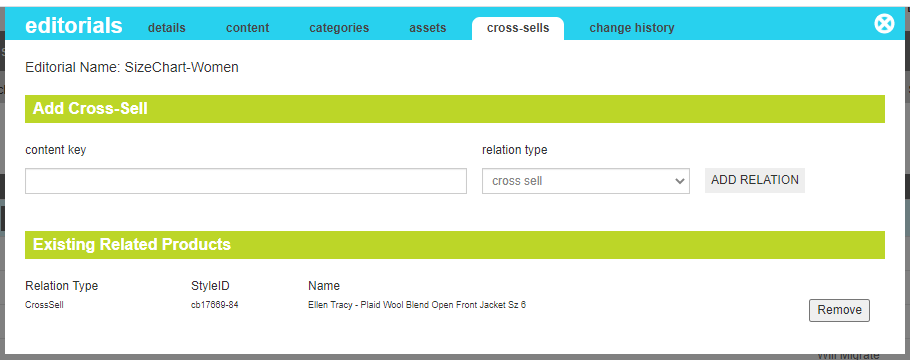
A cross-sell is a relationship between the editorial and a product. Typically used in outfit or "seen on" lifestyle pages, they allow your templates a quick way to reference one or more producst that are referenced in the descriptive text, show real-time pricing and availablity information, and provide navigation to those products for purchasing.

Editing Cross Sells

To create a product relationship, enter the complimentary style id, choose a releation type grouping, and click the "Add Relation" button.

Property Description
Relation Type A grouping of similar items allowing you to create different classes of relationships and present them in different places on your product detail pages.
Style Id the Product Style of another product that you would like to link this product to
Name The Name of the referenced product, if active and available.

Change History

The change history tab shows all of the changes that were made to this content and by whom. It is useful for diagnosing unexpected results on your site.