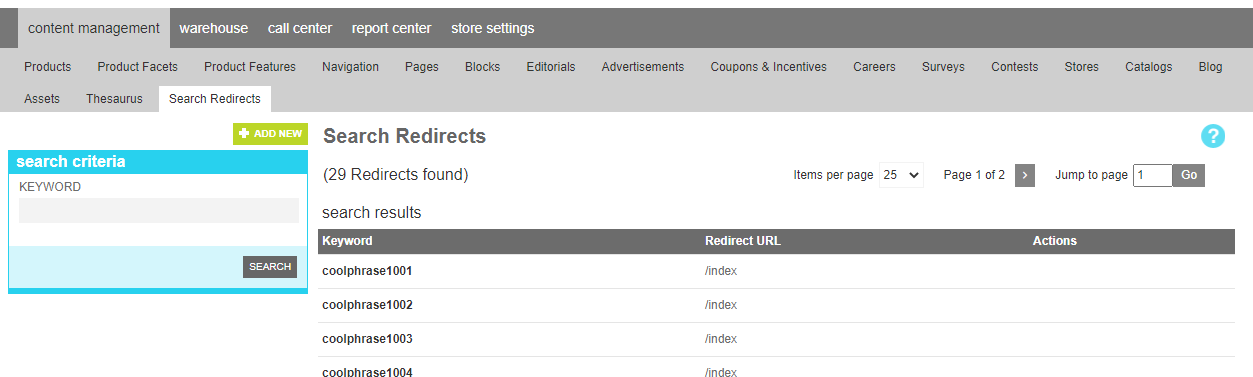
Search Redirects
A search redirect is helpful with your product search for relating frequently searched keywords that don't relate to a product. Many customers have been conditioned to enter whatever they are looking for into the search box without realizing that it typically only searches product information. To help them find what they are looking for, you can enter popular words or phrases and provide the url that references the content
A common example might be "customer service". Your site most likely has a customer service page which can then be redirected if a customer entered "customer service" into your product search box.
To identify keywords that are good candidates for a redirect entry, look at the search reports to identify keywords that are used with high frequency but return low match results. Frequently these indicate a mismatch between your vernacular and your customer.
Note
Search Redirects are only used by the marketAgility product search system. If you are integrated with a 3rd party search product, entries entered here will not have an effect on the search results your provider presents. Reach out to your search provider for more information on how to achieve a similar result with their product.
Attributes
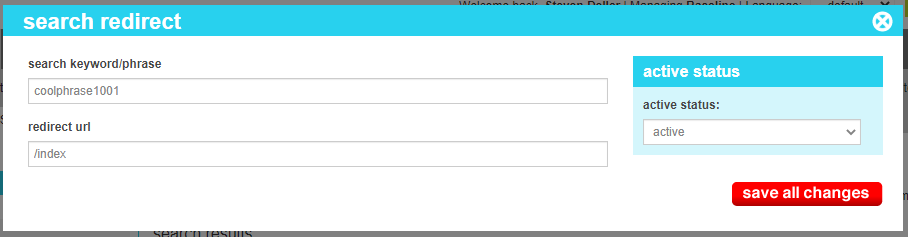
Redirect attributes are as follows:
| Property | Description |
|---|---|
| Search Keyword/Phras | This is the word your customer might enter into a search box |
| Redirect Url | This is the url that the customer should be redirected to. It can be a relative url to another page on your site, or a fully qualified url to a 3rd party site. |