Careers

A career object is an publication for your available employement positions and can be used as a recruiting aid for your company. Careers can be grouped into categories and displayed in a template on your site for prosepective employees to browse and apply.

Attributes

A career contains all of the elements that are required to define the open position. These attributes are as follows:

Property Description
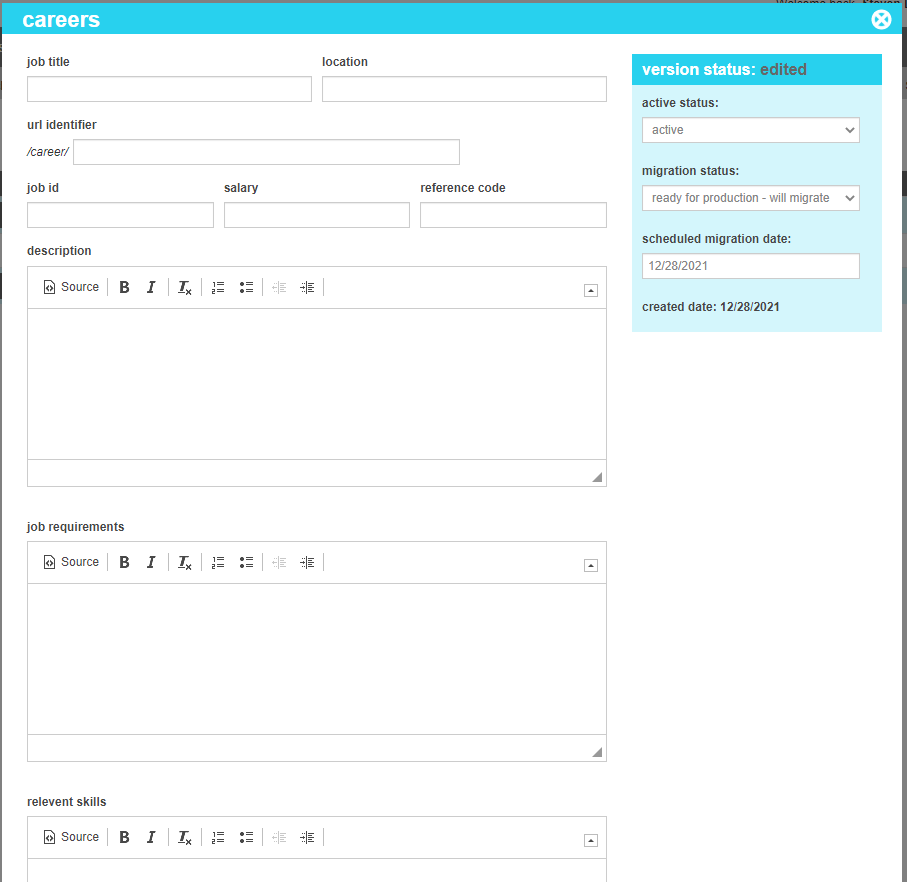
Job Title A user-friendly decription of the job title.
Location Where the position is located.
Url Identifier A unique identified that can be used in the url to navigate to the page. If one is not provided, the system will generate one based on the job title.
Job Id Any internal position identifier used by your recruiting software.
Salary The salary or range that the applicant can expect this position to pay.
Reference Code An optional reference code that the applicant can reference if they have questions about the position.
Description A long description that defines the position.
Job Requirements Any requirements that the application must satisfy for consideration.
Relevant Skills Skills that the applicant should posess to be successful in the position.
Duration The duration of the position. For example: full-time, summer internship, 1-year contract or other text that defines the length of employment.
Additional Comments Any supporting content that isn't covered by the other containers. Examples might be an email of who to send resumes to, instructions on how to apply, or directions to a location for in-person job fairs.

Searching for Careers

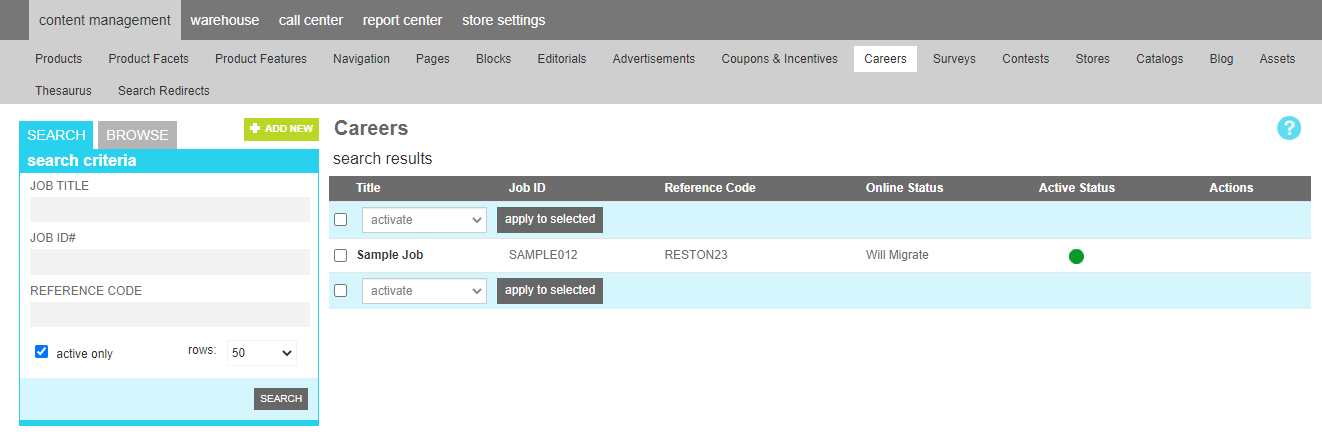
To find a career, a search block has been provided.

The Job Title field allows you to filter your results to only contain careers that share the characters entered in their job title. The Job Id field allows you to filter your results based on the Job Id # The Reference code allows you to filter your results based on the reference code. The Active-only option filters your result to only show currently active careers.

Searching for a career

Browsing Career Categories

If you wish to work with all of the careers in a particular category, you can switch to the browse tab. This will give you an interactive tool to locate the category you are looking for. Use the arrows to expand subcategories. Once you have found the desired category, click the name to see the careers assigned to that category.

To edit the category attributes, click the pen icon. A window will open with the various category elements that can be altered.

To delete the category, click the trash can icon.

Note

Deleting a category will not delete the careers in it. It simply removes the category association from any careers and then removes the category itself.

Details

To create a new career, click the Add New button above the search criteria. Choose a unique job title for the career and any supporting content.

Adding a career

Once all of your revisions have been made, click "Save All Changes" to commit them to the site.

Categories

The categories tool allows you to group similar careers into categories. These can be used for administrative organization purposes, allowing you to quickly navigate to groups of similar careers, or as a collection that can be displayed on your site.

Editing Career Categories

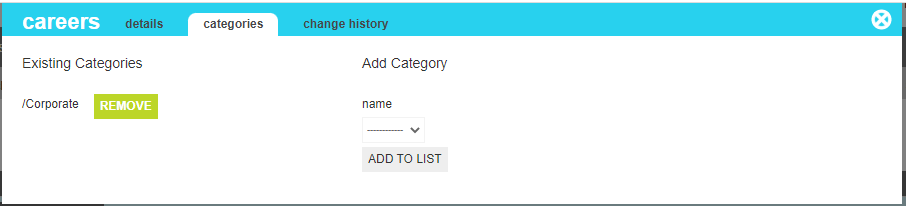
The categories that this career has been associated with can be seen on the left side of the screen. Clicking the Remove button next to the desired category will remove the current career from that category.

To add the current career to an existing category, select the desired category from the drop down and click "Add To List"

Change History

The change history tab shows all of the changes that were made to this content and by whom. It is useful for diagnosing unexpected results on your site.