Advertisements

An advertisement is a text or image that is placed on the website to allow customers to know about promotions, events, special categories or other seasonal messaging. Advertisements can appear anywhere on your site, assuming the tempate or block knows where to look for them.

Advertisements can contain multiple images, calls to action, primary and supporting content, and can be configured to appear and dissapear at specific times of day.

Attributes

The advertisement contains all of the elements that are required to display the desired offer or event. These attributes are as follows:

Property Description
Name A user-friendly decription of what the advertisement is about.
Start Date The date that the advertisement should start to appear on the site
End Date The date that the advertisement should stop to appear on the site
Heading The primary heading of the advertisement
Sub Heading The secondary heading of the advertisement
Long Description A longer block of text that can be used to convey details about the offer.
Asset Type The type of asset the advertisement is. This helps the page template know how to display the advertisement. Valid Values are Image, Youtube Video, Video, 360 Link, Asset Link
Layout Size This value helps templates understand how wide to display the conent. Based on the Bootstrap grid model, the possible values are full width, half width, 1/3 width, 2/3 width, 1/4 width, 3/4 width.
Url 1 A link to supporting content, or other related page
CTA 1 The Call To Action text for the link. Can be used as an alt or title tag, or as button text, depending on the template.
Url 2 A link to supporting content, or other related page
CTA 2 The Call To Action text for the link. Can be used as an alt or title tag, or as button text, depending on the template.
Title/Alt Text The Title or Alt text of the primary image
Desktop Image The primary image for the advertisement
Mobile Image Optional Mobile specific image for display on narrow viewports
Tags Tags allow your to quickly identify advertisements that share a common characteristic or event. This aids in finding them quickly in the admin tools, as well as being able to pull them into your site as a group without having to create a category to contain them.

Searching for Advertisements

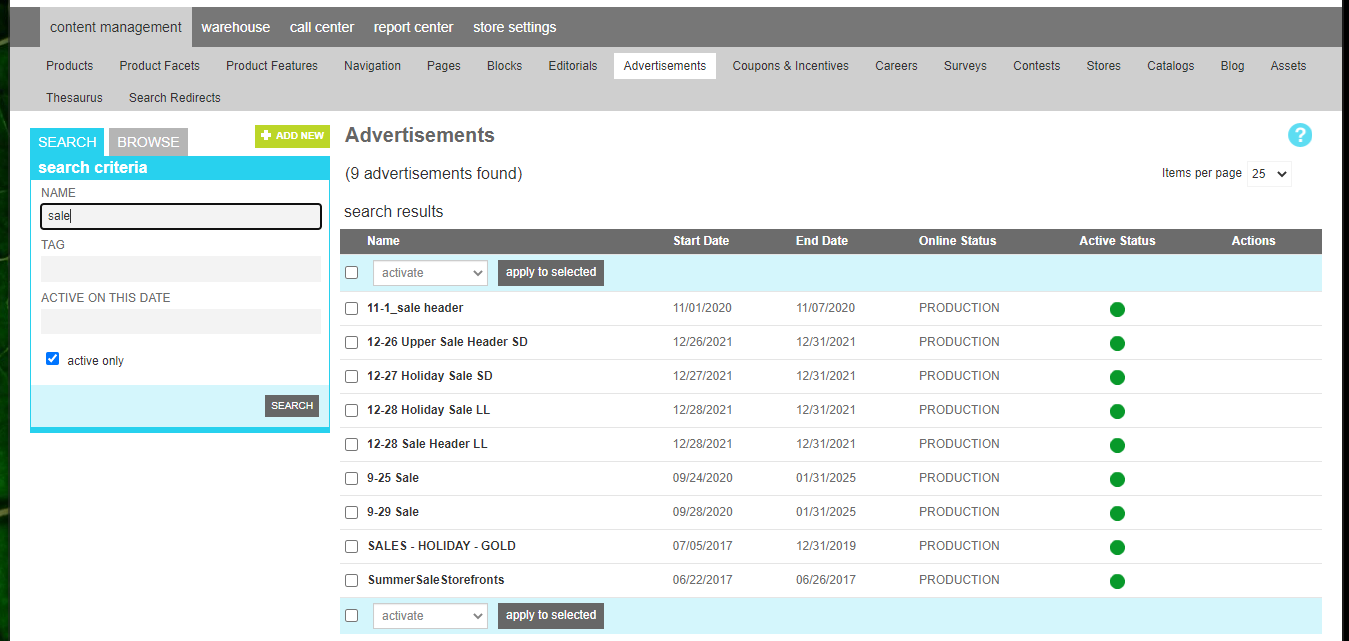
To find an advertisement, a search block has been provided.

The Name field allows you to filter your results to only contain advertisements that share the characters entered in their name. The Tag field allows you to filter your results based on tags that may have The Active on this date field allows you to filter your results to show advertisements active on a specific date in the past or future The Active-only option filters your result to only show currently active advertisements.

Searching for an advertisement

Browsing Advertisement Categories

If you wish to work with all of the advertisements in a particular category, you can switch to the browse tab. This will give you an interactive tool to locate the category you are looking for. Use the arrows to expand subcategories. Once you have found the desired category, click the name to see the advertisements assigned to that category.

To edit the category attributes, click the pen icon. A window will open with the various category elements that can be altered.

To delete the category, click the trash can icon.

Note

Deleting a category will not delete the advertisements in it. It simply removes the category association from any advertisements, then removes any associated navigation elements that reference the category, and finally removes the category itself.

Details

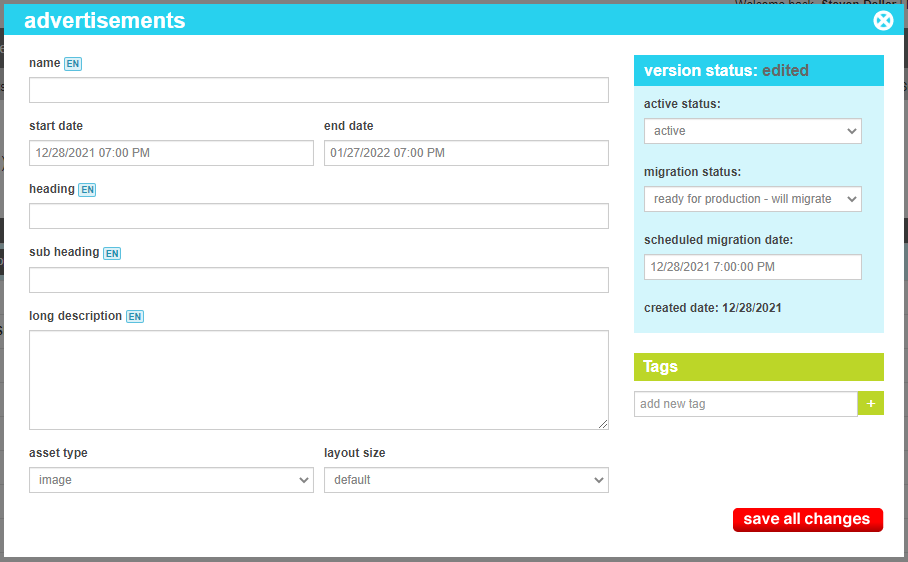
To create a new advertisement, click the Add New button above the search criteria. Choose a unique name for the advertisement and any supporting content.

Adding an advertisement

Once all of your revisions have been made, click "Save All Changes" to commit them to the site.

Categories

The categories tool allows you to group similar advertisements into categories. These can be used for administrative organization purposes, allowing you to quickly navigate to groups of similar advertisements, or as a collection that can be displayed on your site, such as on the home page or in a rotating sitewide banner.

Editing Advertisement Categories

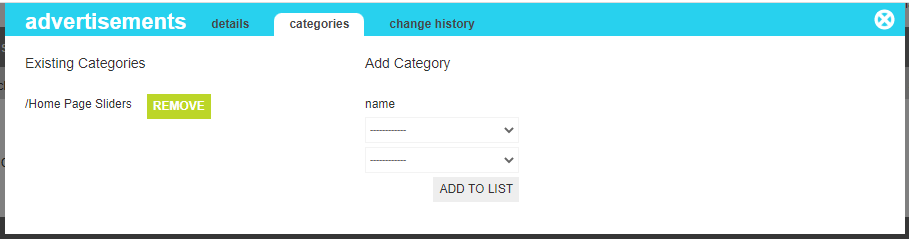
The categories that this advertisement has been associated with can be seen on the left side of the screen. Clicking the Remove button next to the desired category will remove the current advertisement from that category.

To add the current advertisement to an existing category, select the desired category from the drop down and click "Add To List"

Change History

The change history tab shows all of the changes that were made to this content and by whom. It is useful for diagnosing unexpected results on your site.