Assets

A asset is any images, videos or supporting documents that aren't tied to a parent content element. These often include images that a 3rd party has asked you to host on your website, employee application forms, spec sheets, or other miscellaneous digital assets you need to make avaialable on your site.

Attributes

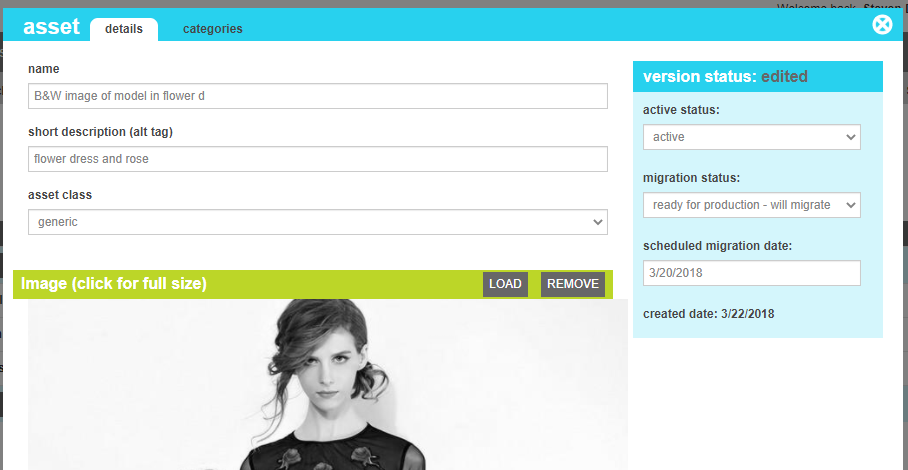
Asset attributes are as follows:

Property Description
Name The name of the asset
Short Description A brief description of the asset. Frequently used as an alt tag for image assets.
Asset Class Some assets can be automatically be listed or referenced in other places in your site. An example are color tiles that you want to use to visually represent color choices on your product detail page instead of text descriptions or small swatch images of your product.
  • Generic - a standard digital asset with no special usage purpose
  • Color Tile - Alternative image for use on a PDP.
Image The image or asset that is being maintained. If the asset is a visual image, it will be displayed. If it is not a web-sefe image, it will apear as a downloadable icon.

Searching for Assets

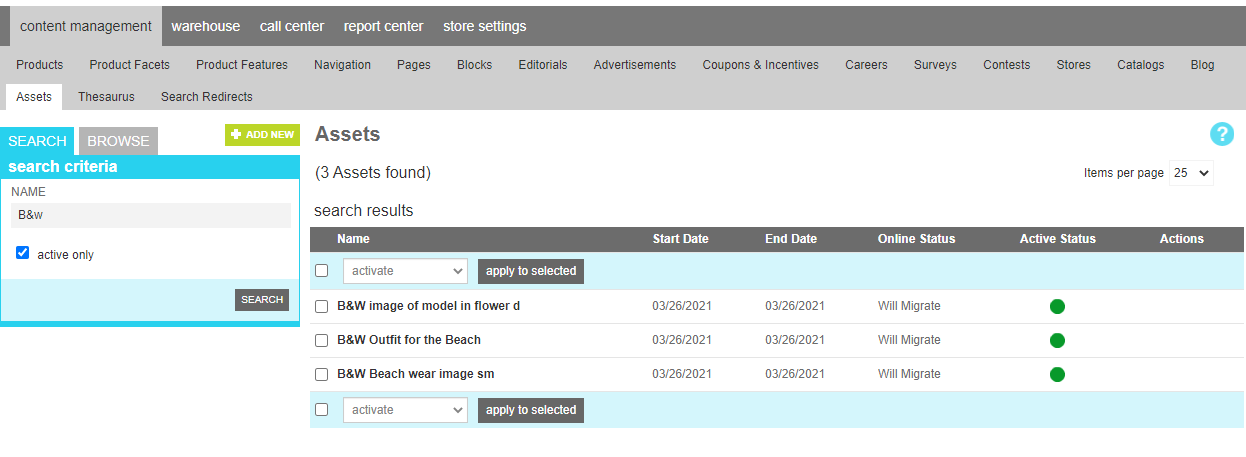
To find an asset or group of assets, a search block has been provided.

The Name option filters your result to only show assets that share the characters entered in its name field.

Searching for an asset

Browsing Asset Categories

If you wish to work with all of the assets in a particular category, you can switch to the browse tab. This will give you an interactive product category navigation tool to locate the category you are looking for. Use the arrows to expand subcategories. Once you have found the desired category, click the name to see the editorials assigned to that category.

To edit the category attributes, click the pen icon. A window will open with the various category elements that can be altered.

To delete the category, click the trash can icon.

Note

Deleting a category will not delete the assets in it. It simply removes the category association from any assets, removes any associated child elements that reference the category, and finally removes the category itself.

Details

To create a new asset, click the Add New button above the search criteria. Choose a name and any supporting content.

Adding an asset

Once all of your revisions have been made, click "Save All Changes" to commit them to the site.

Categories

The categories tool allows you to group similar assets into categories. These can be used for administrative organization purposes, allowing you to quickly navigate to groups of similar assets.

Editing Asset Categories

The categories that this asset has been associated with can be seen on the left side of the screen. Clicking the Remove button next to the desired category will remove the current asset from that category.

To add this current asset to an existing assets category, select the desired category from the drop down and click "Add To List"