Menus
Menus are also referred to as navigation.
Menu elements are used to create sections on the site that let your customers move between page groups with ease. Menu blocks are typically created for placement in specific areas of your site, such as the header and footer of your site, or in content groups such as customer service pages or "My Account".
Each Menu block can have any number of elements as well as contain child (sub navigation) elements. This allows for a virtually infinite flexibility in breadth and depth of your menu elements.
In addition, each link can be a simple "static" link that points to another url, or a dynamic link that is tied to a content group such as a product category.
Linked elements will hide and show based on the status of the element that they are linked to, which can significantly reduce the amount of maintenance you must do to your site when seasonal categories or promotions end.
It also allows for the creation of flash-sale content that can appear and disappear for short periods of time.
Attributes
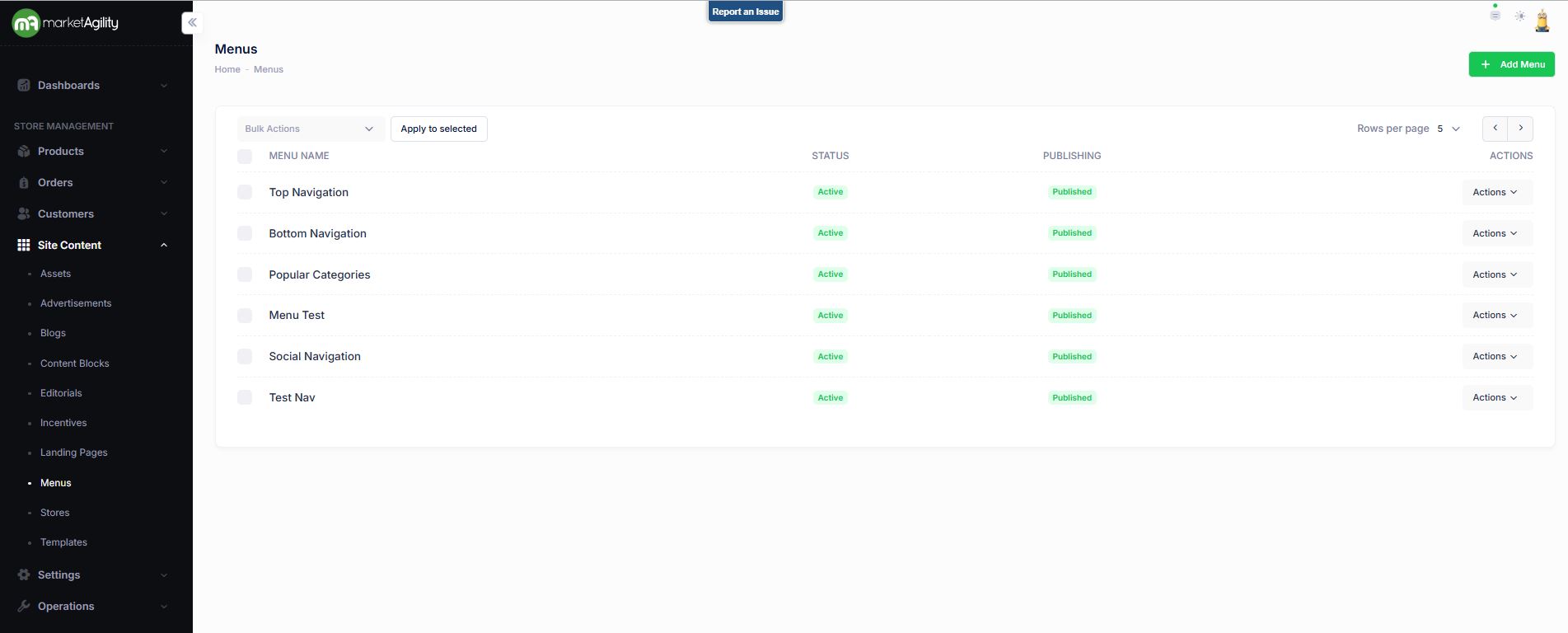
| Property | Description |
|---|---|
| Menu Name | A unique identifier for the menu element. Create a name that explains the function of the menu. Example: Top Navigation, Social Navigation, etc. |
| Status | Active or Inactive |
| Publishing | Draft / Published / Ready to Publish |
| Actions | Edit / Activate / Publish / Unpublish / Delete |
| Bulk Actions |
Activate / Deactivate / Publish / Unpublish. Use this function under the Search bar to apply bulk actions across one or many editorials. |
Details / Adding a Menu
To create a new Menu , click the Add Menu button in the top right corner.
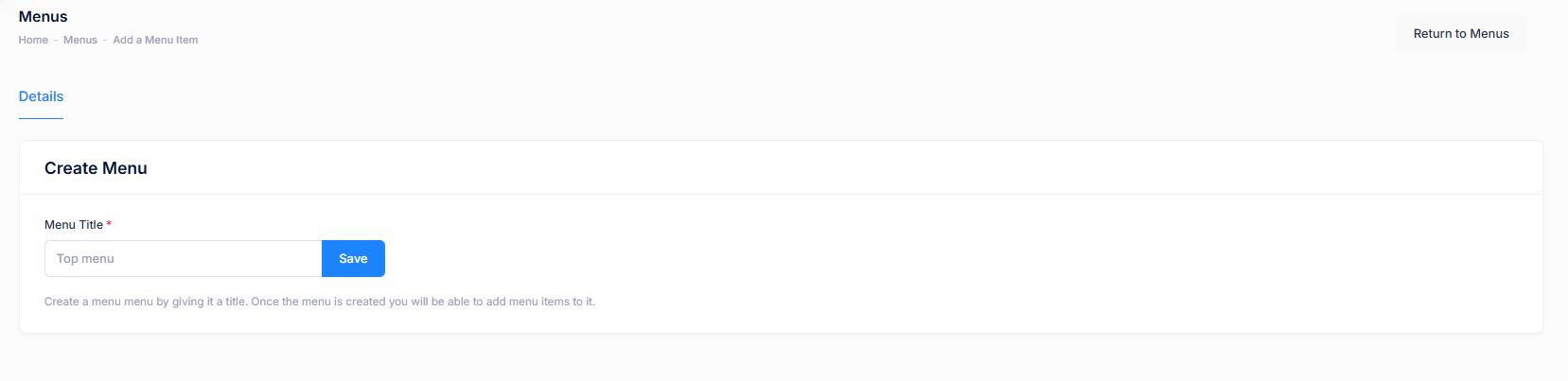
Create a menu by giving it a title. The Menu title should be a unique identifier for the menu element. Once the menu is created you will be able to add menu (child) items to it.
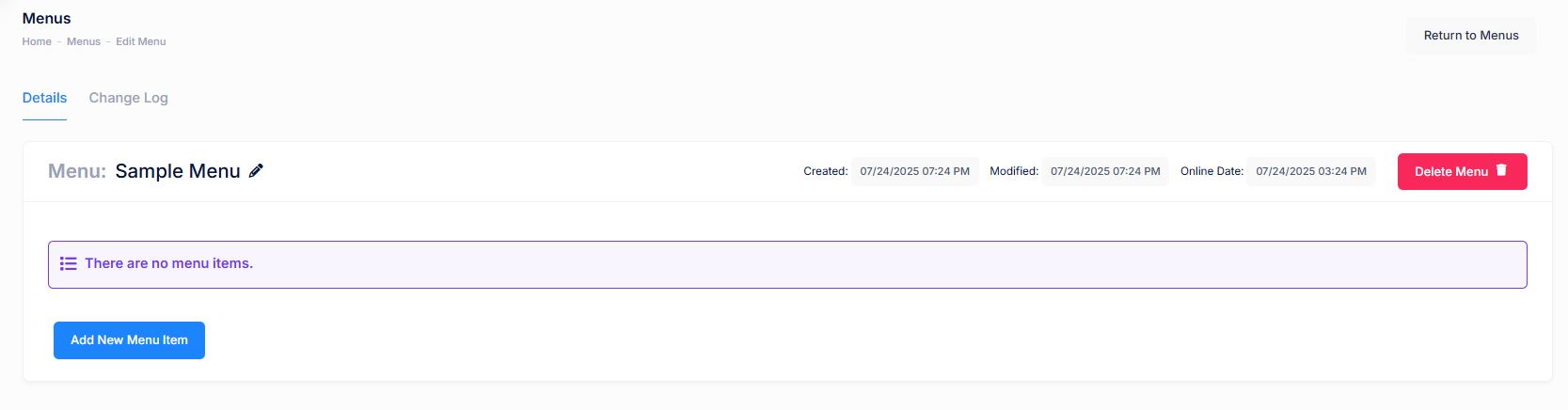
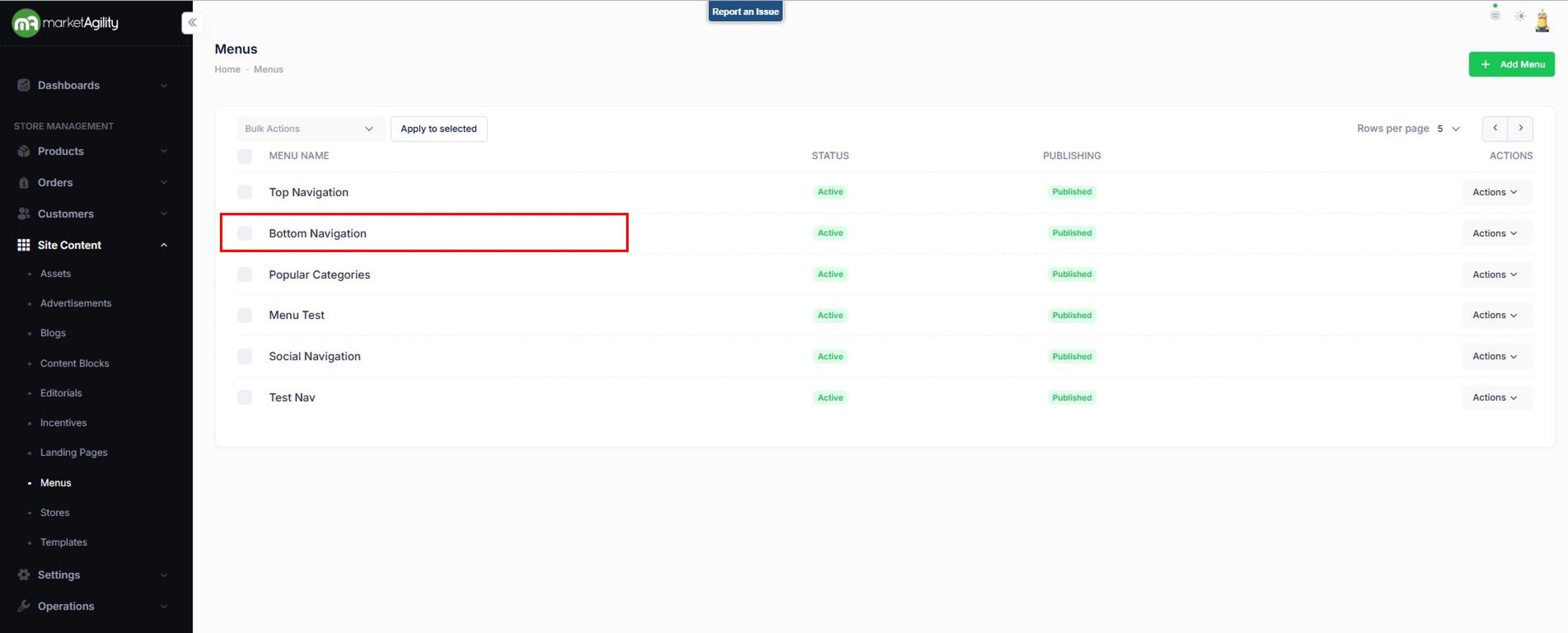
Back to the main page we will use 'Bottom Navigation' to walk through the process.
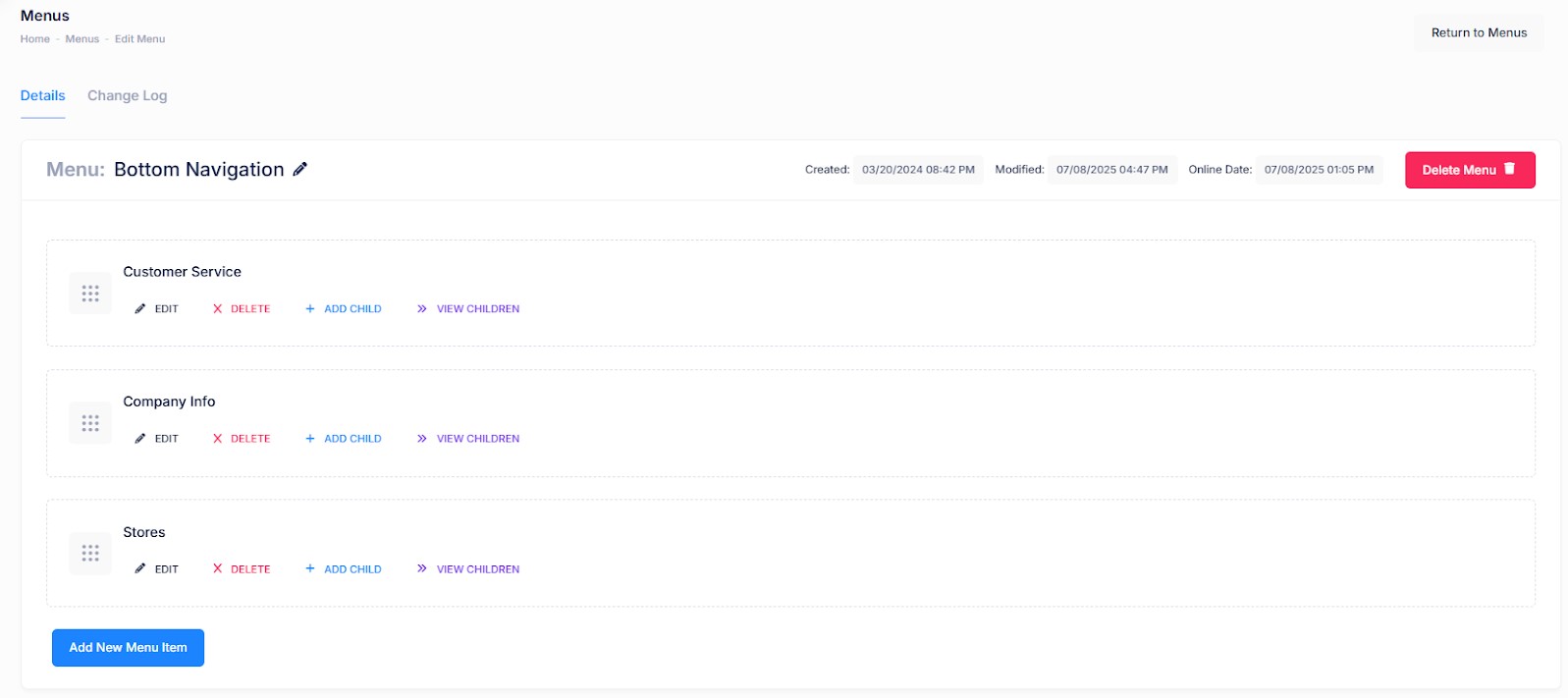
There are 3 menu elements that have been created for Bottom Navigation.
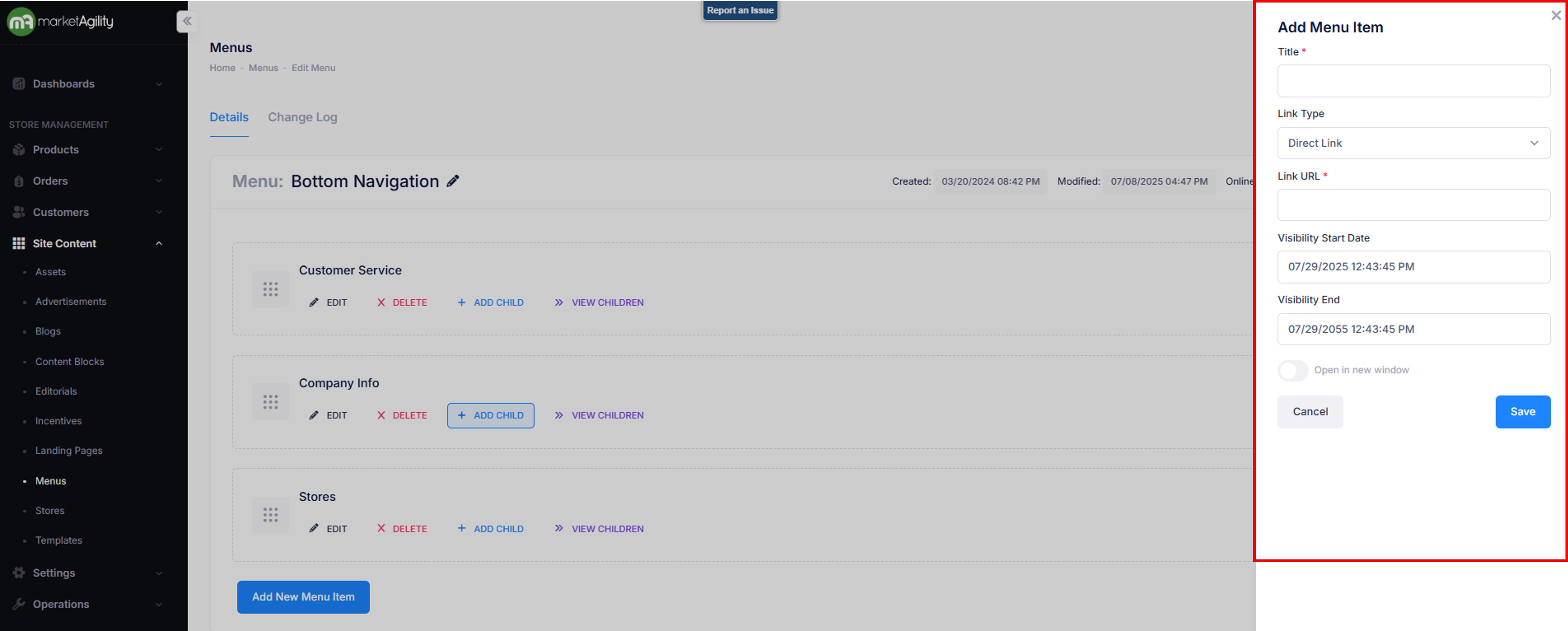
To add an additional menu element click “Add New Menu Item”. A flyout will appear.
| Property | Description |
|---|---|
| Title | A unique identifier for the menu element. Create a name that explains the function of the menu. Example: Top Navigation, Social Navigation, etc. |
| Link Type | Direct Link or Product Category |
| Link URL |
If Direct Link - URL is added here If Product Category is chosen you will be prompted with a pop up box to choose the appropriate category. |
| Visibility Start & End Dates | Start and End dates for the Menu elements to appear. |
| Open in New Window |
There is a toggle function here for if the menu element when created should be opened in a new window. Toggle ON = New window Toggle OFF = default (grayed out) |
Details / Editing a menu element
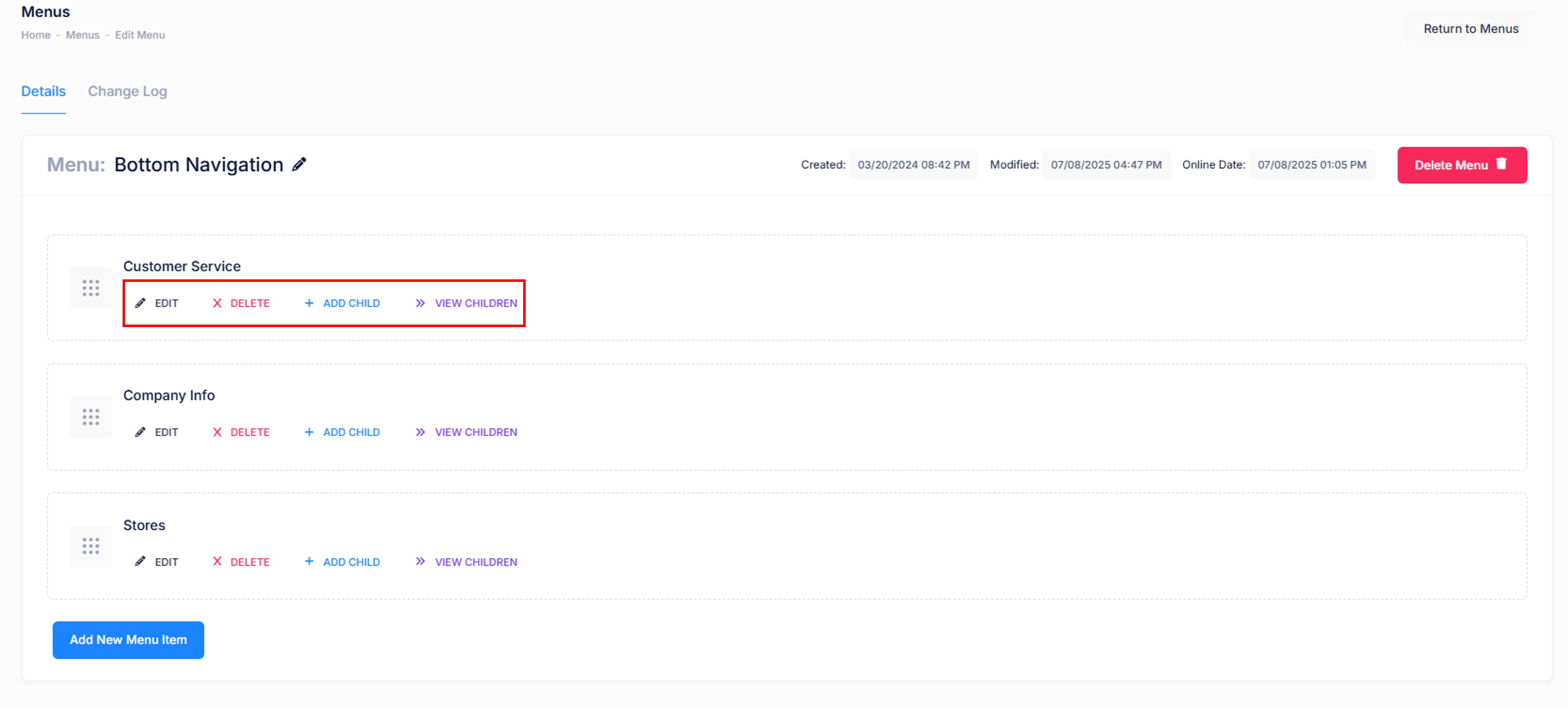
Attributes : Menu elements second level
| Property | Description |
|---|---|
| Edit |
Clicking the pencil icon will enable edits to the Menu element. A flyout will appear from the Right. (screenshot below) 
|
| Delete |
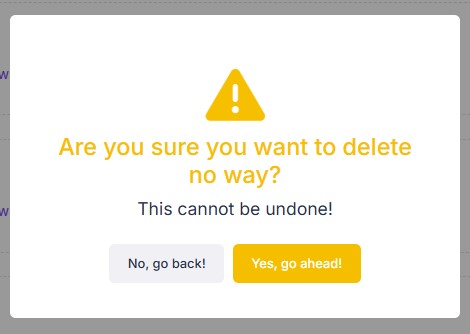
Clicking the red X icon will allow you to delete a Menu element. There is a confirmation screen that will pop up when you click the X to confirm if you are ready to delete the menu element. 
|
| Add Child | This refers to adding a submenu item or nested link underneath a parent menu item. |
| View Children | When you view children, you're seeing the links nested underneath a main (parent) menu item. |
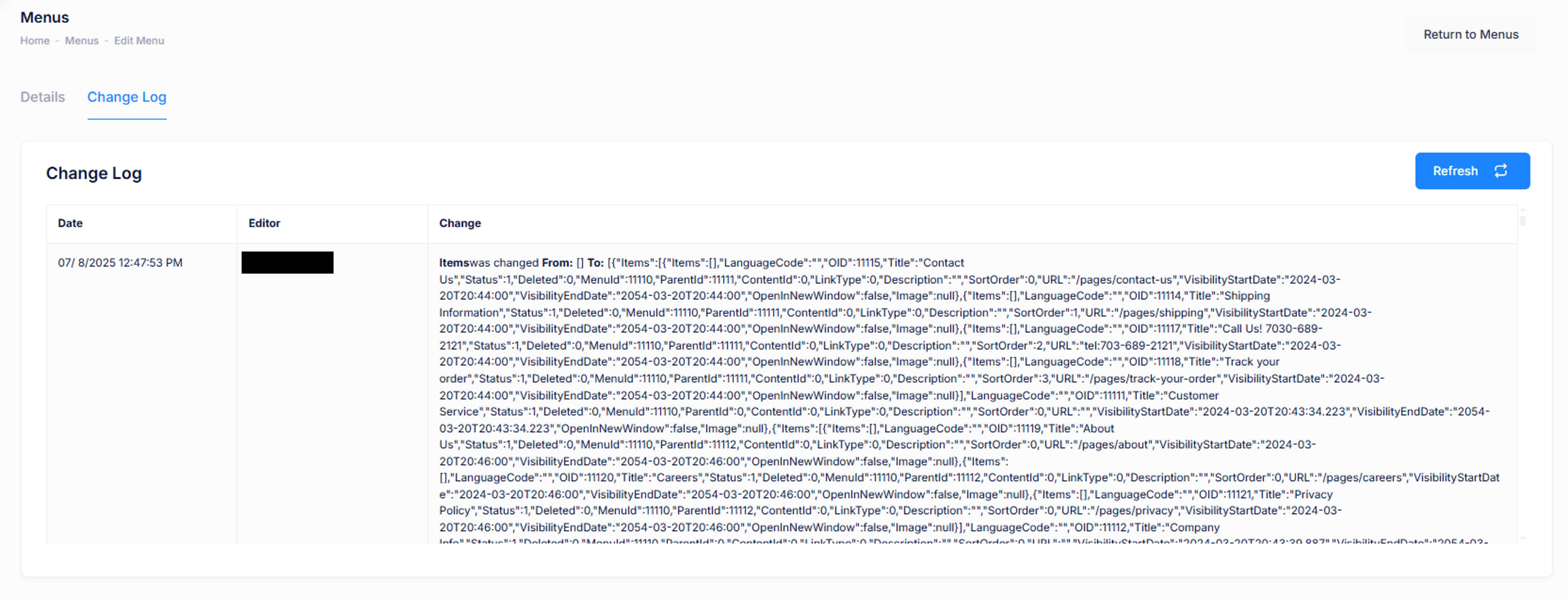
Details / Change Log
The change log tab shows all of the changes that were made to this content and by whom. It is useful for diagnosing unexpected results on your site.