
Advertisements
An advertisement is a text or image that is placed on the website to allow customers to know about promotions, events, special categories or other seasonal messaging. Advertisements can appear anywhere on your site, assuming the Landing page or block knows where to look for them.
Advertisements can contain multiple images, calls to action, primary and supporting content, and can be configured to appear and disappear at specific times of day.
Searching for Advertisements
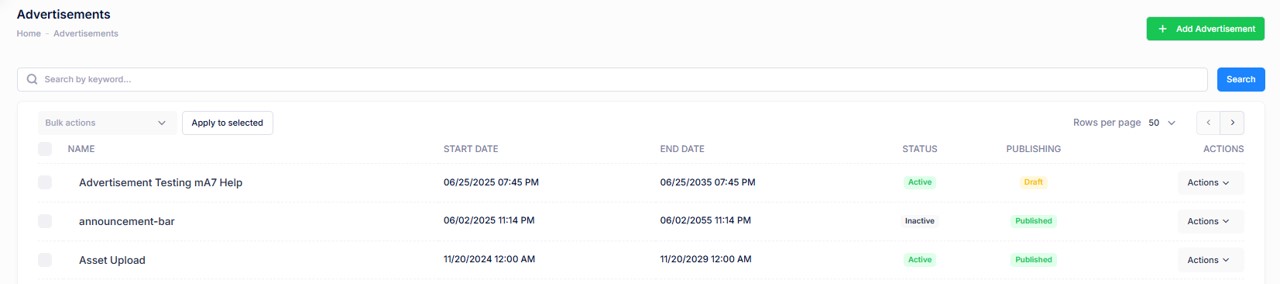
To find an advertisement, a search block has been provided.
The Name field allows you to filter your results to only contain advertisements that share the characters entered in their name.
Attributes
The advertisement contains all of the elements that are required to display the desired offer or event. These attributes are as follows:
| Property | Description |
|---|---|
| Name | A user-friendly description of what the advertisement is about. |
| Start Date | The date that the advertisement should start to appear on the site |
| End Date | The date that the advertisement should stop to appear on the site |
| Status | Indicates whether the advertisement is active or inactive. |
| Publishing | Draft, Published, Ready to Publish |
| Bulk Actions | Edit / Activate / Publish / Delete |
Creating a new Advertisement
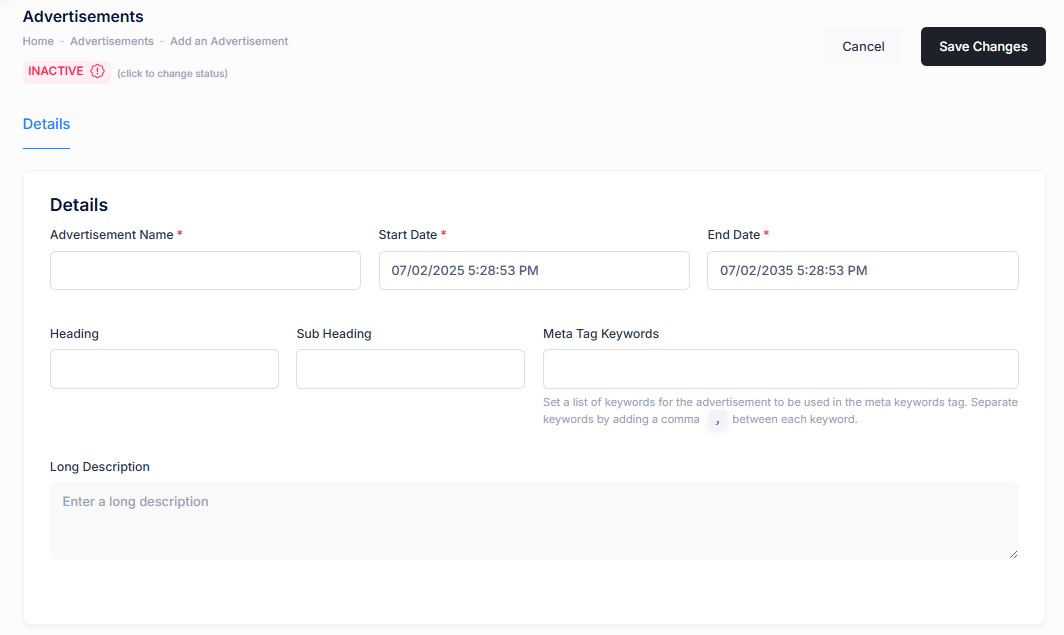
To create a new advertisement, click the Add New button above the search criteria. Choose a unique name for the advertisement and any supporting content.
| Property | Description |
|---|---|
| Advertisement Name | A user-friendly description of what the advertisement is about. Name must be unique. |
| Start Date | The date that the advertisement should start to appear on the site. |
| End Date | The date that the advertisement should stop to appear on the site. |
| Heading | The heading is the main title or headline used to capture attention, convey the core message, and encourage the viewer to read more or take action. |
| Sub Heading | The secondary heading of the advertisement. |
| Meta Tag Keywords | Set a list of keywords for the advertisement to be used in the meta keywords tag. Separate keywords by adding a comma between each keyword. |
| Long Description | This is the main descriptive text about your Advertisement. |
Advertisements:
Details / Assets / Change Log
Once the Advertisement is created the Details tab will show all the fields used. Any of the fields used during an Advertisement creation can be edited through the Details tab.
Once all of your new details or revisions have been made, click "Save Changes" to commit them to the site.
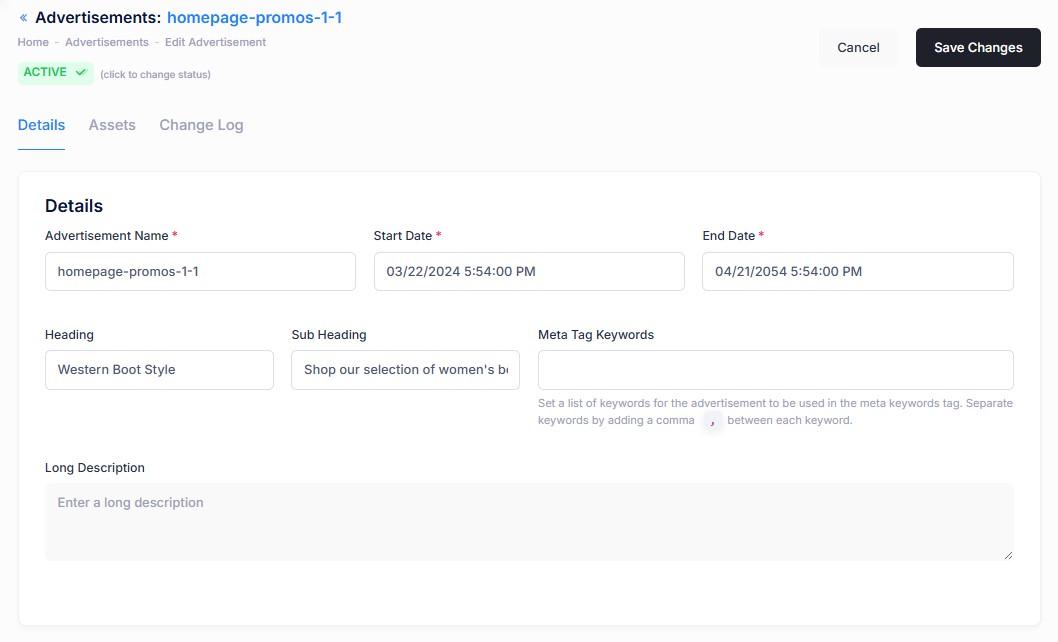
Advertisements:
Details / Assets / Change Log
To add assets to an advertisement you will use the Assets tab. Additionally an asset can be edited through this tab.
| Property | Description |
|---|---|
| Asset Type | The type of asset the advertisement is. This helps the page template know how to display the advertisement. Valid Values are Image, Youtube Video, 360 View, Asset Link (Akamai, etc.). |
| Layout Size | This value helps templates understand how wide to display the content. Based on the Bootstrap grid model, the possible values are full width, 3/4 width, 2/3 width, half width, 1/3 width, 1/4 width. |
| Image alternate text | Written description of an image that is used in the HTML code. |
| URL | A link to supporting content, or other related pages. Example: /category/womens-boots |
| Call to action | [Optional field] text to display on the button/link. |
| URL 2 | [Optional field]: second URL for the advertisement to link to. |
| Call to action 2 | [Optional field] text to display on the button/link. |
| Desktop Image |
The primary image for the advertisement. Using the Edit button - will pop open a modal for a different image to be used. |
| Mobile Image |
Optional Mobile specific image for display on narrow viewports. Using the Edit button - will pop open a modal for a different image to be used. |
Advertisements:
Details / Assets / Change Log
The change log tab shows all of the changes that were made to this content and by whom. It is useful for diagnosing unexpected results on your site.
Changing an Advertisement status
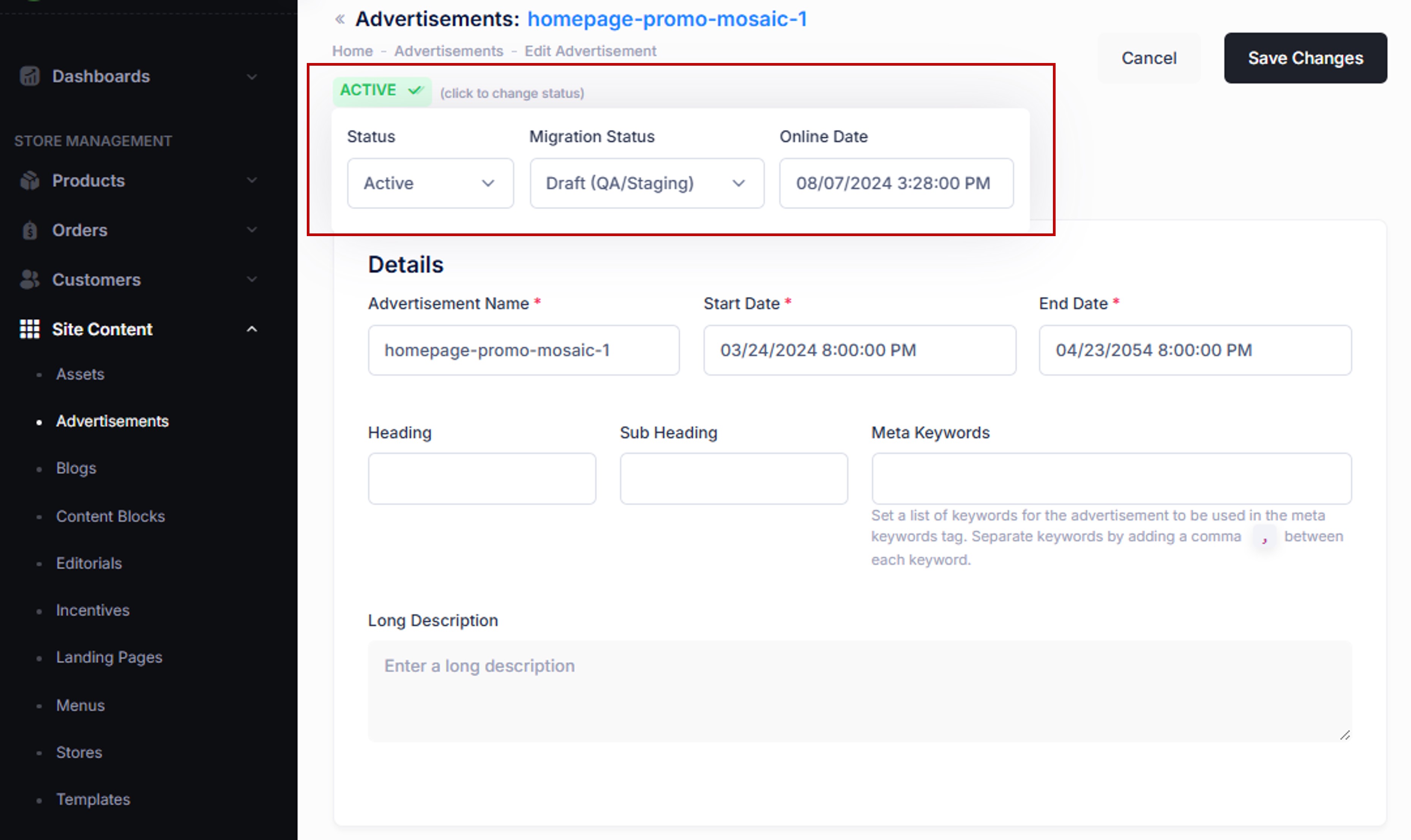
To change the status of an advertisement click the Active (or Inactive) button to reveal the options available.
| Property | Description |
|---|---|
| Status | Active or Inactive |
| Migration Status |
|
| Online Date | Refers to the exact date and time when the advertisement becomes live and visible to customers. |