
Introduction
The marketAgility administration tools allow you to manage all of the dynamic content used on your site. It also serves as the primary source of information about your customers, orders, inventory and all of your data integrations with 3rd party systems.
Login
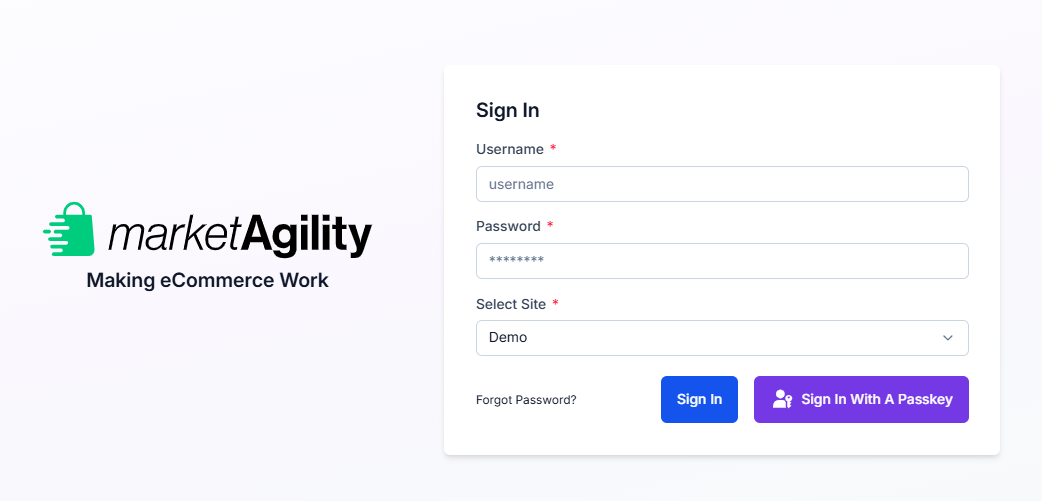
To log in, enter your username, password and select the storefront you wish to manage. When you are ready, click the login button.
Authentication
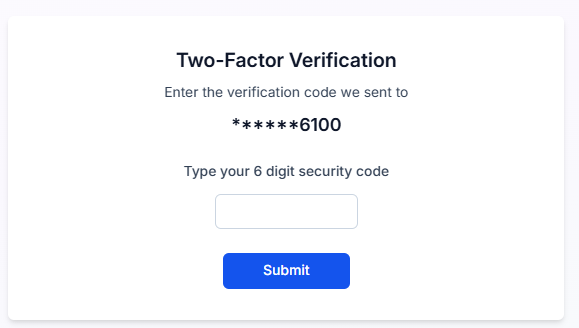
The tool suite uses a 2-factor authentication system that requires a username and password combination as well as a secure token installed on the client browser. If this is your first time logging in from this device, a 6-digit code will be emailed to you. When you receive the code, enter it in to the authentication screen to complete the authentication process.
Forgotten Password
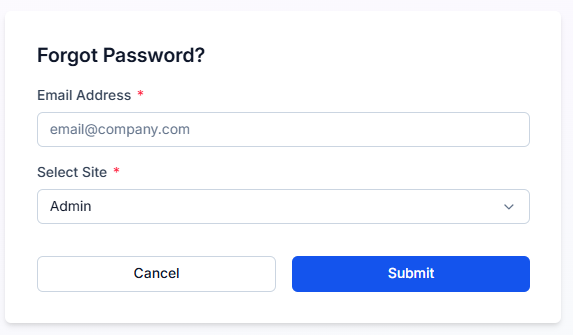
If you have forgotten your password, you may have to reset your password. To do this, click the "forgot password" link in the bottom left corner of the login screen. You will be presented with new form to enter your email address. Once entered, click the recover user info and a password reset email will be sent to you.
Connecting AI Assistants (MCP)
marketAgility exposes an MCP (Model Context Protocol) server that lets AI assistants such as Claude and ChatGPT work with your store data — products, orders, customers, and content — using natural language, the same way they would through the marketAgility Admin API.
The marketAgility MCP server endpoint is:
https://api.marketagility.com/api/mcp
Unlike the REST API, the MCP server uses OAuth for authentication. Instead of registering an app and copying a token, you simply add the endpoint to your AI client and sign in with your marketAgility admin credentials when prompted. The assistant is then only able to see and do what your marketAgility user account is permitted to.
Claude (Desktop & Web)
- In Claude, go to Settings > Connectors.
- Click Add custom connector.
- Paste in the marketAgility MCP server URL above and give it a name (e.g. "marketAgility").
- Click Add, then Connect. A marketAgility sign-in window will open — log in and approve access.
- Once connected, you can ask Claude questions about your store, and it will use the marketAgility connector to answer.
Claude Code
Add the server from the command line:
claude mcp add --transport http marketagility https://api.marketagility.com/api/mcp
Then, from a Claude Code session, run /mcp to authenticate. This opens your browser to the marketAgility login page —
sign in and approve access to complete the connection.
ChatGPT
- In ChatGPT, go to Settings > Connectors.
- Enable Developer mode under advanced settings if you don't already see an option to add a custom connector.
- Click Add connector / Create, give it a name, and paste in the marketAgility MCP server URL above.
- Save the connector, then click Connect. You'll be redirected to marketAgility's login page to sign in and authorize access.
- You can now enable the marketAgility connector from within a chat to let ChatGPT use it.
Note
Because access is tied to your marketAgility login, an AI assistant connected this way can only see and change what your user account has permission for. Review your user's role and permissions before connecting an assistant if you want to limit what it can access.
Using AI Assistants (MCP)
Once an AI assistant is connected to the marketAgility MCP server, you can manage your store using plain language. This section explains what the connector can do, how to write effective requests, and how to resolve common problems. If you have not connected an assistant yet, start with Connecting AI Assistants (MCP).
What the connector can do
The connector gives your assistant a set of tools for working with the same data you see in the administration tools. Depending on your user's permissions, an assistant can search for and read records, and create or update them.
| Area | What you can ask for |
|---|---|
| Products | Search, view, create and update products, plus product features, product views, and categories. |
| Inventory | Search inventory and inventory locations, view site inventory, and update stock levels. |
| Orders & carts | Search and view orders and shopping carts. |
| Customers | Search, view, create and update customers. |
| Marketing | Search, create and update advertisements, promotion codes, and mailing lists. |
| Stores & tax | Search, view, create and update stores and tax nexus entries. |
Writing effective requests
You do not need to know tool names or field names. Describe what you want, and the assistant will choose the right tools. A few tips:
- Be specific. Include names, SKUs, order numbers, date ranges, or email addresses so the assistant can find the right record.
- Ask to look before changing. For example, "Show me the product with SKU ABC-100" before "Change its price to $24.99".
- Work in small steps. For bulk changes, ask the assistant to list the matching records first, then confirm before it updates them.
- Ask follow-up questions. The assistant remembers the results of earlier requests in the same conversation.
Some example requests:
- "Find all products in the Footwear category that are currently out of stock."
- "Show me the five most recent orders for customer [email protected]."
- "Create a promotion code SPRING20 that gives 20% off."
- "Which products have no description?"
- "Update the inventory for SKU ABC-100 at the main warehouse to 250."
Approvals and safety
Most AI clients ask you to approve a tool before it runs, particularly tools that create or change data. Review each approval request before you allow it. The assistant acts with your marketAgility user's permissions, so any change it makes is recorded as having been made by your account.
Important
AI assistants can make mistakes. Always verify changes to prices, inventory, and customer data, especially after a bulk update. Consider connecting with a user whose role grants only the access you need.
Troubleshooting the connector
| Problem | What to try |
|---|---|
| The assistant doesn't use the marketAgility connector. | Make sure the connector is enabled for your current chat, and mention marketAgility in your request. |
| The sign-in window doesn't appear or the connection fails. | Remove the connector and add it again using the endpoint shown in Connecting AI Assistants (MCP). Check that your browser isn't blocking pop-ups. |
| The assistant says it isn't permitted to do something. | Your marketAgility user's role doesn't allow that action. Ask an administrator to review your permissions. |
| The connection stops working after some time. | Your sign-in may have expired or your account may have been deactivated. Reconnect the connector and sign in again. |
| Results are incomplete. | Large result sets are returned in pages. Narrow your request with filters such as a date range or category. |
Troubleshooting
If you are still having trouble logging in, your account may have been deactivated. The marketAgility system deactivates user accounts automatically if they have not been used for over 90 days. If you believe your account may have been deactivated, reach out to your account manager who can re-activate your account. You will be required to change your password once your account is reactivated.