Blogs
A blog is a large body of unlimited content. It is very similar to an editorial, but designed to conform to the standards of blog software suites. Blog articles can be distributed using industry standard RSS/Atom feeds, allowing you to push your content to your customers dynamically.
Similarly, if you already maintain a blog using a 3rd party, that content can be consumed by your site and replicated in this tool. This allows you to synchronize your external and on-site rich text content and provide better SEO. If you wish to synchronize your blog content, contact your marketAgility client manager for more details.
Searching for a Blog post
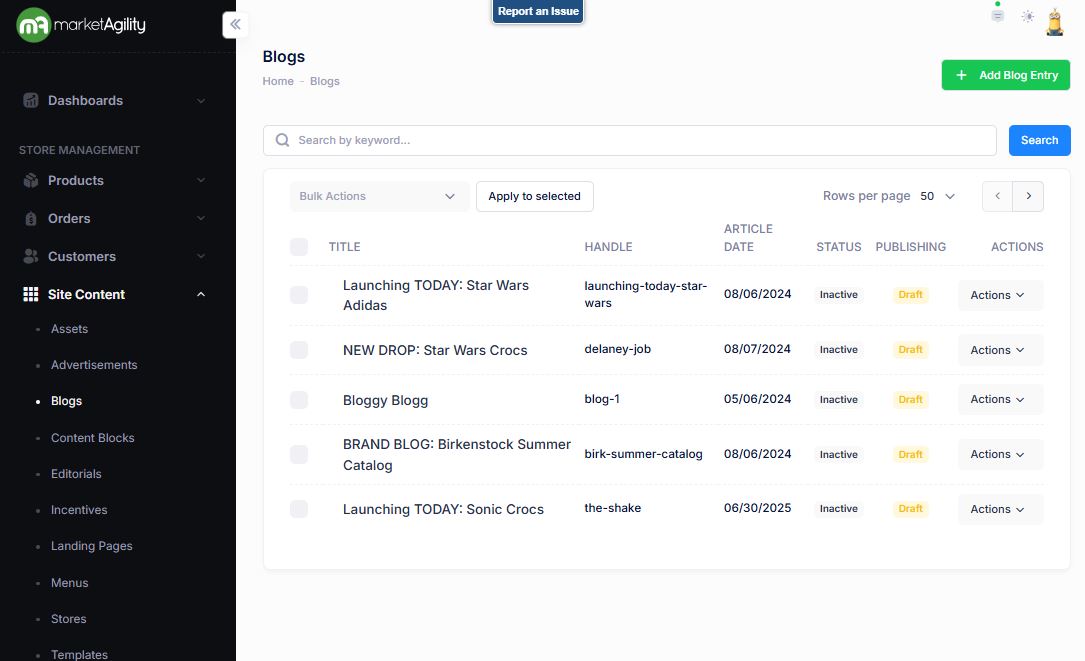
To find a blog post, a search block has been provided.
| Property | Description |
|---|---|
| Title | A unique identifier for the piece of content. This is used in the site to reference the blog post |
| Handle | This is the ending part of the URL that your customers will use to find your Blog. If you don't enter a value, one will be created automatically from your product name. |
| Article Date | The date of the post |
| Status | Active or Inactive |
| Publishing | Draft, Published, Ready to Publish |
| Actions | Edit / Activate / Publish / Delete |
Adding a blog post
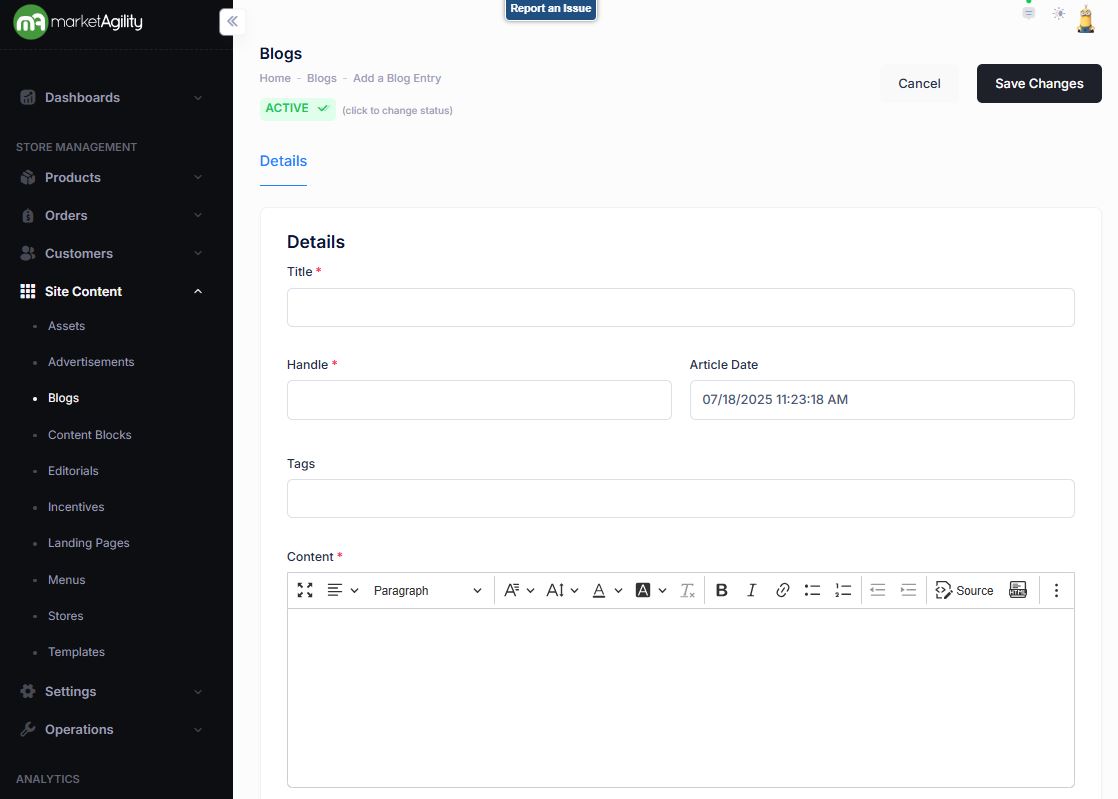
To create a new blog, click the Add blog Entry button above the search criteria.
Details / Change Log
| Property | Description |
|---|---|
| Title | A unique identifier for the piece of content. This is used in the site to reference the blog post |
| Handle | This is the ending part of the URL that your customers will use to find your Blog. If you don't enter a value, one will be created automatically from your product name. |
| Article Date | The date of the post |
| Tags | Used for meta tags and site search, if configured. |
| Content | The content box is a WYSIWYG box (What You See Is What You Get). The box is a rich text editor that allows content creators to format and style blog content without writing code. |
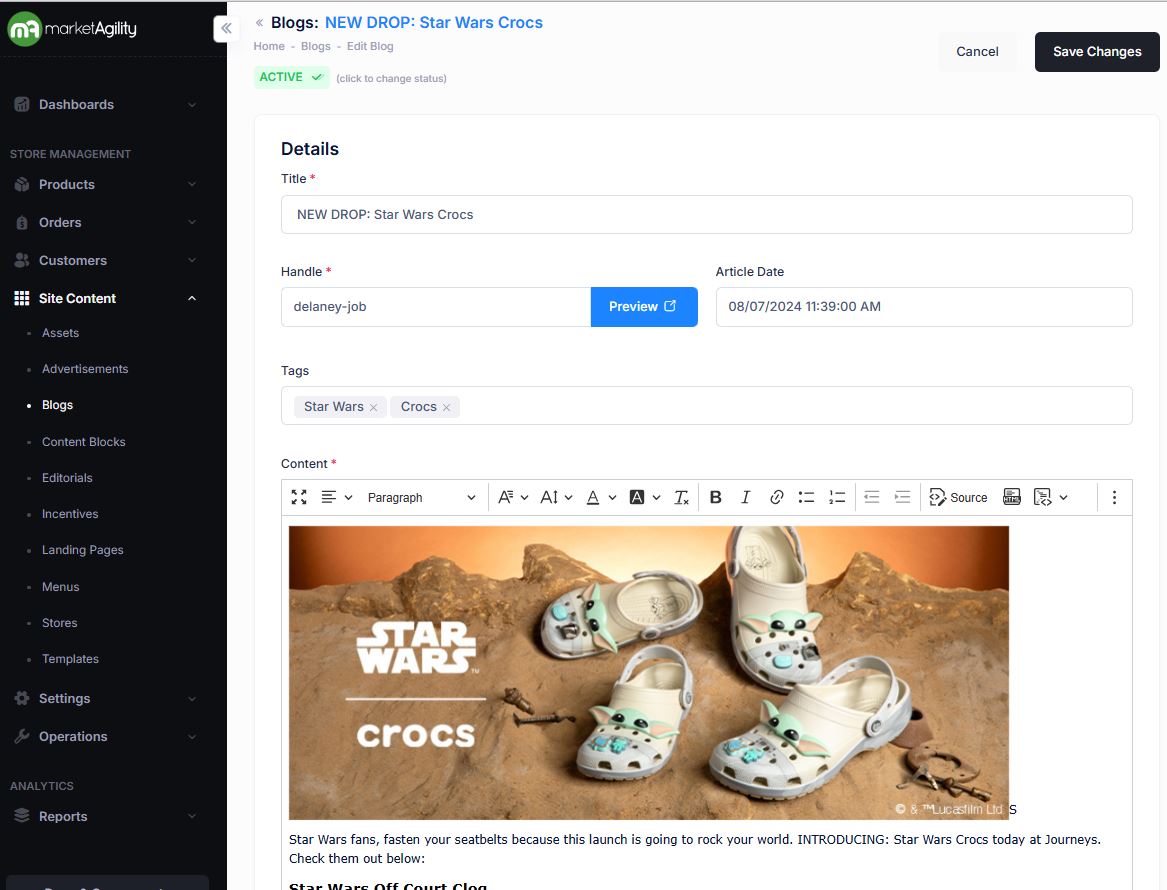
Blog Example page
Note
The content field is used to manage the full length HTML content. It can be simple text, or HTML, including dynamic blocks. For convenience an HTML editor has been provided to allow you to preview your content, and to assist with cleansing any improper or unclosed HTML tags. Click the Source button to toggle between the raw and preview modes.
Once all of your revisions have been made, click "Save Changes" to commit them to the site. Once the post is created, you will be able to add the full body of the article, assets and any related content.
Once the Blog is created the Details tab will show all the fields used. Any of the fields used during the Blog creation can be edited through the Details tab.
Blogs:
Details / Change Log
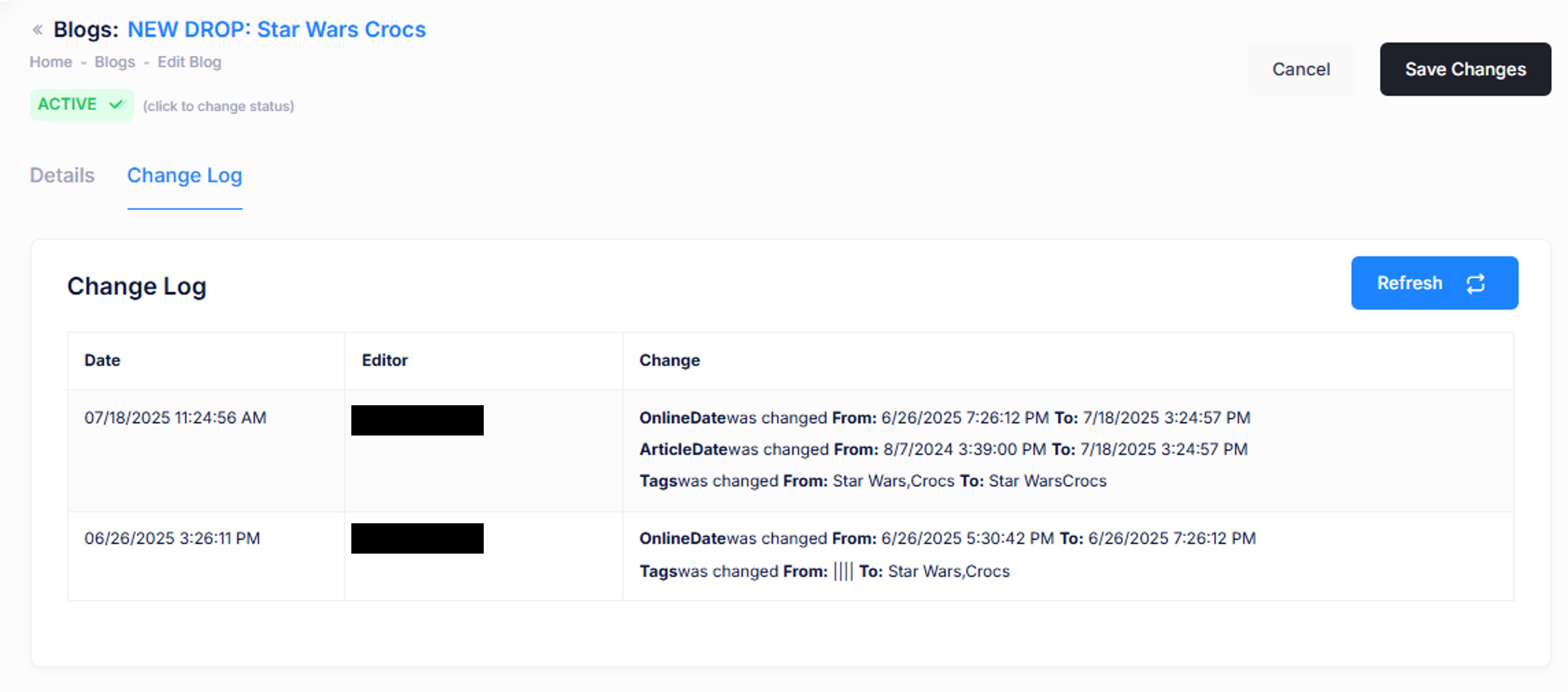
The change log tab shows all of the changes that were made to this content and by whom. It is useful for diagnosing unexpected results on your site.