Scheduled Tasks
The Scheduled Tasks (also referred to as on-demand) tool in marketAgility allows administrators to manage the execution and scheduling of both system-defined and custom tasks. This interface serves as a control center where you can configure recurring schedules or run processes manually when needed.
Searching for Scheduled Tasks
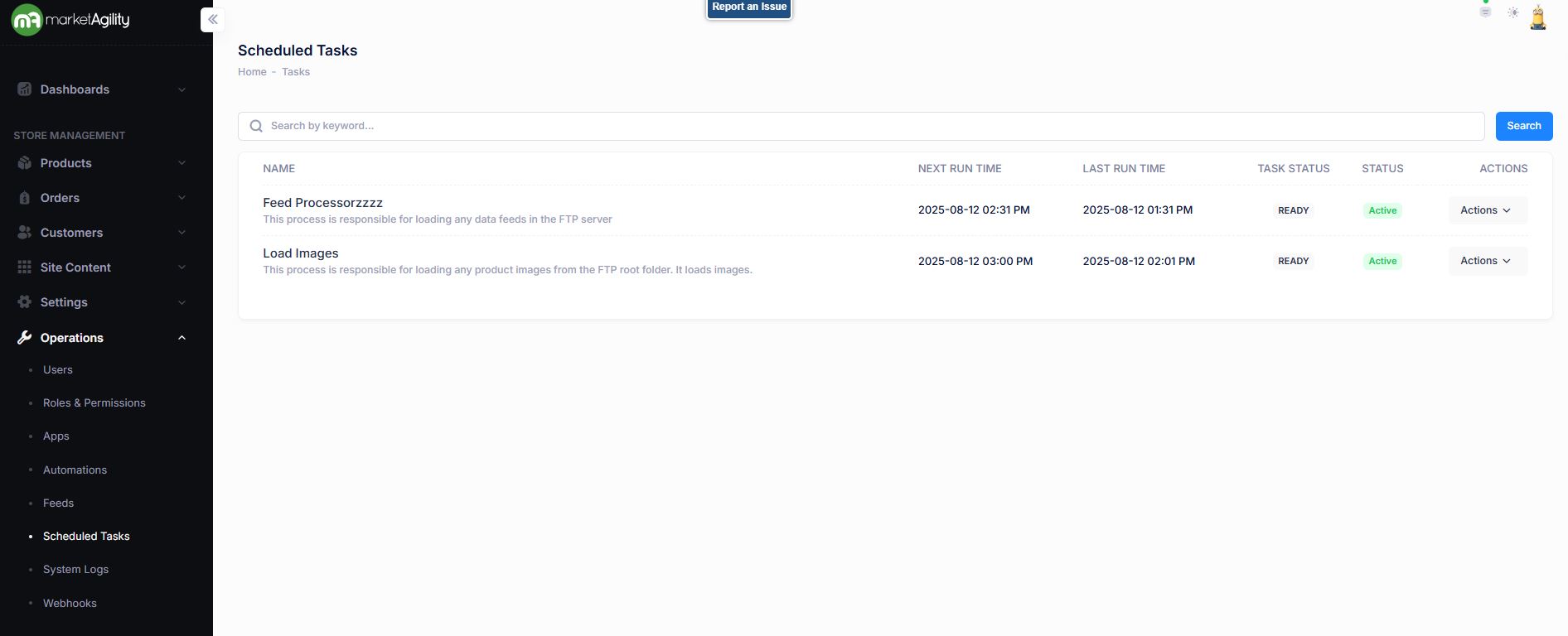
You can search for existing scheduled tasks using the search block.
To create a new Scheduled Task please work with your Client Manager and Engineering Lead.
Attributes
The main screen displays a list of all available tasks along with their recent and upcoming execution details.
| Property | Description |
|---|---|
| (Task) Name | The name used to identify the task or process |
| Next Run Time | The next scheduled run time. If multiple schedules exist, the closest upcoming one is shown. If no schedule exists, this will display “No Scheduled Run.” |
| Last Run Time | The most recent time the task was executed |
| Task Status | Shows if the task is READY to run or currently RUNNING. A task cannot be restarted until the current run is complete. |
| Status | Indicates if the task is Active (can run) or Inactive (disabled for both manual and scheduled runs) |
| Actions |
Manually queues the task to start immediately. Options include:
|
Run Now Note
The RUN NOW button allows you to manually start a process and queue it to start immediately. Once a process has been started either by a manual click of this button, or by a scheduled event, this button will become disabled and the Task Status will display "..QUEUED..".
Once the process has completed, the Task Status will display "READY".
Details (Task Configuration) / Schedule / History / Change Log
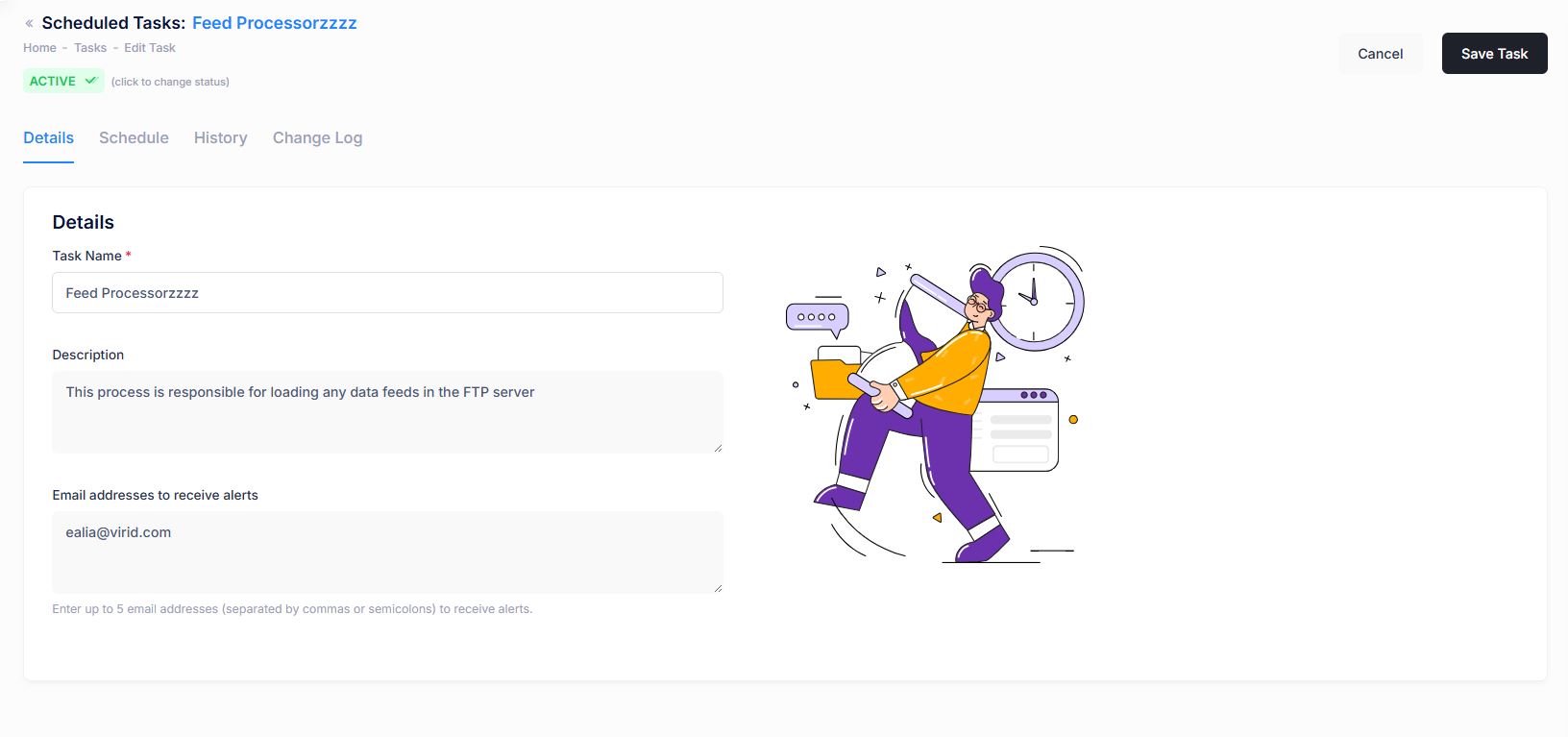
The Details screen provides general configuration settings for a task.
Attributes
| Property | Description |
|---|---|
| Task Name* | A name to identify the task |
| Description | A detailed explanation of what the task does |
| Emails (addresses to receive alerts) | Up to 5 email addresses to notify on success or failure of the task |
| Active Status | Allows you to enable or disable the task. Inactive tasks cannot be scheduled or run manually |
Details / Schedule / History / Change Log
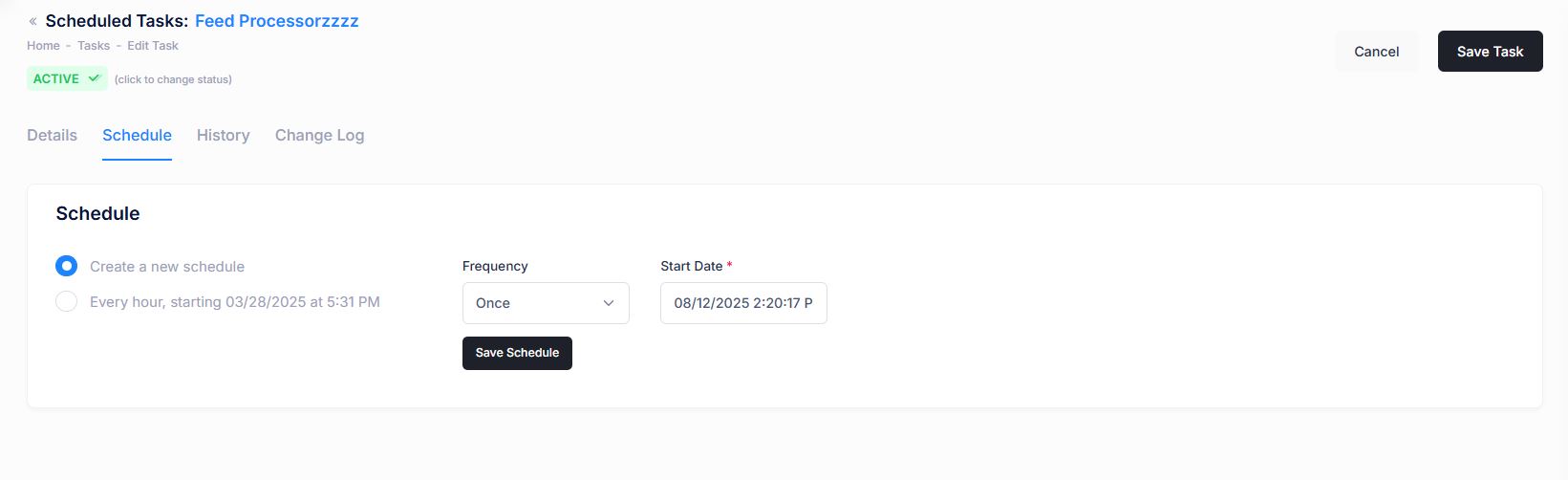
The Scheduling tab allows you to create recurring schedules or set a one-time execution in the future.
| Property | Description |
|---|---|
| Schedule |
Toggle between
|
| Frequency |
How often the task should run:
|
| Start Date | The date and time when the first run should occur. All future runs are based on this time. |
Note
Tasks cannot be scheduled in the past. To run a task immediately, use the RUN NOW button.
Once saved, schedules appear as a new toggle, where they can be selected, edited, or deleted.
Details / Schedule / History / Change Log
The History tab shows the results of the last 20 task runs.
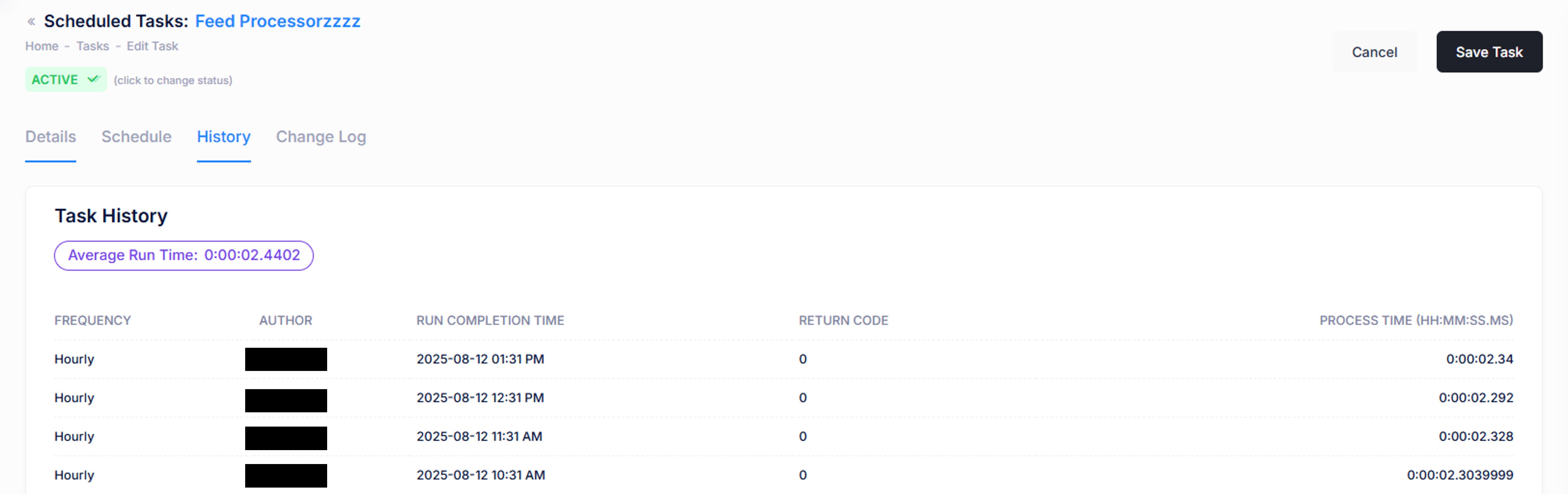
Attributes
| Property | Description |
|---|---|
| Frequency |
Shows when the tasks runs:
|
| Author | The user who ran the process. For scheduled runs, this is the last person to edit the schedule |
| Run Completion Time | When the process started and finished |
| Return Code | A numeric result; 0 typically indicates success |
| Process Time | Duration - how long the task took to complete |
Details / Schedule / History / Change Log
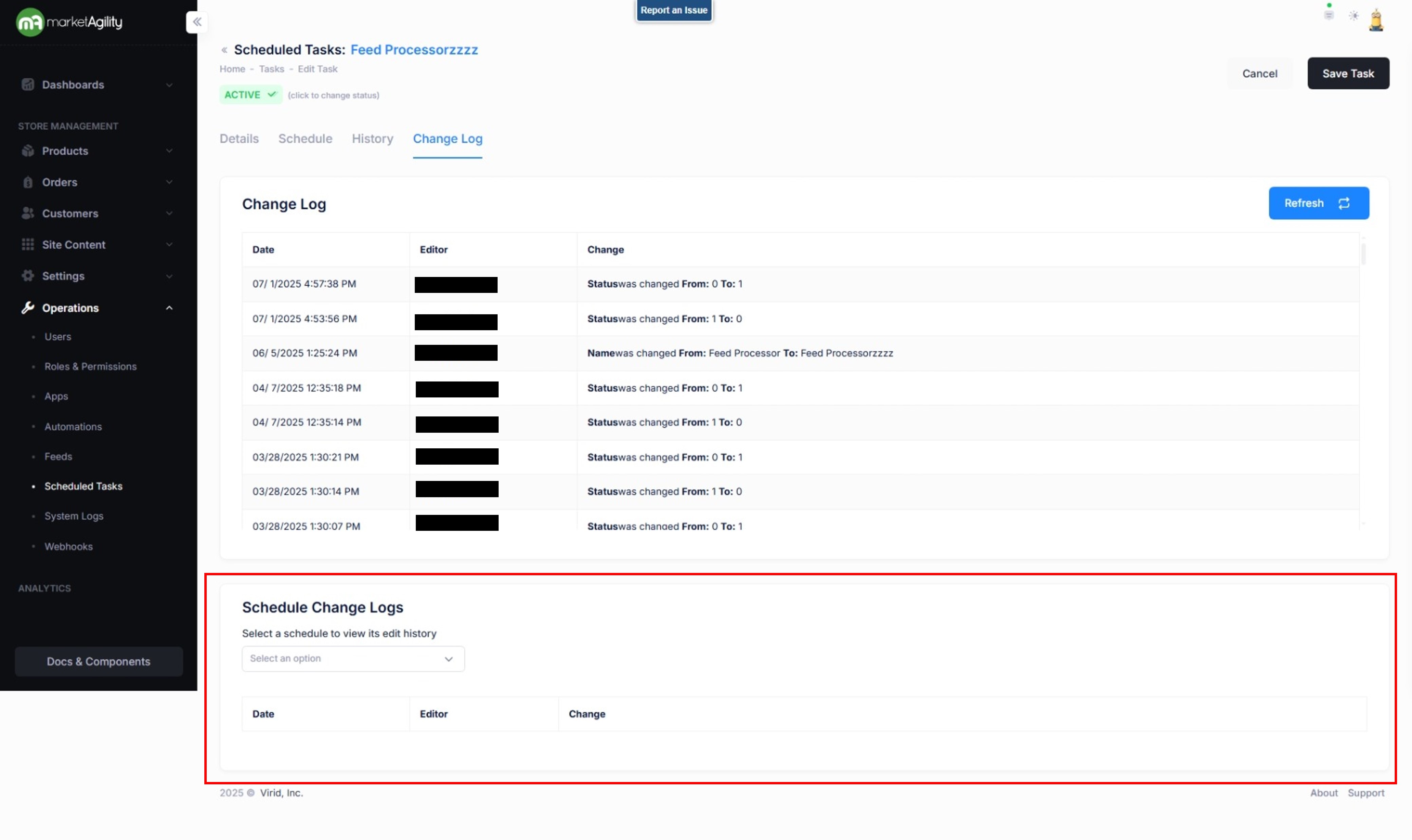
The Change Log shows all changes made to the task configuration, including the user who made them. This helps track and troubleshoot any unexpected modifications to scheduling or task behavior.
Schedule Change Logs
Additionally Change logs can be queried to review the edit history.