
Automations
The Automations tool allows administrators to set up rules that automatically apply merchandising or operational actions to products or orders once they're saved to the marketAgility content repository. Used alongside data feeds, these rules help streamline processes and ensure consistency, saving your team time and reducing manual work.
Example use cases include:
- Automatically converting brand codes or abbreviations into customer-friendly names
- Assigning products to specific categories based on brand, gender, or other attributes upon upload.
Searching for Automations
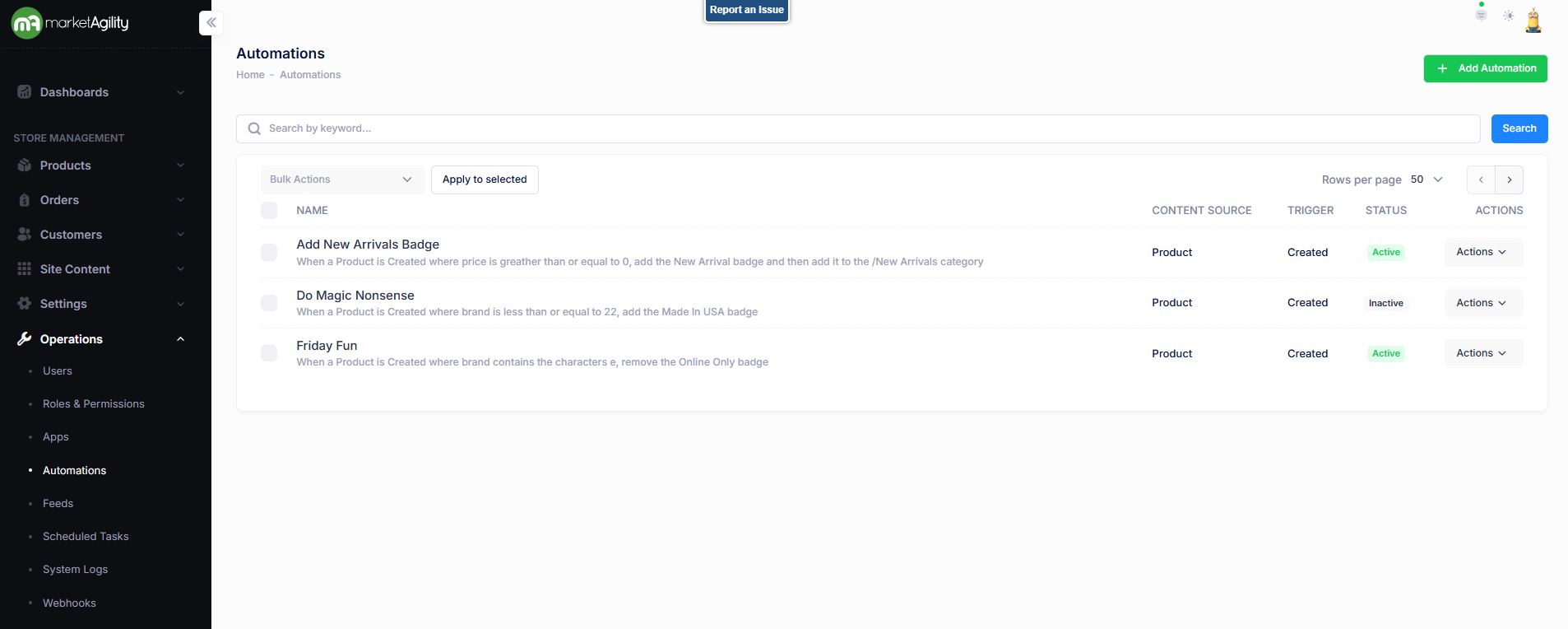
You can search for existing automations using the search block. To add a new rule, click the 'Add Automation' button.
Attributes
| Property | Description |
|---|---|
| Name | All or part of the automation rule's name. Also includes the description. |
| Content Source | Product or Order |
| Trigger | Created |
| Status | Indicates whether the automation is currently active or inactive |
| Actions | Edit / Deactivate / Delete |
| Bulk Actions |
Activate / Deactivate Use this function under the Search bar to apply bulk actions across one or many records. |
Details
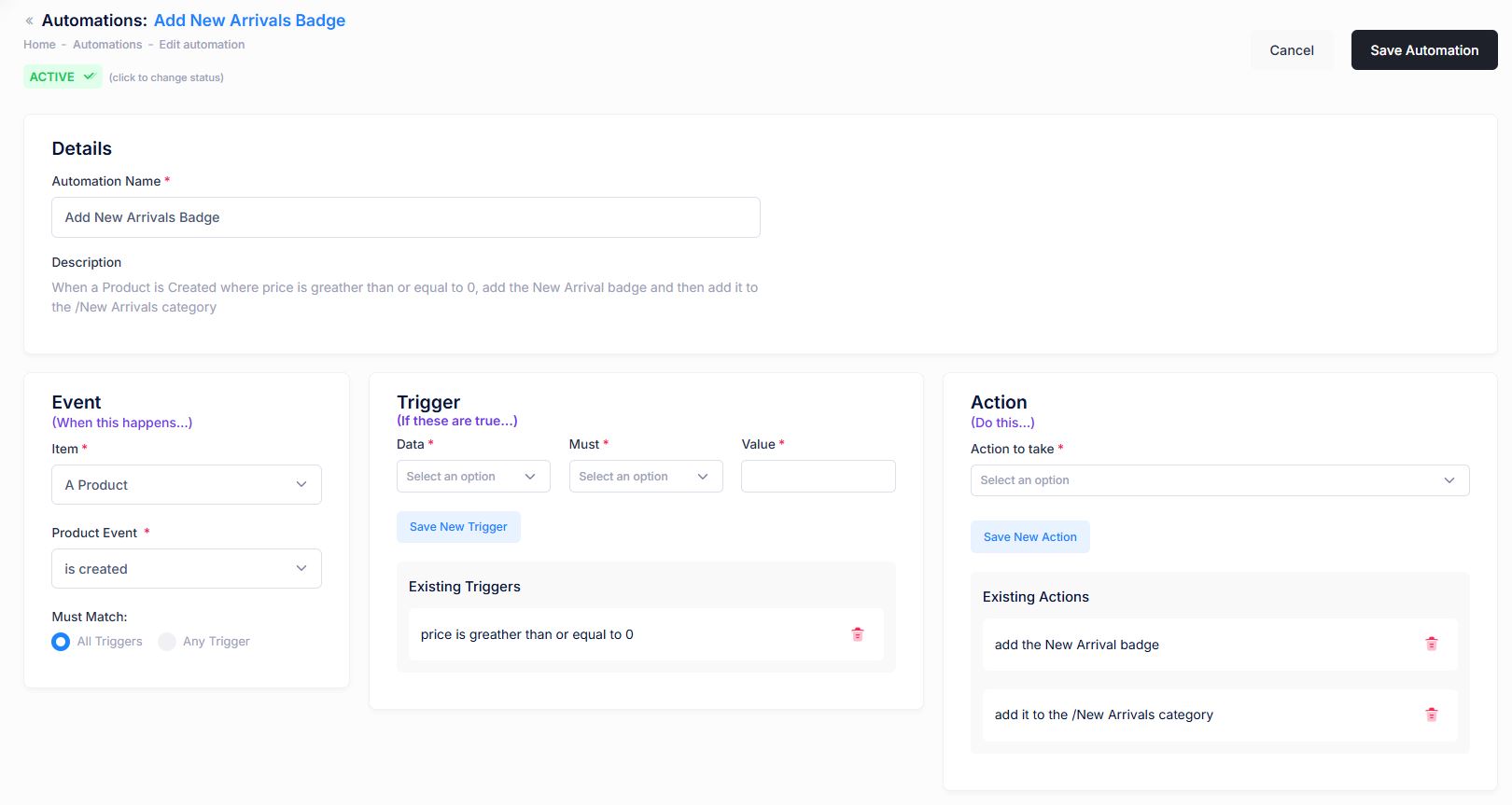
The Details screen allows you to configure automation rules, including the event, triggers and action.
| Property | Description |
|---|---|
| Details | |
| Automation Name | A unique name that identifies the automation rule |
| Description | Description of the automation. It is automatically generated through a combination of the Event + Trigger + Action. |
| Automation Elements | |
| Event* |
The event that activates the rule.
(Must Match - Specifies whether all or any conditions must be true for the actions to run) |
| Trigger* |
Choose the Triggers (Data, Must & Value) that are based on the Event.
Existing Triggers will show if an Automation is being edited. |
| Action* |
Defines the actions that will be executed if the event and trigger conditions are met.
Existing Actions will show if an Automation is being edited. |