
Feeds
The Feeds tool allows administrators to manage incoming data feeds from external sources into the marketAgility system. Each feed must follow the specific field naming conventions required by the content type it supports.
Feeds are processed through Scheduled Tasks that check the root folder of your marketAgility FTP location for files matching the feed's file naming pattern. Any matching files are loaded into the content repository, in the order they were received by (timestamp).
Searching for Feeds
You can search for existing feeds using the search block. To add a new rule, click the 'Add Feed' button.
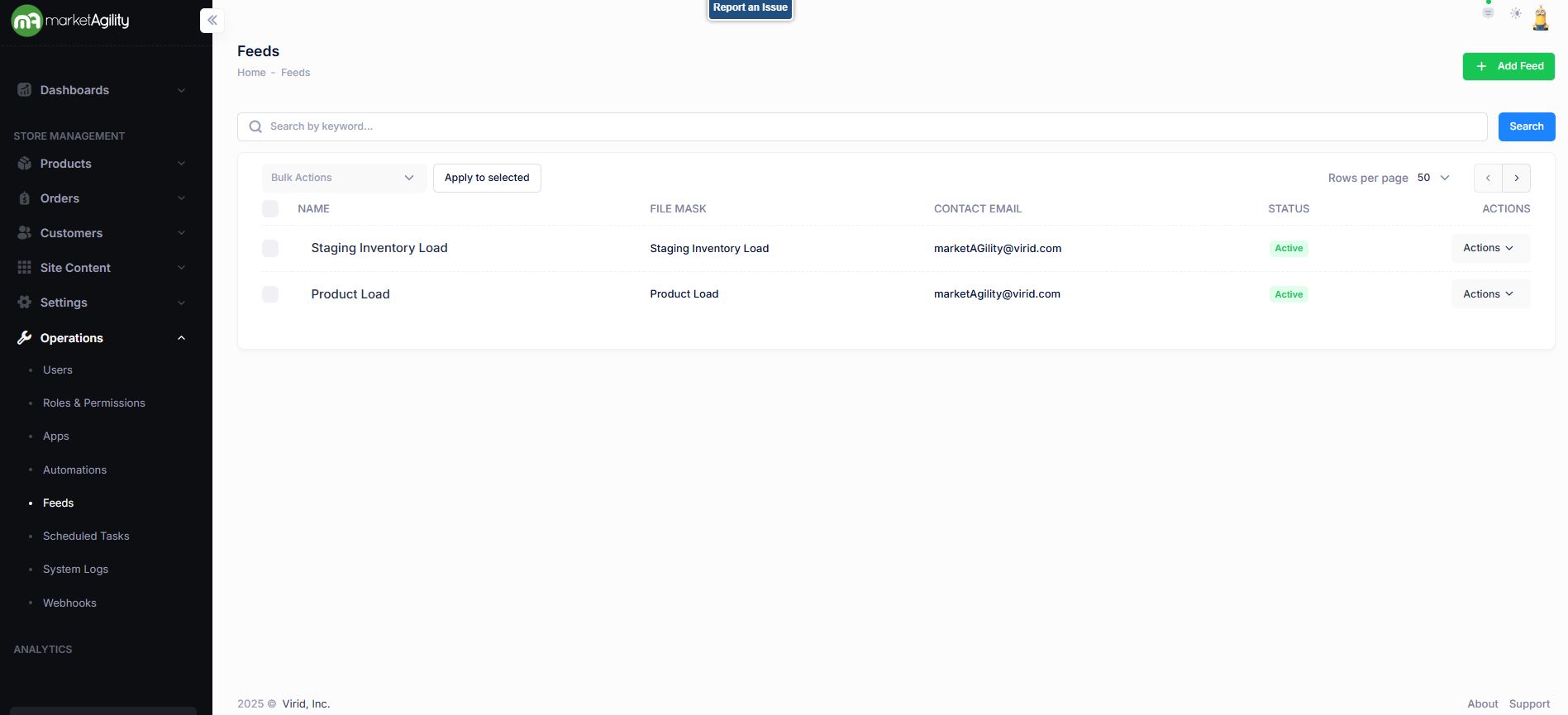
Attributes
| Property | Description |
|---|---|
| (Feed) Name | All or part of the feed name |
| File Mask |
The file name pattern (wildcards allowed) to identify which files to process Example: product*.txt |
| Contact Email | Email address to notify if the feed fails |
| Status | Indicates whether the automation is currently active or inactive |
| Actions | Edit / Deactivate / Delete |
| Bulk Actions |
Activate / Deactivate Use this function under the Search bar to apply bulk actions across one or many editorials. |
Details / Change Log
The Details screen allows you to configure feed settings such as the feed type, contact information, and excluded fields.
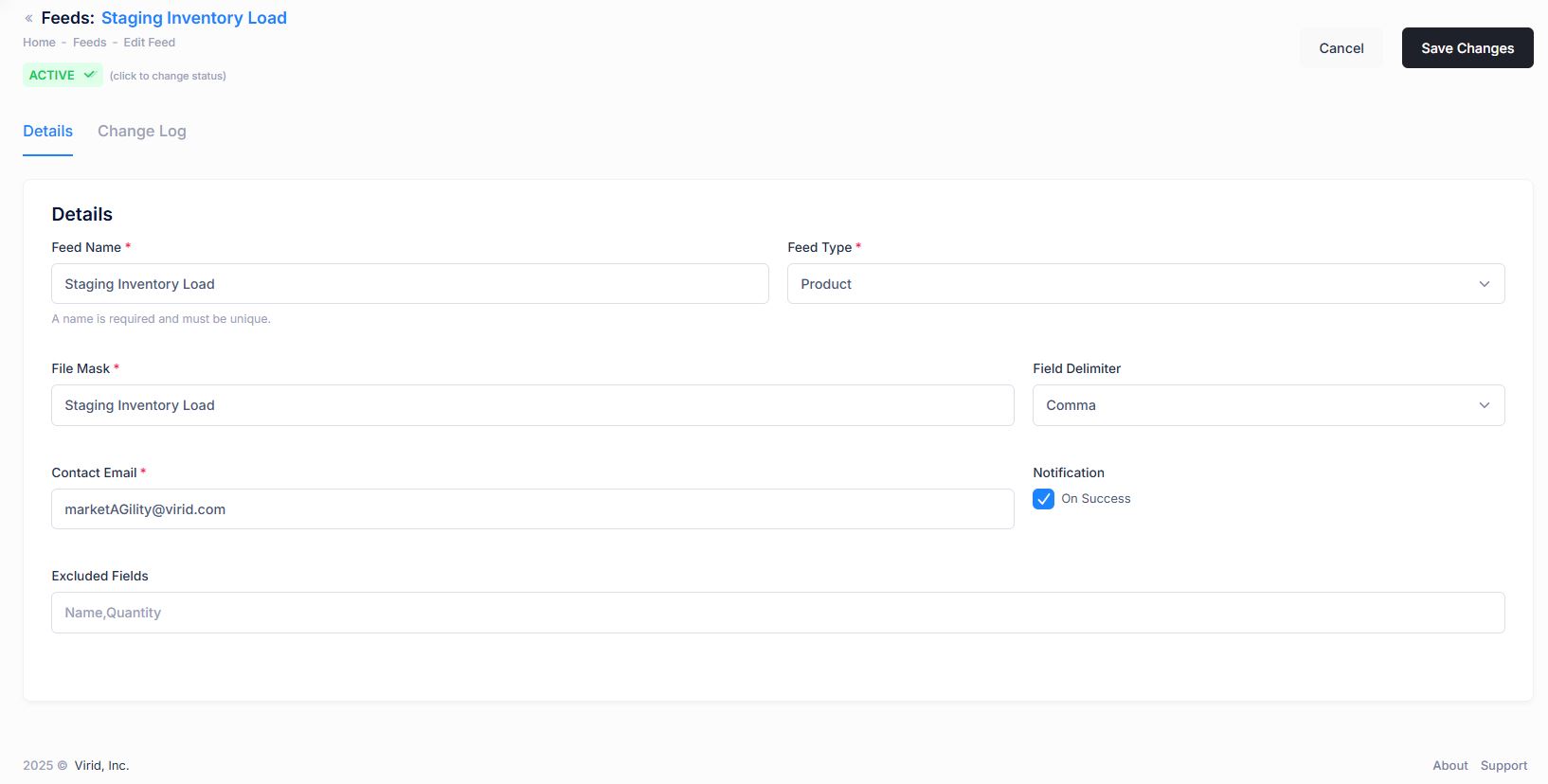
Attributes
| Property | Description |
|---|---|
| Feed Name* | A unique name to identify the feed |
| Feed Type* |
The type of content being loaded. Field names in the feed must match system fields. Feed Types include:
|
| File Mask* |
The file name pattern (wildcards allowed) to identify which files to process Example: product*.txt |
| Field Delimiter | Character that separates values in the file. Supported: Pipe, Tab and Comma |
| Contact Email* | Email address to notify if the feed fails |
| Notification | If enabled (On Success), also notifies the contact email when a feed is successfully processed |
| Excluded Fields | Fields listed here will not be overwritten during updates — useful for preserving manually merchandised content |
| Status | Indicates if the feed is active. Inactive feeds will be skipped during processing |
Details / Change Log
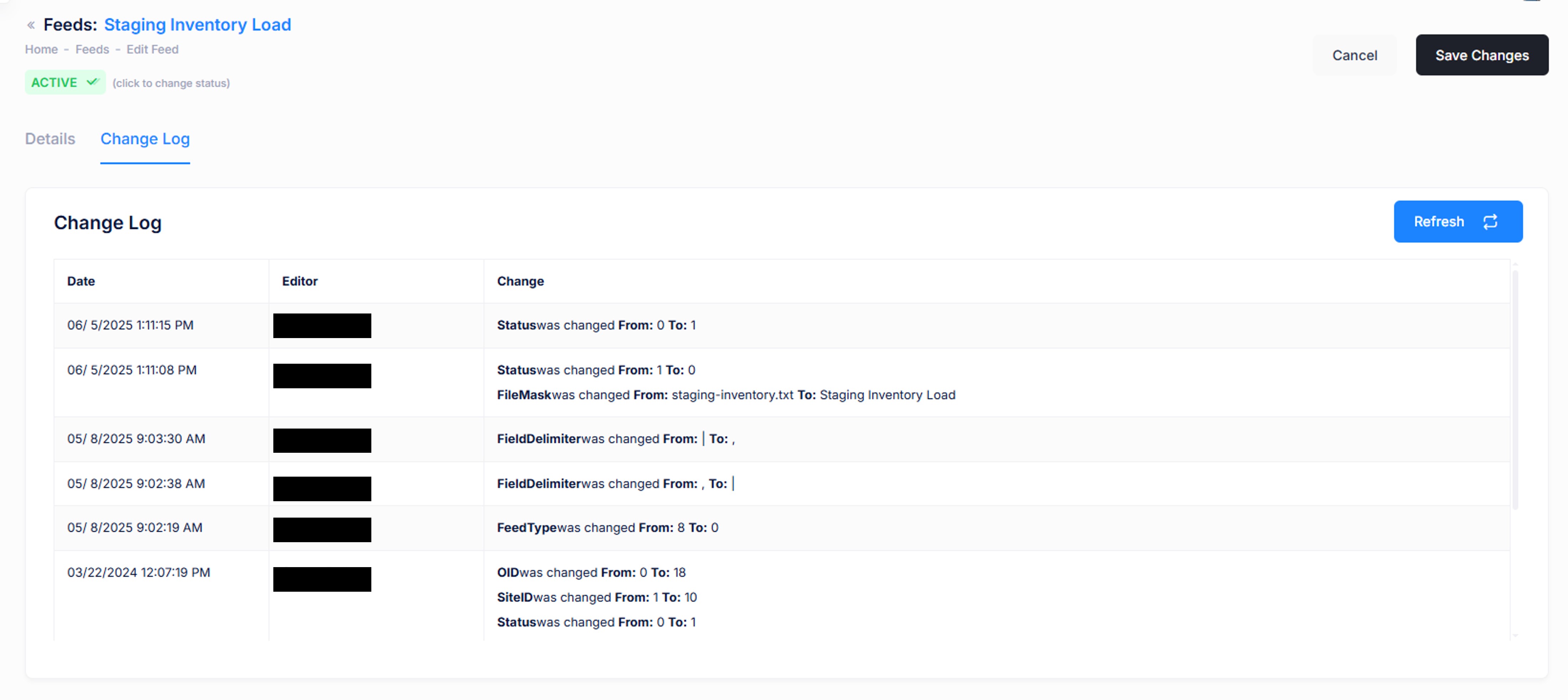
The Change Log tab logs all changes made to the feed configuration, including who made each change. This is useful for tracking updates and diagnosing issues.
Note
To maintain proper data relationships such as ensuring parent content exists before child content — feeds are processed in a fixed sequence:
- Product
- Category
- Career
- Cross Sells
- Promotion Codes
- Store
- Inventory
- Inventory Delta
- Staging Inventory
- Staging Inventory Delta
- Markdowns
- Staging Promotion Codes
- Zip Codes
- Store Holiday Hours
- Store Inventory
- Staging Store Inventory
- Offers