Cash Register

The cash register tool allows a call center representative to place a new order for a customer in the marketAgility system. The free-form tool allows the employee to look up customers, items, recently abandoned carts and past orders to craft a new order on behalf of a customer. This is often useful if a customer has difficultly placing an order on the website, or orders are received through external channels such as phone, fax or mail.
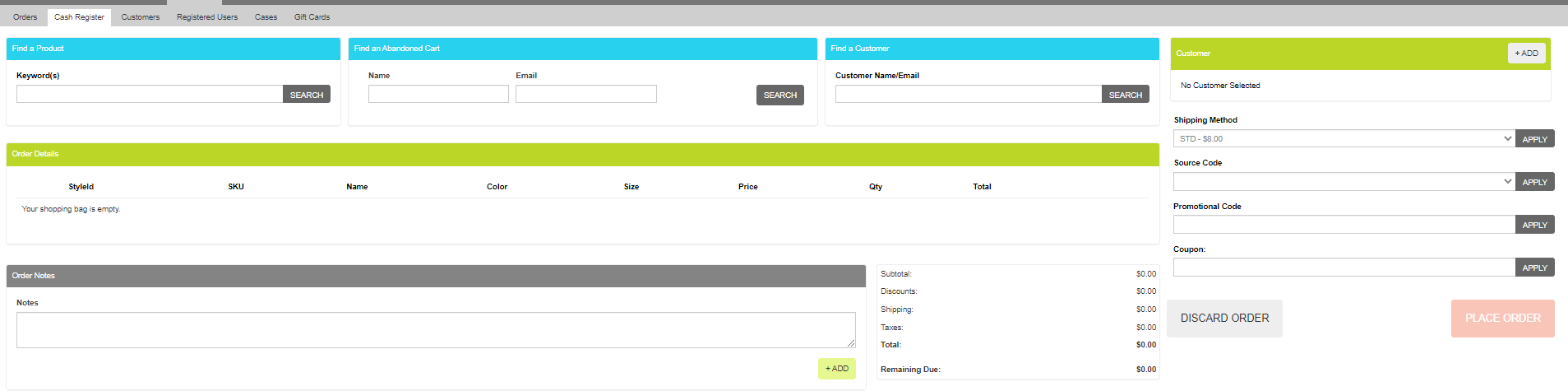
Invoice

The main cash register screen displays a blank order invoice, allowing the customer service representative to add customer information and items as needed.

Cash Register Invoice

Find a Product

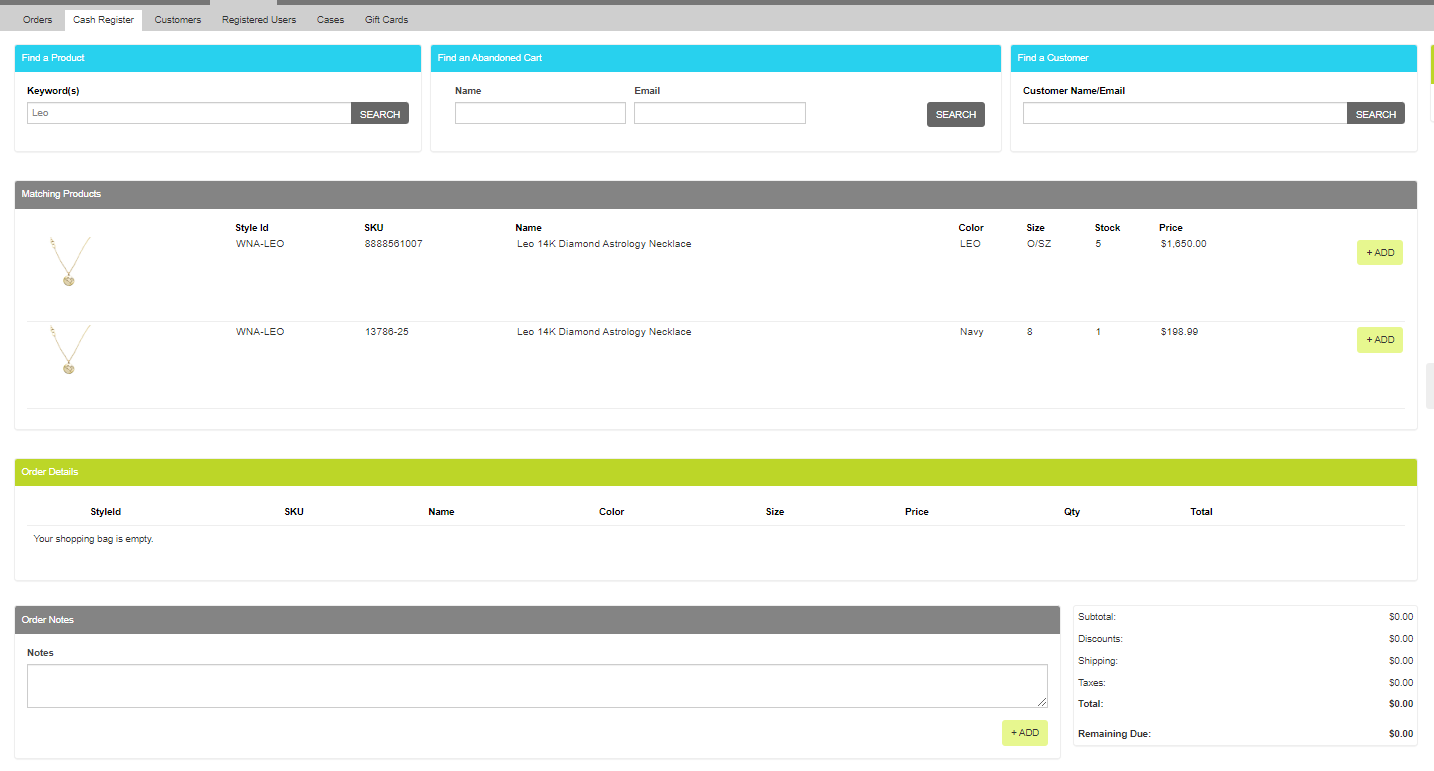
The find a product tool allows the agent to search the product catalog by keyword

Find a Product

These attributes are as follows:

Property Description
Keyword A keyword for aiding it locating the desired product. Searchable product elements include name, style id, sku, keywords or description.

Once the desired item has been located, click the add button to add the item to the working shopping cart.

Warning

Stock information is displayed in the Stock column for each item, however inventory rules are not enforced in this tool. Make sure that you consult the stock information before adding the item to the order.

Find a Customer

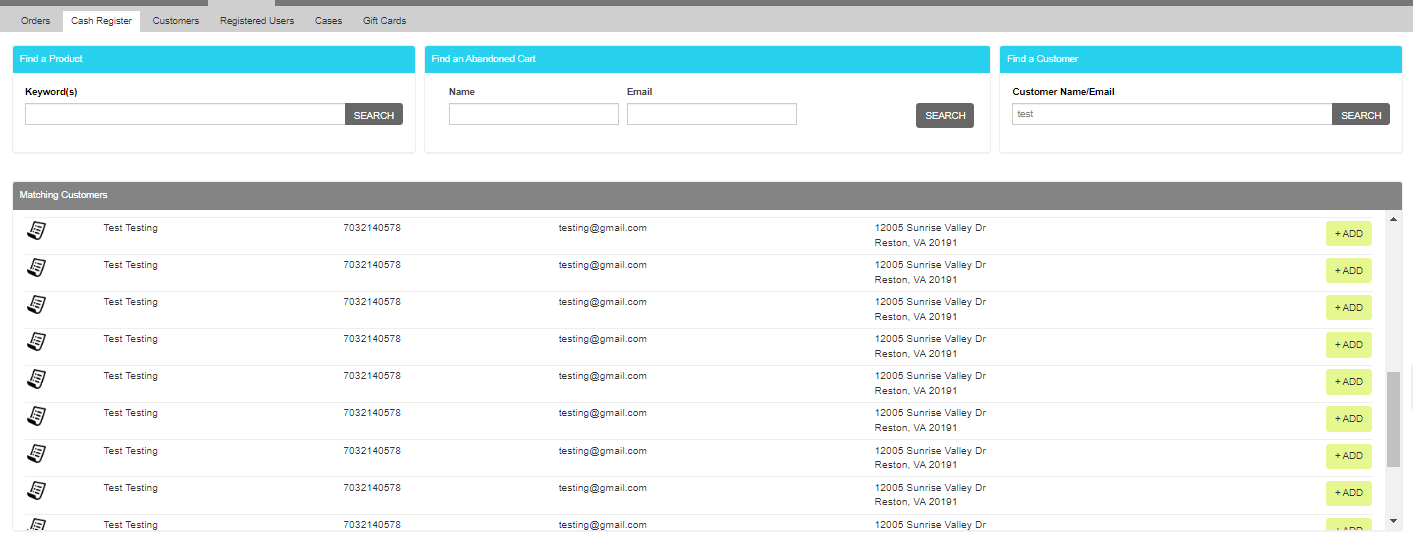
The find a customer tool allows the agent to search for an existing customer (registered user) to bind to this order.

Find a Customer

These attributes are as follows:

Property Description
Keyword A keyword for aiding it locating the desired product. Searchable customer elements include name and email.

Once the desired customer has been located, click the add button to attach the customer to the working shopping cart.

Find an Abandoned Cart

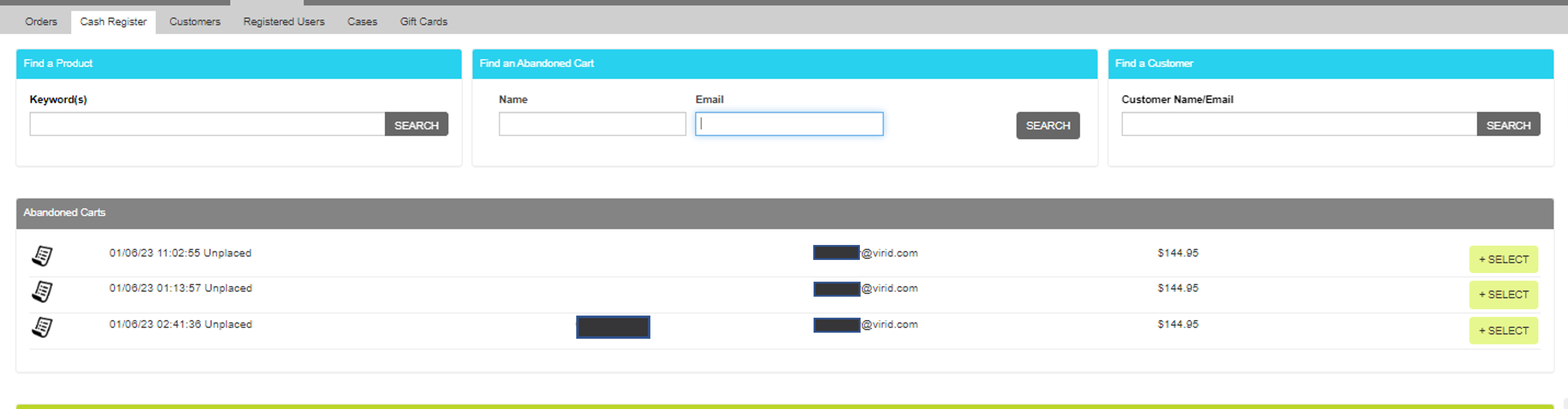
The find an abandoned cart tool allows the agent to search for an unplaced order from the website so that it can be continued in the cash register. An uplaced order is an order that was started on either the website or within the cash register and has not yet been placed. If the order has progressed to the point at which the customer has provided an email address or at least a shipping or billing first and last name, the provided fields can be used to help find the customer order.

Find an Abandoned Cart

These attributes are as follows:

Property Description
Name All or part of the name used on the unplaced order.
Email The email used on the unplaced order.

Once the in-progress order has been located, click the "Select" button to load the cart and continue its checkout flow.

Customer Information

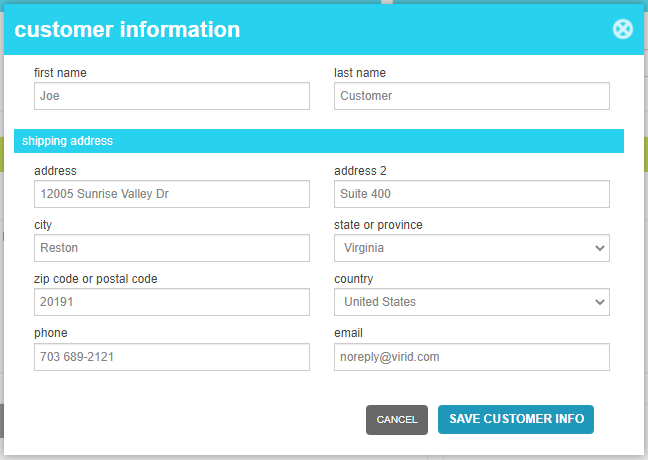
The Customer information tool allows the agent to add or update the customer address. If an existing customer was used, this information will already be populated based on the default address for the customer. If not, the information can be added through the form.

Customer Information

These attributes are as follows:

Property Description
First Name The customer's first name
Last Name The customer's last name
Address The address line 1 of the customer's address
Address Line 2 The address line 2 of the customer's address
City The city of the customer's address
State/Province The state or province of the customer's address
Zip The postal code of the customer's address
Country The country of the customer's address
Phone The customer's phone number
Email The email address for customer.

Payments

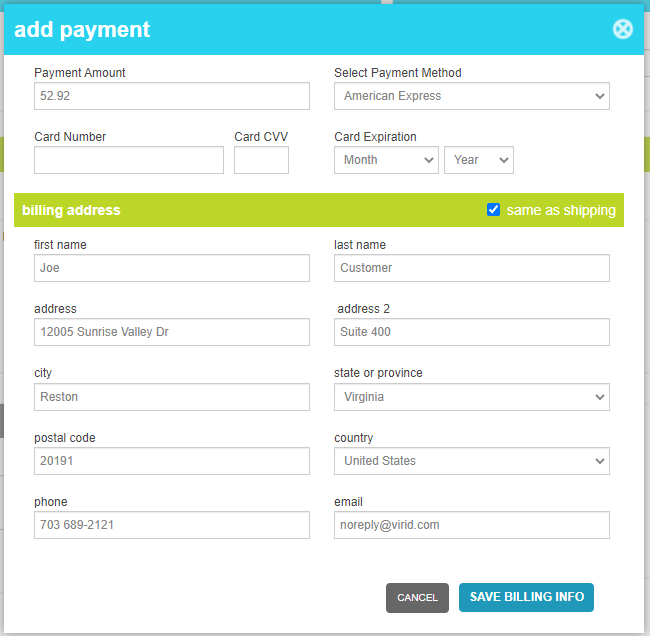
The Payments tool allows the agent to add payment methods to the order. The Add Payment button will appear below the order totals until the Remaining Due: value is zero.

Payments

These attributes are as follows:

Property Description
Payment Amount The amount that should be billed to this payment method
Select payment method The type of payment method that should be used
Payment Fields depending on the type of payment, this section will change
Card Number The Credit Card Number
Card CVV The Credit Card CVV code
Card Expiration The month and year of the credit card expuration
Issue Number Presented for physical payment types, this is the id number present on the check or money order.
Billing Address Fields The billing address field are populated in this section
Same as Shipping Check this box to copy the shipping address information into these fields
First Name The cardholders's first name
Last Name The cardholders's last name
Address The address line 1 of the cardholder
Address Line 2 The address line 2 of the cardholder
City The city of the cardholder
State/Province The state or province of the cardholder
Zip The postal code of the cardholder
Country The country of the cardholder
Phone The cardholder's phone number
Email The email address for cardholder.