Registered Users
The registered users tool allows a call center administrator to manage the various elements associated with a registered user.

The registered users tool allows a call center administrator to manage the various elements associated with a registered user.
To find a provider or providers that share a common attribute value, a search block has been provided. To create a new one, use the "Add New" button above the search block.
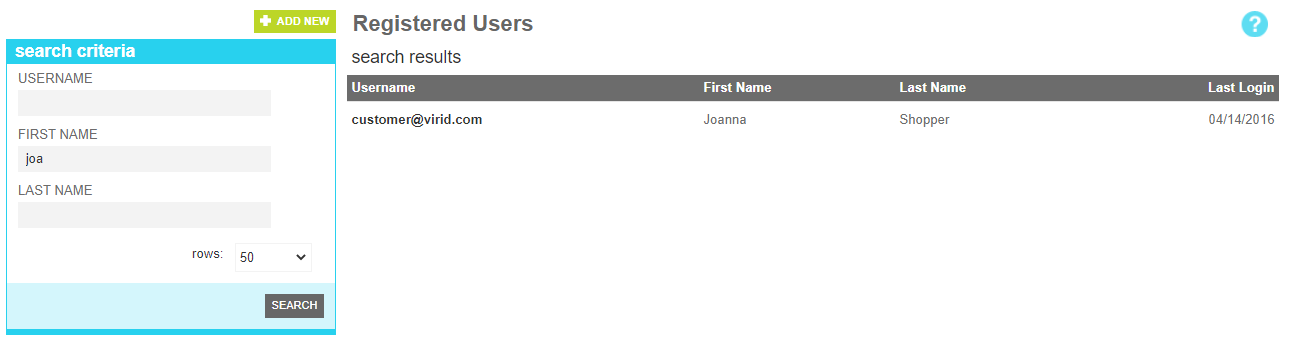
These attributes are as follows:
| Property | Description |
|---|---|
| Username | The username of the the targeted user. Typically this is their email address, unless you have changed your site theme to allow non-email usernames. |
| First Name | All or part of the first name of the targeted user |
| Last Name | All or part of the last name of the targeted user |
| Rows | Limits the results to the indicated number. |
The details screen allows you to manage the user's profile information.
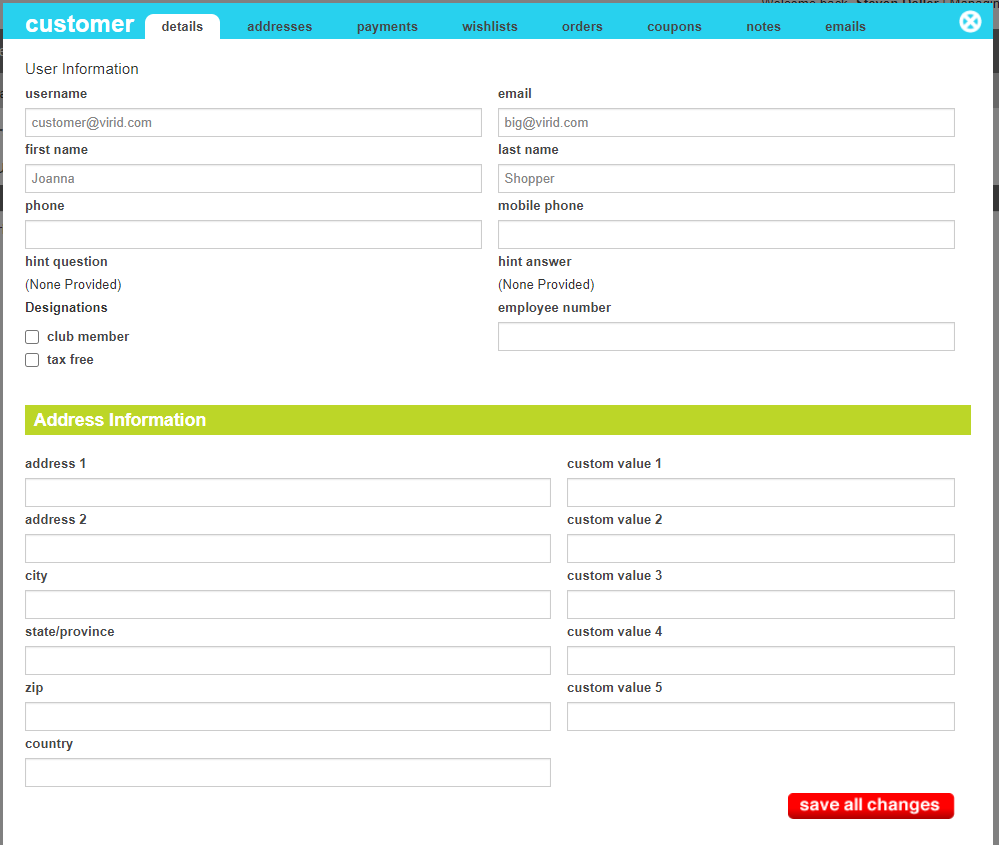
These attributes are as follows:
| Property | Description |
|---|---|
| Username | The user name for user. This is the value they enter to log in to their account on your website. |
| The email address for user. | |
| First Name | The user's first name |
| Last Name | The user's last name |
| Phone | The user's phone number |
| Mobile Phone | The user's mobile phone number |
| Hint Question | The user's password hint question. This can be used in conjunction with the Hint Answer for validation when the user requests to reset their password. |
| Hint Answer | The user's password hint answer. This can be used in conjunction with the Hint Question for validation when the user requests to reset their password. |
| Designations |
A series of badges that give the user special treatment when they visit your website. Current values include:
|
| Employee Number | User's Employee number, if available |
| Address Information | These fields provide the default address information for the user |
| Address 1 | The address line 1 of the user's address |
| Address Line 2 | The address line 2 of the user's address |
| City | The city of the user's address |
| State/Province | The state or province of the user's address |
| Zip | The postal code of the user's address |
| Country | The country of the user's address |
| Custom Value 1 | A merchant-specific tracking value. This is a custom value typically dicated by your website theme. |
| Custom Value 2 | A merchant-specific tracking value. This is a custom value typically dicated by your website theme. |
| Custom Value 3 | A merchant-specific tracking value. This is a custom value typically dicated by your website theme. |
| Custom Value 4 | A merchant-specific tracking value. This is a custom value typically dicated by your website theme. |
| Custom Value 5 | A merchant-specific tracking value. This is a custom value typically dicated by your website theme. |
The addresses screen allows you to manage the user's saved address book information. The top half of the screen lists the addresses book entries that the customer has created. To view or edit the address information for an entry, click on its name to reveal the individual address fields.
To remove an address from the address book, click on the address to reveal the details and use the "Remove" button to delete it. Deletions take effect immediately and cannot be reversed..
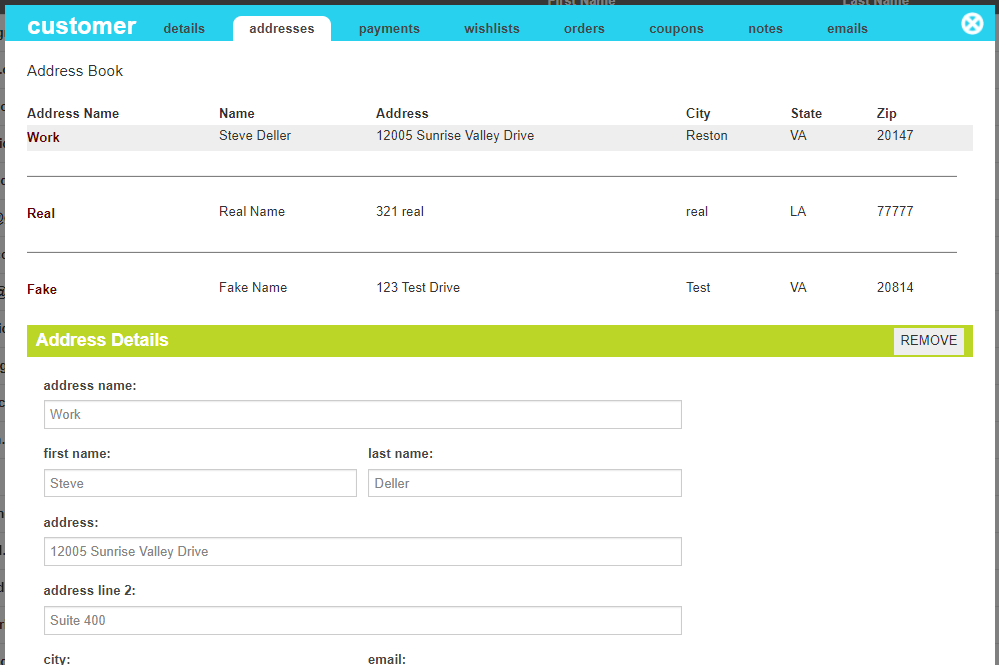
These attributes are as follows:
| Property | Description |
|---|---|
| Address Name | The address descriptor. This helps the customer identify their address more quickly when checking out. |
| First Name | The first name associated with this address |
| Last Name | The last name associated with this address |
| Address | The address line 1 of the user's address |
| Address Line 2 | The address line 2 of the user's address |
| City | The city of the user's address |
| State/Province | The state or province of the user's address |
| Country | The country of the user's address |
| Postal Code | The postal code of the user's address |
| The email address associated with this address | |
| Phone | The phone number associated with this address |
| Mobile Phone | The mobile phone number associated with this address |
| Default Shipping Method | The default shipping method that will be selected when the user chooses this address book entry. |
The payments screen allows you to manage the user's saved payment information. The top half of the screen lists the payment entries that the customer has created. To view or edit the payment information for an entry, click on its name to reveal the individual payment fields.
To remove an payment from the payment book, click on the payment to reveal the details and use the "Remove" button to delete it. Deletions take effect immediately and cannot be reversed.
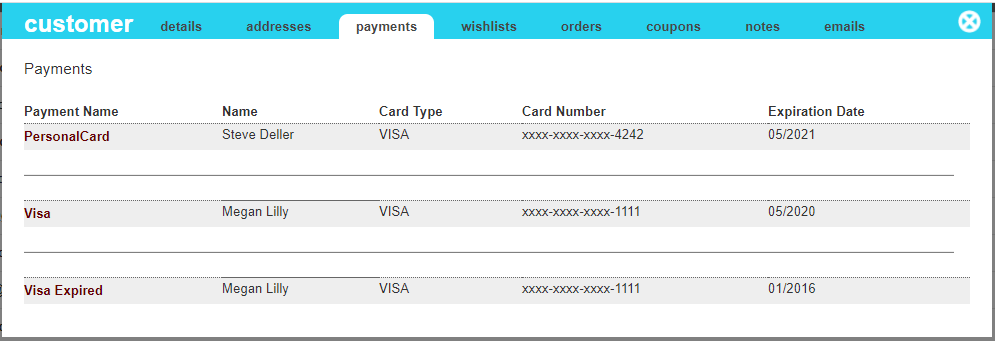
These attributes are as follows:
| Property | Description |
|---|---|
| Address Name | The payment descriptor. This helps the customer identify their payment more quickly when checking out. |
| First Name | The first name associated with this payment |
| Last Name | The last name associated with this payment |
| Address | The address line 1 of the user's payment |
| Address Line 2 | The address line 2 of the user's payment |
| City | The city of the user's payment |
| State/Province | The state or province of the user's payment |
| Country | The country of the user's payment |
| Postal Code | The postal code of the user's payment |
| The email address associated with this payment | |
| Phone | The phone number associated with this payment |
| Mobile Phone | The mobile phone number associated with this payment |
The wishlists screen allows you to manage the user's saved wishlist information. The top half of the screen lists the wishlists that the customer has created. To view or edit the wishlist information for an entry, click on its name to reveal the individual wishlist fields.
To remove an wishlist from the wishlists, click on the wishlist to reveal the details and use the "Remove" button to delete it. Deletions take effect immediately and cannot be reversed.
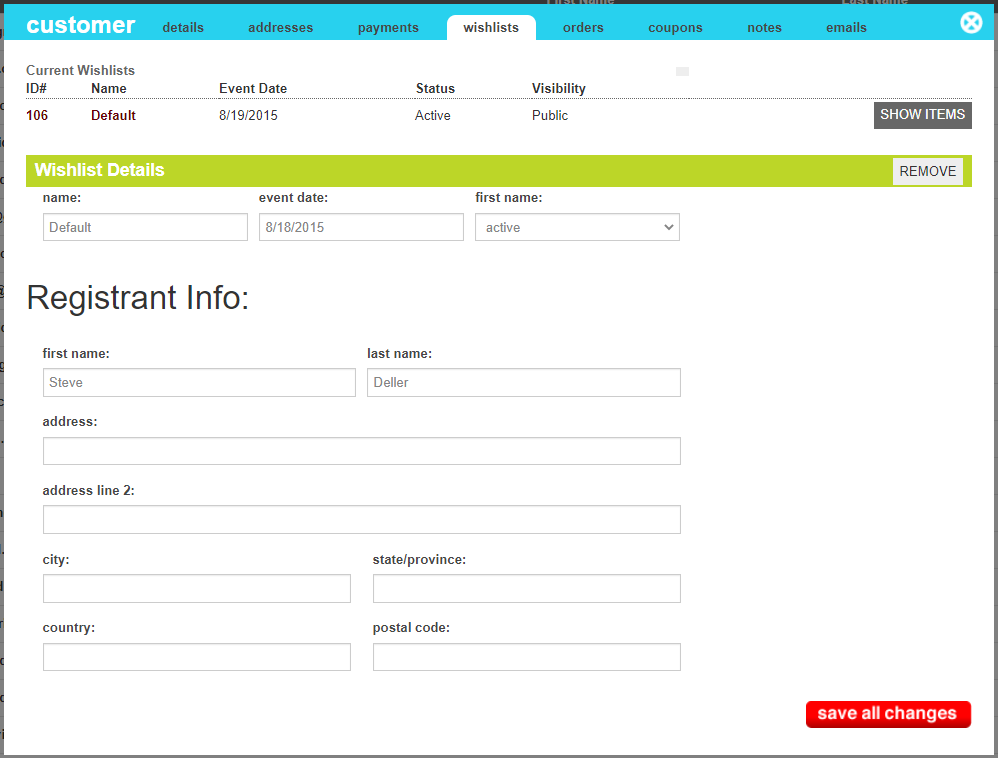
These attributes are as follows:
| Property | Description |
|---|---|
| Name | The wishlist name. |
| Event Date | The date of the event. Typically this is the customer's birthday or a significant date in the future.. |
| Status | The status of the wishist. (Active or Inactive) |
| First Name | The first name associated with this wishlist |
| Last Name | The last name associated with this wishlist |
| Address | The address line 1 of the user's wishlist |
| Address Line 2 | The address line 2 of the user's wishlist |
| City | The city of the user's wishlist |
| State/Province | The state or province of the user's wishlist |
| Country | The country of the user's wishlist |
| Postal Code | The postal code of the user's wishlist |
The Show Items button, reveals the actual product items assiceated with the wishlist. This view allows the customer service representative to update the desired or purchased quantities, or remove the item from the wishlist altogether
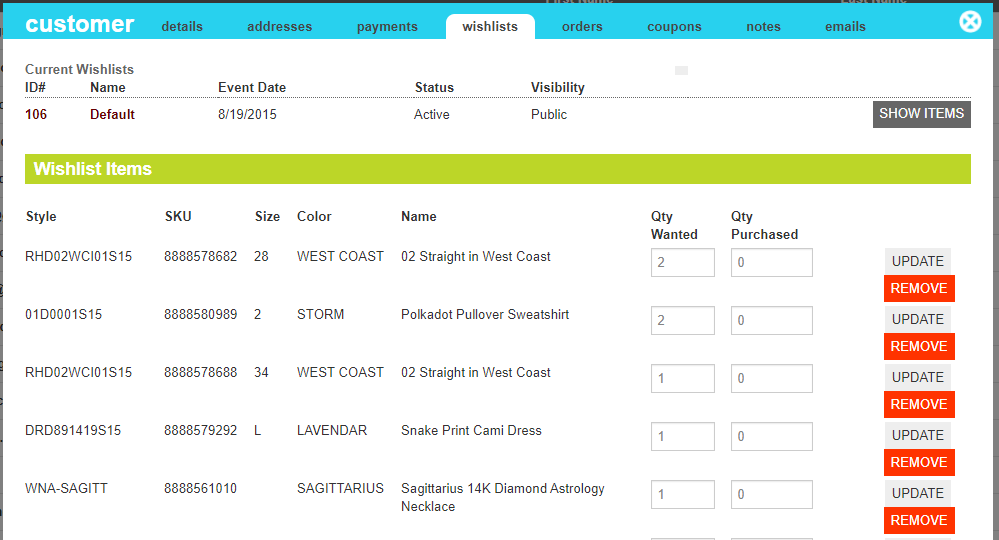
These attributes are as follows:
| Property | Description |
|---|---|
| Qty Wanted | This is the published quantity that the user would like to purchase. |
| Qty Purchased | This is the number of items that customers have purchased from this wishlist. Note, that for this number to update automatically, the purchasing customer must have added the item to their cart directly from the users's wishlist on the website or email. |
| Remove | Clicking this button removes the item from the user's wishlist |
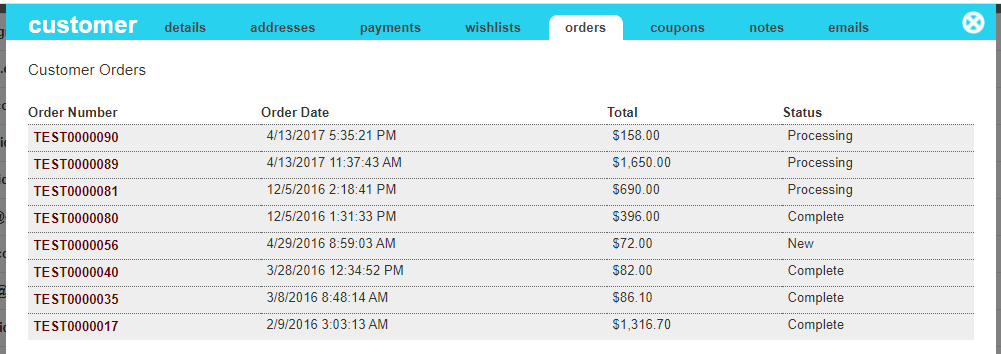
The orders screen allows you to review the user's past orders. The top half of the screen lists the orders associated with this user. To view the order information for an entry, click on its name to reveal the individual order screens.
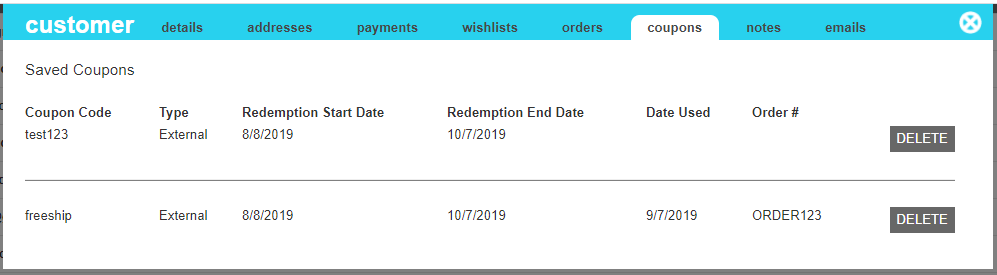
The coupons screen allows you to view the user's saved coupons. Each coupon that a customer has saved to their wallet is listed, along with the type, redemption start and end dates. If the coupon was applied to an order, the Date Used and Order # will also be visible
To remove a coupon from the wallet, click the "Delete" button at the right of the desired coupon. Deletions take effect immediately and cannot be reversed.
The notes screen allows you to view and create notes as interactions occur with the customer.
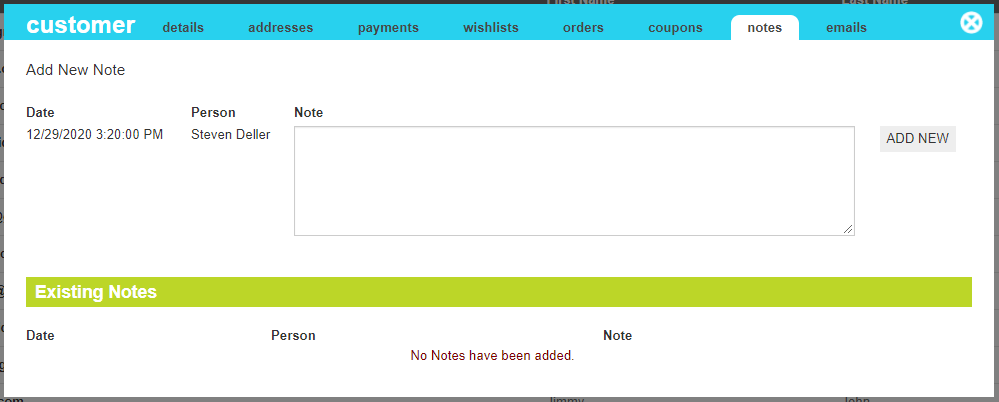
These attributes are as follows:
| Property | Description |
|---|---|
| Date | The date of the new note. This is provided automatically and cannot be edited. |
| Author | The author of the new note. This is provided automatically and cannot be edited. |
| Note | The content of the note. |
| Add New | Adds the note to the user record. |
The emails screen allows you to view the history of emails that were sent from or to this user's email address from the website. Additionally, the email can be resent if necessary.
When resending an email, the email will be sent exactly as it was originally created, including the same frome email, to email, and message body. It is not regenerated from updated information.
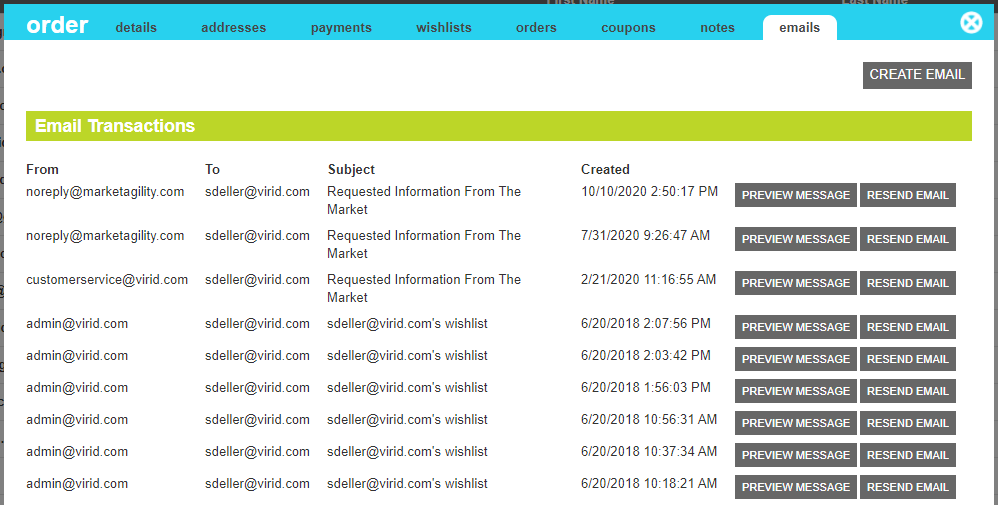
By clicking the Preview Message, the HTML content of the email can be viewed