
Inventory
Inventory refers to the total stock of products that a business has available for sale through its ecommerce site. It includes all items physically stored in warehouses, retail locations, or managed through third-party fulfillment services.
Why Inventory matters in mA7:
- Controls product availability on your site
- Ensures accurate order fulfillment and customer satisfaction
- Helps you avoid overselling or stockouts
- Supports promotions, bundling, and restock planning
- Feeds into reporting for sales forecasting and demand planning
Common Inventory Terms:
- In Stock: Quantity available to sell
- Out of Stock: No units available for purchase
- Backorder: Items not currently in stock but available to order
- SKU: A unique code used to track each product or variant
- ATS (Available to Sell): Quantity currently sellable, factoring in reserved stock
Inventory is typically managed per product SKU and can be:
- Tracked manually
- Synced with physical warehouses
- Automated with inventory management systems (IMS)
mA7 Inventory Tool
The inventory tool allows an administrator to review and alter the inventory levels for a SKU on either the staging site or the production site. It also provides a history of inventory level changes through the lifetime of the SKU.
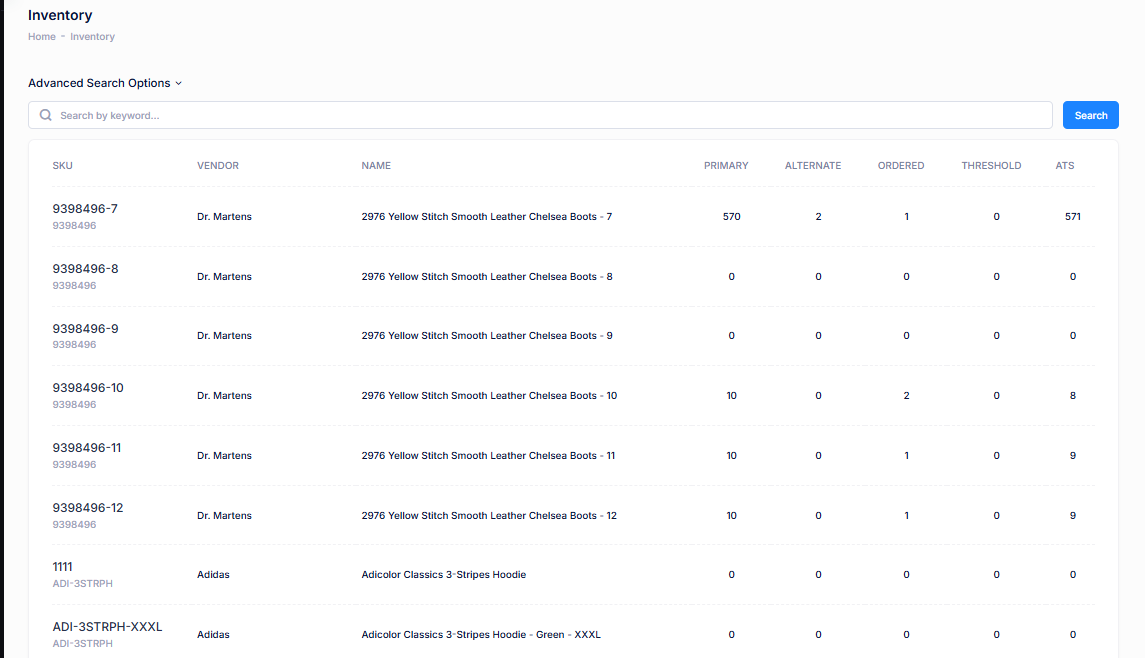
| Property | Description |
|---|---|
| SKU | Stock Keeping Unit - the purchasable element of a StyleID. |
| Vendor | Product manufacturer's brand name. |
| Name | Full Product name. |
| Primary |
Value of inventory at Primary source or location used to fulfill orders for a product. Examples:
|
| Alternate | Value of alternate inventory refers to secondary inventory sources or locations that can be used to fulfill orders when the primary inventory is unavailable or insufficient. |
| Ordered | Refers to the total quantity of a product that customers have purchased but that has not yet been fulfilled or shipped. |
| Threshold | An inventory undersell or oversell value that allows you to stop selling a product before it hits a zero-inventory level, or to allow you to sell over the absolute inventory by a set number of units. To undersell, enter a positive number that will be effectively subtracted from your on-hand inventory. To oversell, enter a negative number that will be effectively added to your current on-hand inventory. |
| ATS | This read-only field shows the current inventory for this SKU as it exists in your live environment. It is helpful for determining if you should deactivate out of stock SKUs so they don't distract from your customers when checking out. |
Inventory Search
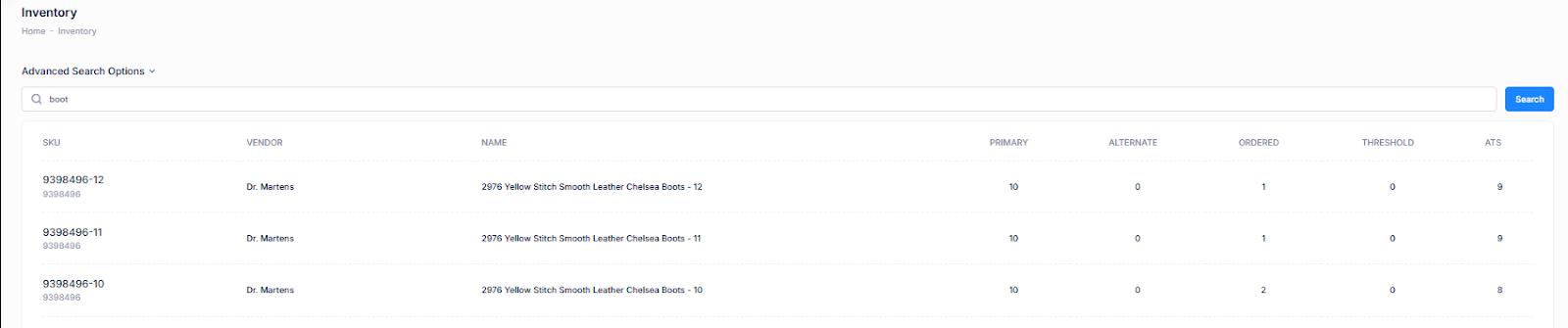
Simple Search - type in any product related keyword to view your results.
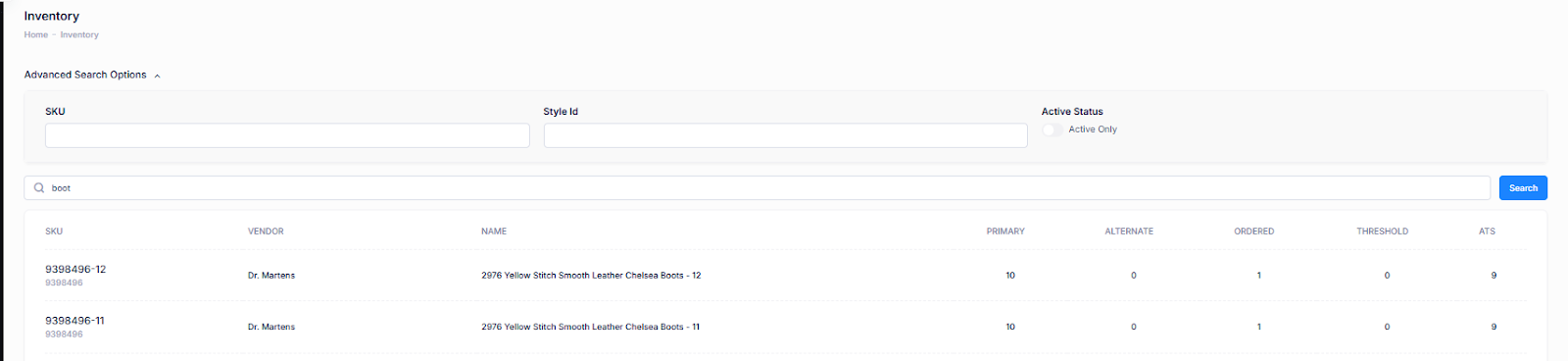
Advanced Search - When you click the down arrow icon next to Advance Search Options you will expand the search to include Product Style ID as well as Product Status (Active or Inactive).
Inventory Search Results
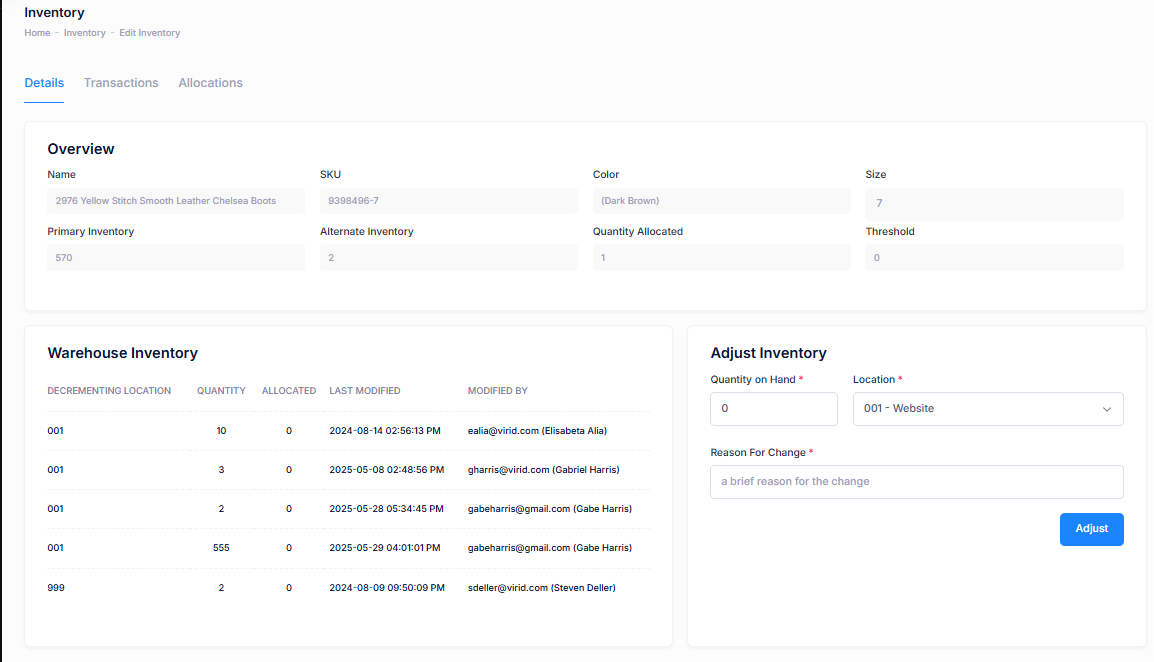
Details
Inventory details refer to the specific information about a product's stock status, used to track, manage, and fulfill items across locations in mA7.
| Property | Description |
|---|---|
| Overview | |
| Name | Full Product name. |
| SKU | Stock Keeping Unit - the purchasable element of a StyleID. |
| Color | Product Color. |
| Size | Product Size. |
| Primary Inventory | Inventory value at Primary Location. |
| Alternate Inventory | Inventory value at Alternate Location |
| Quantity Allocated | Value intended for open orders |
| Threshold |
Allows you to control when a product stops selling relative to its inventory level:
|
| Warehouse Inventory | |
| Decrementing Location | A decrementing location is the inventory source (e.g., warehouse, store, or fulfillment center) from which the stock quantity is reduced when an order is placed or fulfilled. |
| Quantity | Number of products. |
| Allocated | Allocated refers to the quantity of a product that has been reserved for customer orders but has not yet been shipped or fulfilled. |
| Last Modified | Date when product inventory was last modified. |
| Modified by | mA7 User who last modified the Inventory values. |
| Adjust Inventory (only editable section) | |
| Quantity on Hand | Quantity on Hand refers to the total number of units physically available in your inventory at a given time, across all locations. |
| Location | Location at which to adjust the inventory. |
| Reason for Change | A brief reason why the change is being made. |
Transactions
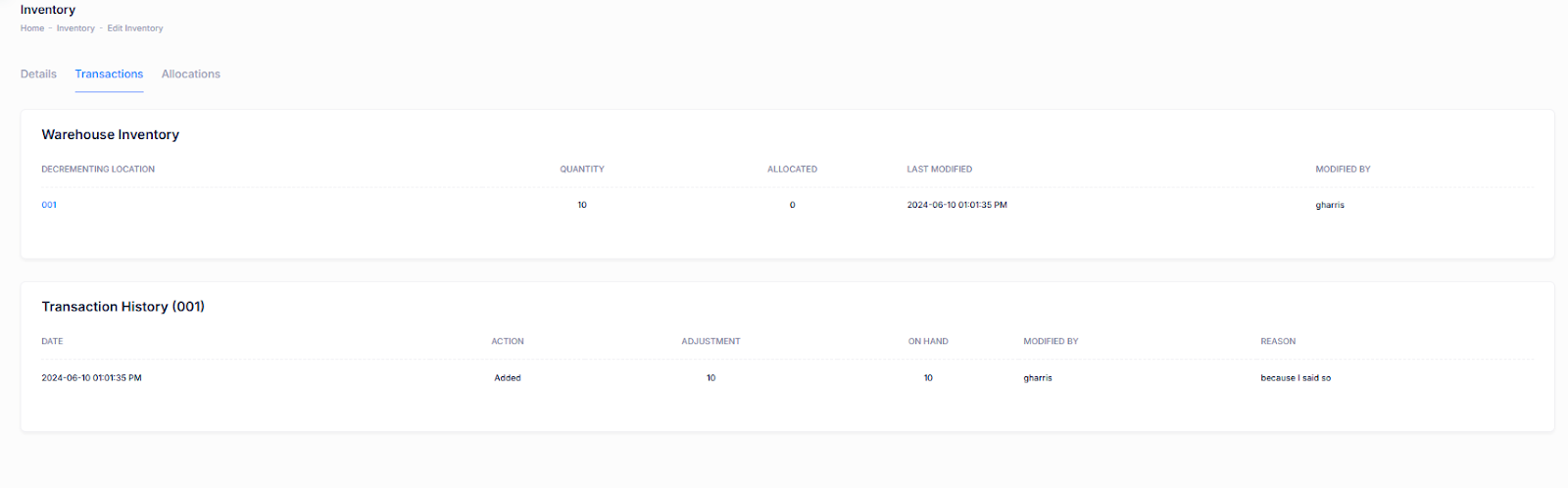
The Inventory transaction tab details any edits made to a Product SKU.
| Property | Description |
|---|---|
| Warehouse Inventory | |
| Decrementing Location | A decrementing location is the inventory source (e.g., warehouse, store, or fulfillment center) from which the stock quantity is reduced when an order is placed or fulfilled. |
| Quantity | Number of products. |
| Allocated | Allocated refers to the quantity of a product that has been reserved for customer orders but has not yet been shipped or fulfilled. |
| Last Modified | Date when product inventory was last modified. |
| Modified by | mA7 User who last modified the Inventory values. |
| Transaction History | |
| Date | This reflects the date a change was made to the inventory. |
| Action | This reflects the action taken, added or deleted. |
| Adjustment | Reflects the value of the inventory item either added or deleted. |
| On Hand | On Hand refers to the total number of units physically available in your inventory at a given time, across all locations. |
| Modified by | Quantity on Hand refers to the total number of units physically available in your inventory at a given time, across all locations. |
| Reason for Change | The reason that you are making this adjustment. For example: "Shrinkage", or "Cycle Count". |
Allocations
An inventory allocation is the act of assigning available stock to specific demand, such as customer orders, store locations, or future sales events. This prevents stock from being double-booked or oversold.
Below are the steps to review inventory allocation on a specific product
From the main inventory page, either search for the product or click the product within the list of available products.
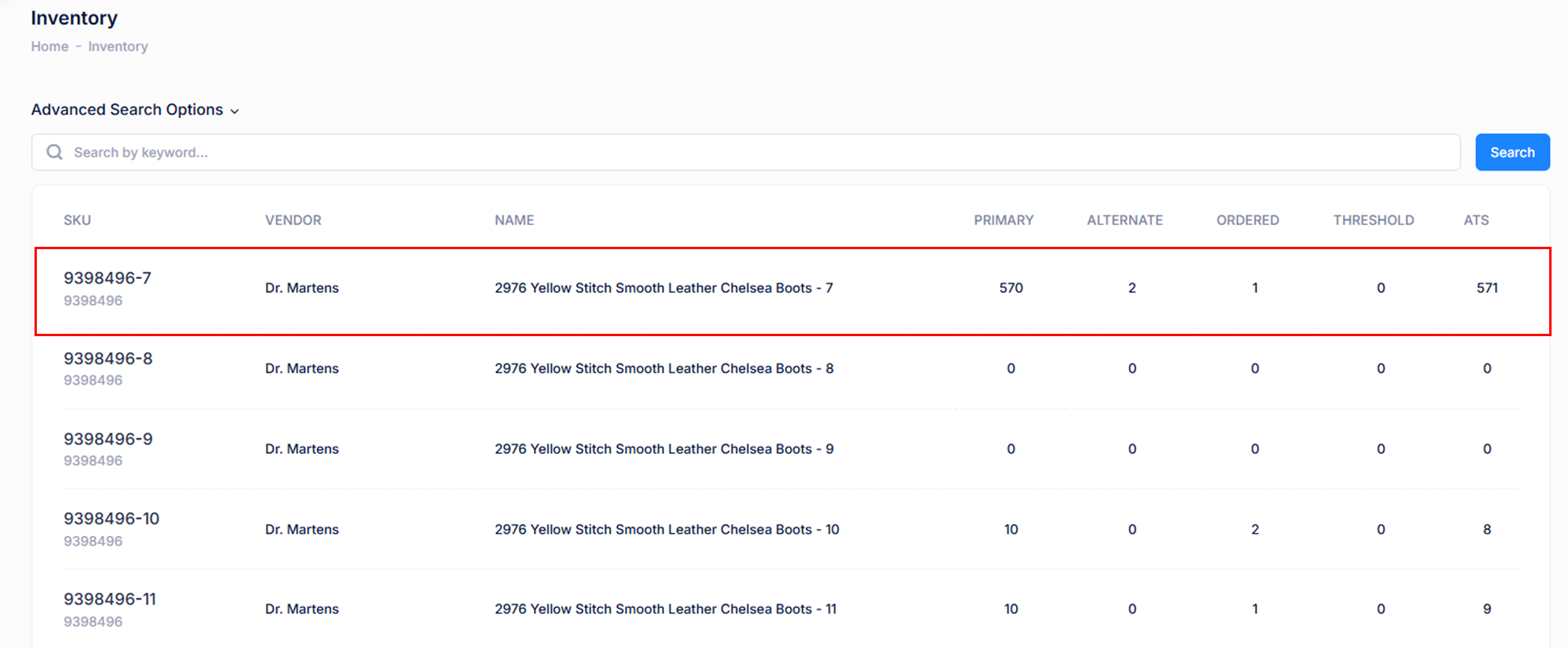
Clicking on the Product name will take you to the Product Details page. Click on Allocations.
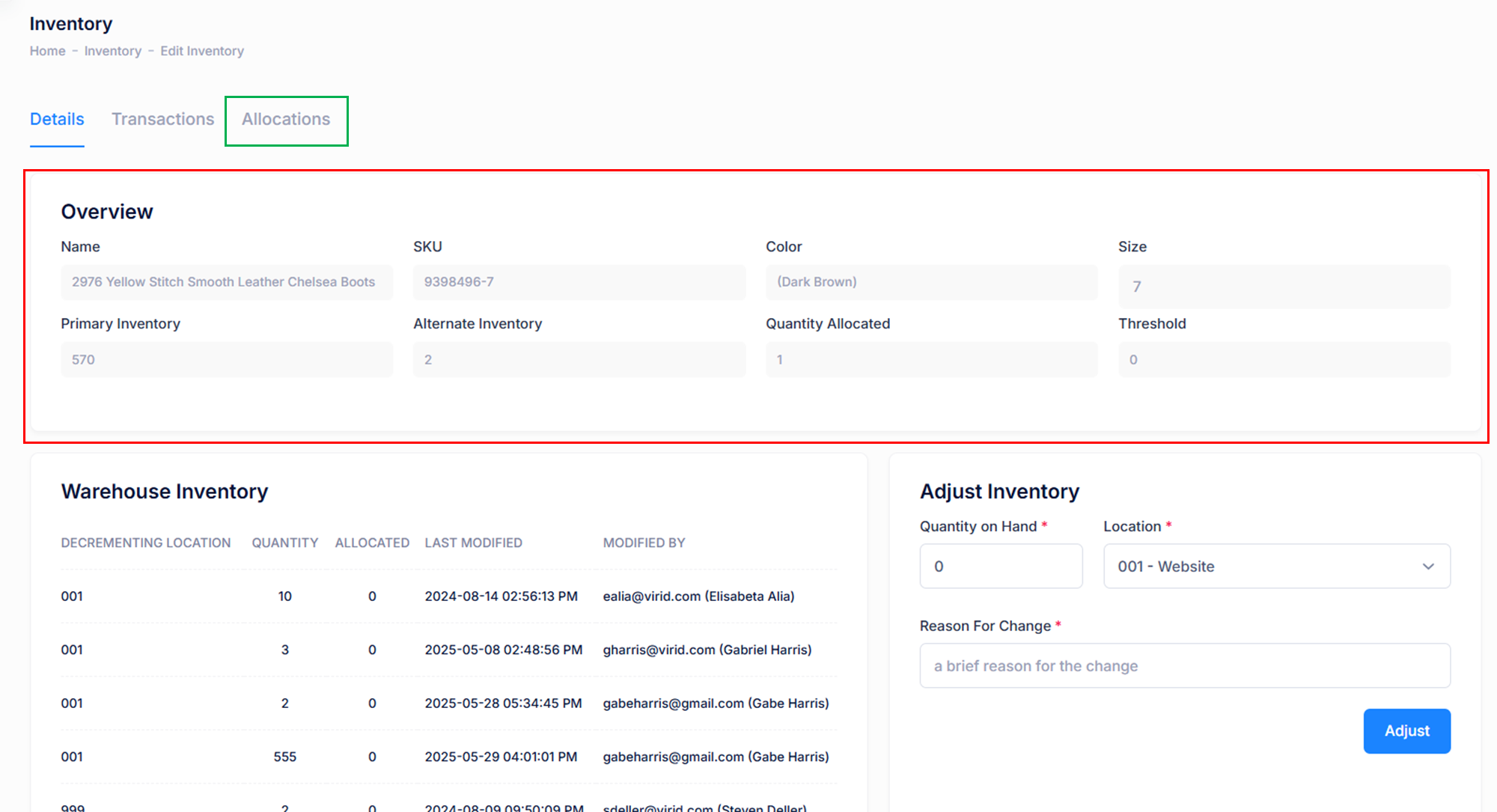
On the Allocations tab are more details about the Product.
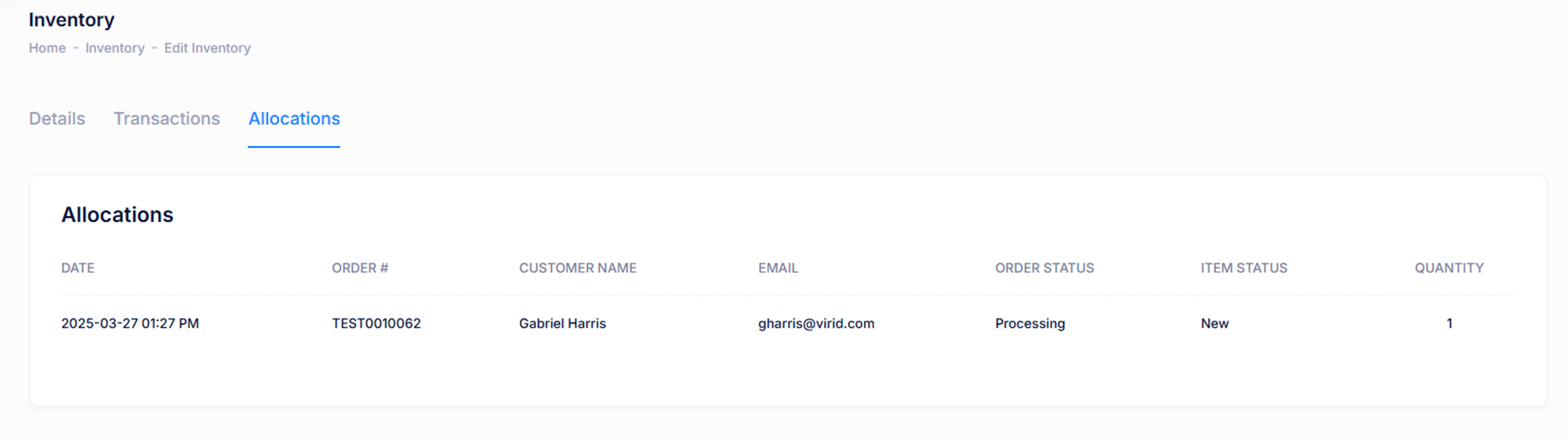
| Property | Description |
|---|---|
| Date | Date Order Placed |
| Order # | Order # associated with Product |
| Customer Name | Customer Name on the Order |
| Customer email address | |
| Order Status | Order Status |
| Item Status |
|
| Quantity | Number of items allocated in the Order. |
Tips
If you are actively sending inventory updates through a feed or through the APIs, any change here could be overwritten by your next automated update. If you are routinely seeing inaccuracies in your inventory levels after making manual revisions, check the history to see if there is a mismatch in the levels being sent by your back office and the levels you believe you should be seeing.