Inventory
The inventory tool allows an administrator to review and alter the inventoro levels for a sku on either the staging site or the production site. It also provides a history of inventory level changes through the lifetime of the SKU.

The inventory tool allows an administrator to review and alter the inventoro levels for a sku on either the staging site or the production site. It also provides a history of inventory level changes through the lifetime of the SKU.
To find a sku or skus that s that share a common attribute value, a search block has been provided. The following attributes are available:
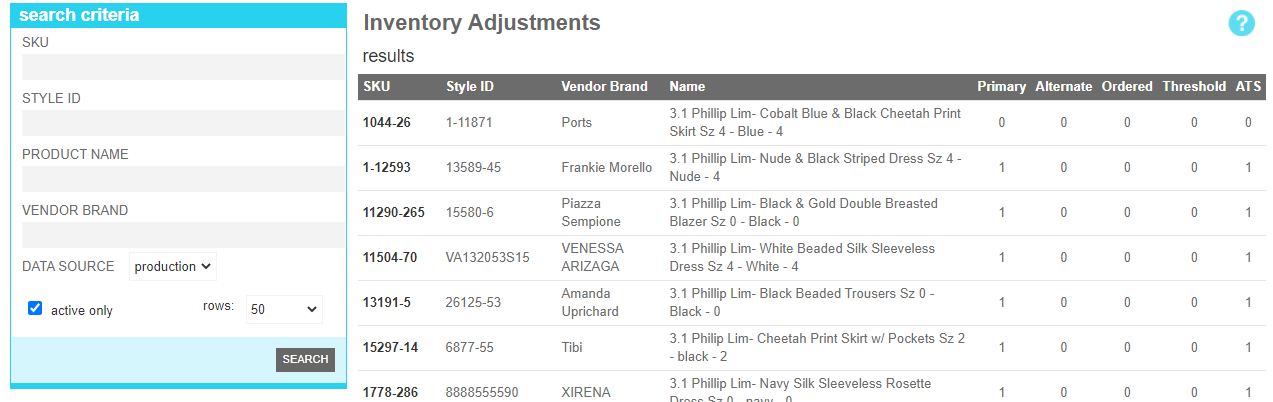
These attributes are as follows:
| Property | Description |
|---|---|
| SKU | All or part of the sku being located |
| Style ID | All or part of the Style Id that contains the target sku |
| Product Name | All or part of the name of the product |
| Vendor Brand | All or part of the Brand for the target sku |
| Data Source | Indicates whether the search should be done against the staging or production inventory |
| Active Only | Filters your result to only show currently active users |
| Rows | Limits the results to the indicated number. |
The details screen allows you to view the aggregated inventory shown on the website and to adjust the inventory in each decrementing location. The top half of the screen indicates the target sku id and variant information, along with the real-time inventory values for the primary and alternate buckets. In addition the number of units on order and any backorder or threshold modifiers are also displayed. The latter two values are controlled in the product tool of the content management section of the site.
The bottom half of the screen shows the current inventory in each of your configured decrementing locations, along with the date it was last modifed and the person or system that made them modification. In addion, a form is provided to allow your team to revise the current inventory levels for any of your configured decrementing locations.
If you are actively sending inventory updates through a feed or through the APIs, any change here could be overwritten by your next automated update. If you are routinely seeing inaccuracies in your inventory levels after making manual revisions, check the history to see if there is a mismatch in the levels being sent by your back office and the levels you believe you should be seeing.
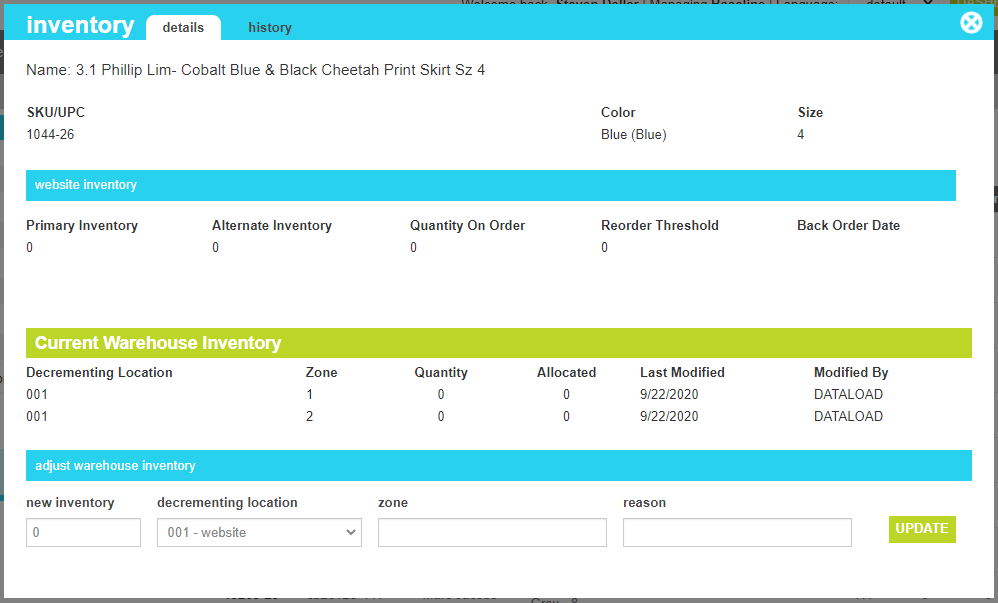
These attributes are as follows:
| Property | Description |
|---|---|
| New Inventory | The inventory level that this inventory location should have |
| Decrementing Location | The physical location that contains this inventory level.. |
| Zone | The zone (if any) within the decrementing location where this inventory level is present. |
| Reason | The reason that you are making this adjustment. For example: "Shrinkage", or "Cycle Count" |
| Update | Click the update button to apply the new inventory level to the location. Once applied, the inventory will be included with any other inventory locations and applied to the product in aggregate. |
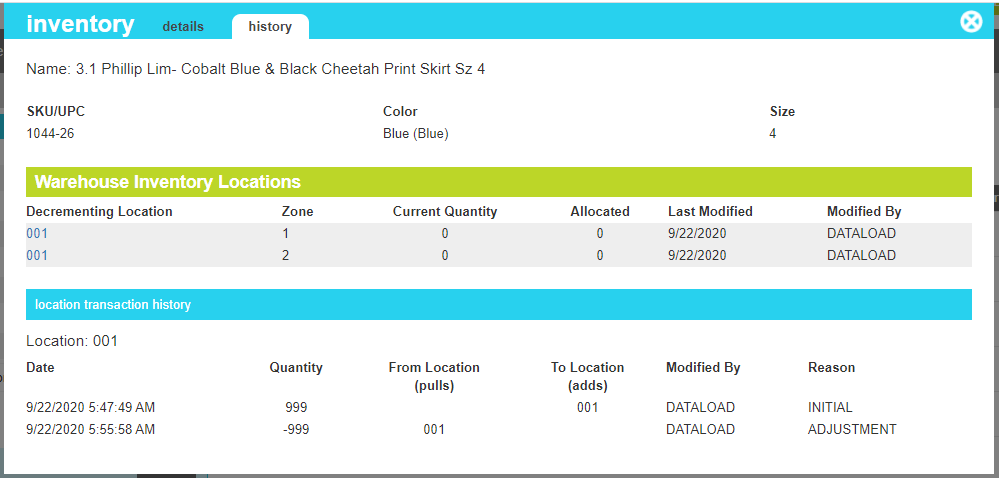
The history screen allows you to view the lifetime history of inventory adjustments to the targeted sku. Like the details screen some basic identifying information about the sku adorns the top half of the screen. The Warehouse Inventory Locations section lists each of the decrementing locations, the current inventory levels, when they were last updated and what person or system last modified.
The bottom section of the screen shows the detailed history of adds and pulls from the first decrementing location in the list. An add means that inventory was added to the system in the amount shown in "quantity". A pull indicates that inventory was removed from that location in the amount shown in "quantity".
In order to see the history for other decrementing locations in the list, click ont he Decrementing Location number in the list to show the history for that location.