The order fulfillment tool provides the ability to manage the shipment of your orders directly from the administration tools. From here,
you can search and filter orders that need to be shipped, create pick lists, pick tickets, shipping labels and create the shipments.
If any fulfillment providers have been defined and are active, fulfilling orders through this tool will also engage those providers and allow you to leverage
their capabilities in choosing the final carrier and generating labels.
Searching
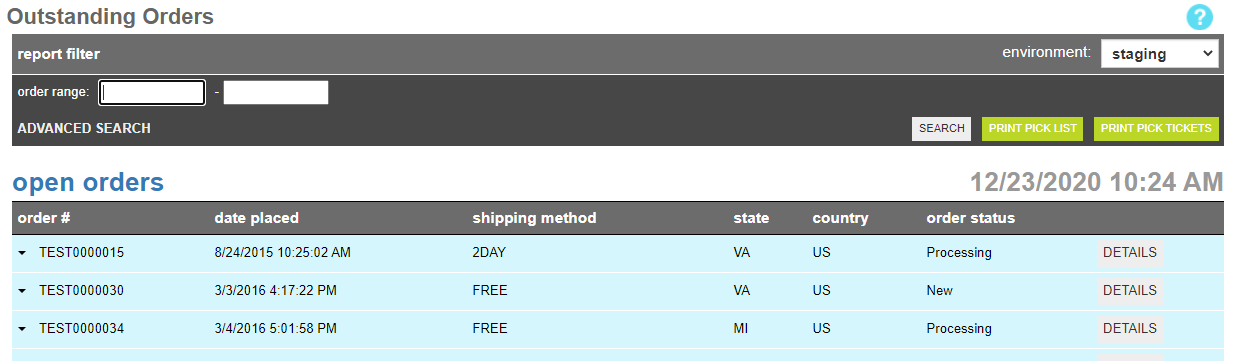
To find a orders that need to be shipped, a search block has been provided. By default the results show all open orders for the production environment
Searching for a open orders
These attributes are as follows:
Property
Description
Environment
Indicates wheter you are shipping test or live orders
Order Range
Allows you to set the low and high order numbers to reduce the number of orders that display in the open orders queue
Print Pick List
Generates a pick list for the open orders appearing in the list below. The format of this document can be found in the
Blocks tool with the name PICK_LIST.
Print Pick Tickets
Generates a series of pick tickets for each order appearing in the list below. The format of these documents can be found in the
Blocks tool with the name PICK_TICKETS.
Search
Applies the new search criteria to the Open orders list
Details
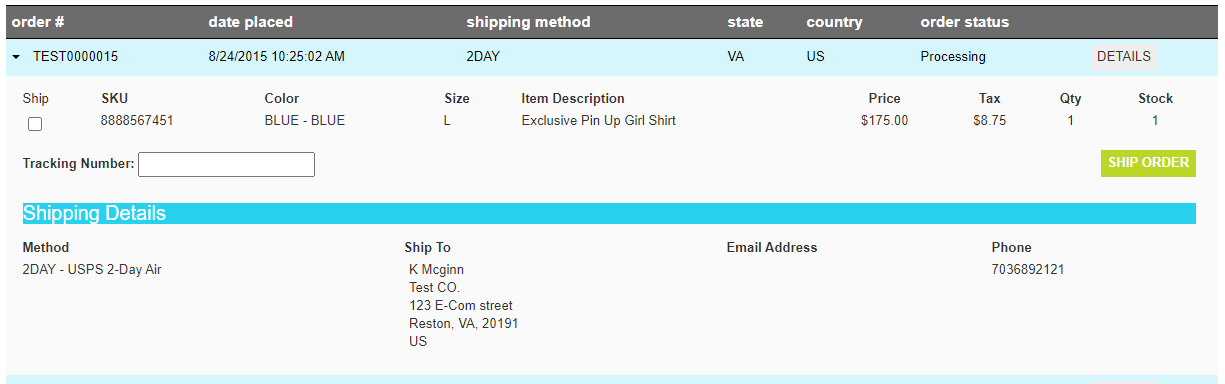
The details panel shows the outstanding unshipped items for an order. Here you can select which items should be included in the shipment and
then initiate the shipment process.
Order Fulfillment Details
These attributes are as follows:
Property
Description
Ship
If checked, the line item will be included in the shipment
Tracking Number
If no fulfillment provider has been defined, this field will apear to allow you to manually enter a tracking number for this shipment.
Copy it from your external shipping software.
Ship Order
When clicked all checked items will be marked as shipped. If a fulfillment provider plugin has been defined, a popup will appear
showing the information needed to select the appropriate final carrier and generate a packing label and tracking number.
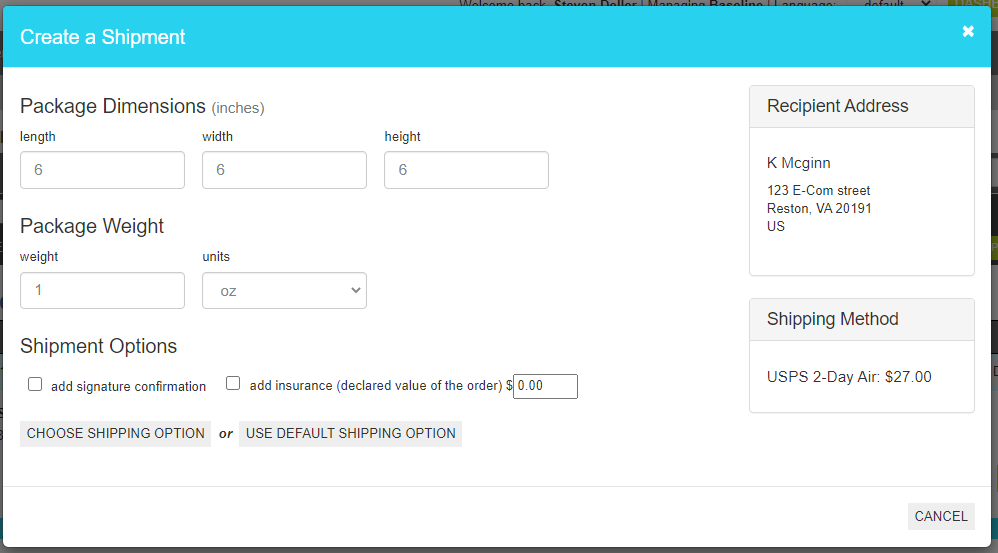
Shipment Interface
When a fulfillment provider has been defined, an interstitial screen will appear to allow you to provide necessary shipping information to
the provider and select the best rate/carrier for delivering the shipment.
Order Fulfillment Shipment
These attributes are as follows:
Property
Description
Length
The length of the container
Width
The width of the container
Height
The height of the container
Weight
The weight of the container
Units
The unit of measure that defines the weight of the container
Add Signature Confirmation
if checked, signature confirmation will be requested.
Add Insurance
If checked, Insurance will be requested in the indicated amount.
Choose Shipping Option
If your provider supports rate shopping, clicking this button will request a list of available carriers for the shipment so you can
select the most appropriate one.
Use Default Shipping Option
Clicking this button will use the carrer defined as the default for the shipping method and ship the order.