Cases
The cases tool allows call center representatives to manage customer issues within a simple workflow.
Each request that comes through one of the marketAgility collectors is automatically logged into the system. Additionally, cases can be created manually using this tool for issues that are received over the phone or from other means.
Cases can be assigned to any other person who has a customer service role, and can be tracked through their life cycle by using a series of statuses.
Searching
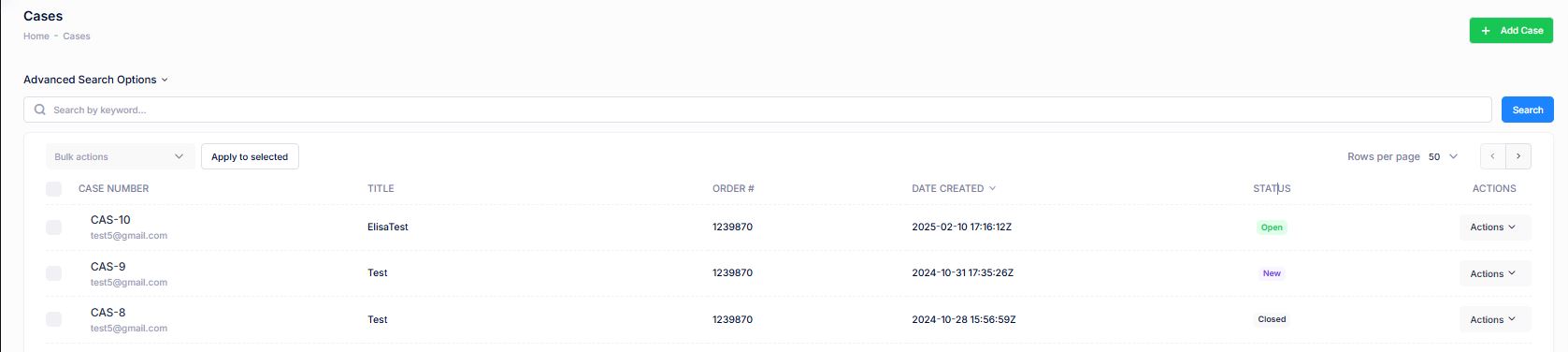
To find a case or cases that share a common attribute value, a search block has been provided. To create a new one, use the "Add New" button above the search block.
Basic Search
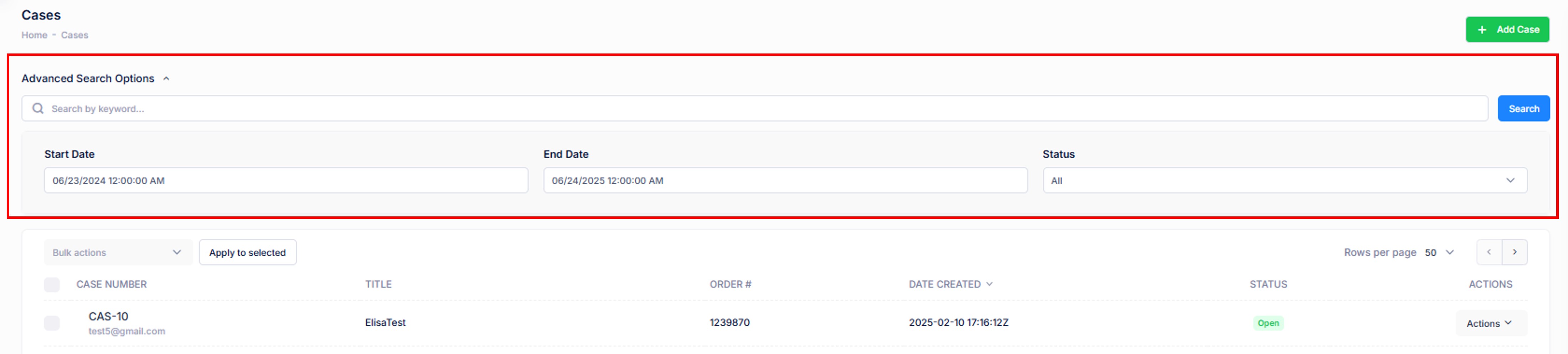
Advanced Search - use the arrow dropdown to reveal additional advanced search fields.
| Property | Description |
|---|---|
| Case # | Cases having the provided case # |
| Title | A short description of the request. |
| Order # | Cases involving the provided order # |
| Date Created | Cases created on or after this date |
| Status |
The status of the case you are looking for. Valid Options are
|
| Rows | Limits the results to the indicated number. |
Details / Notes / History
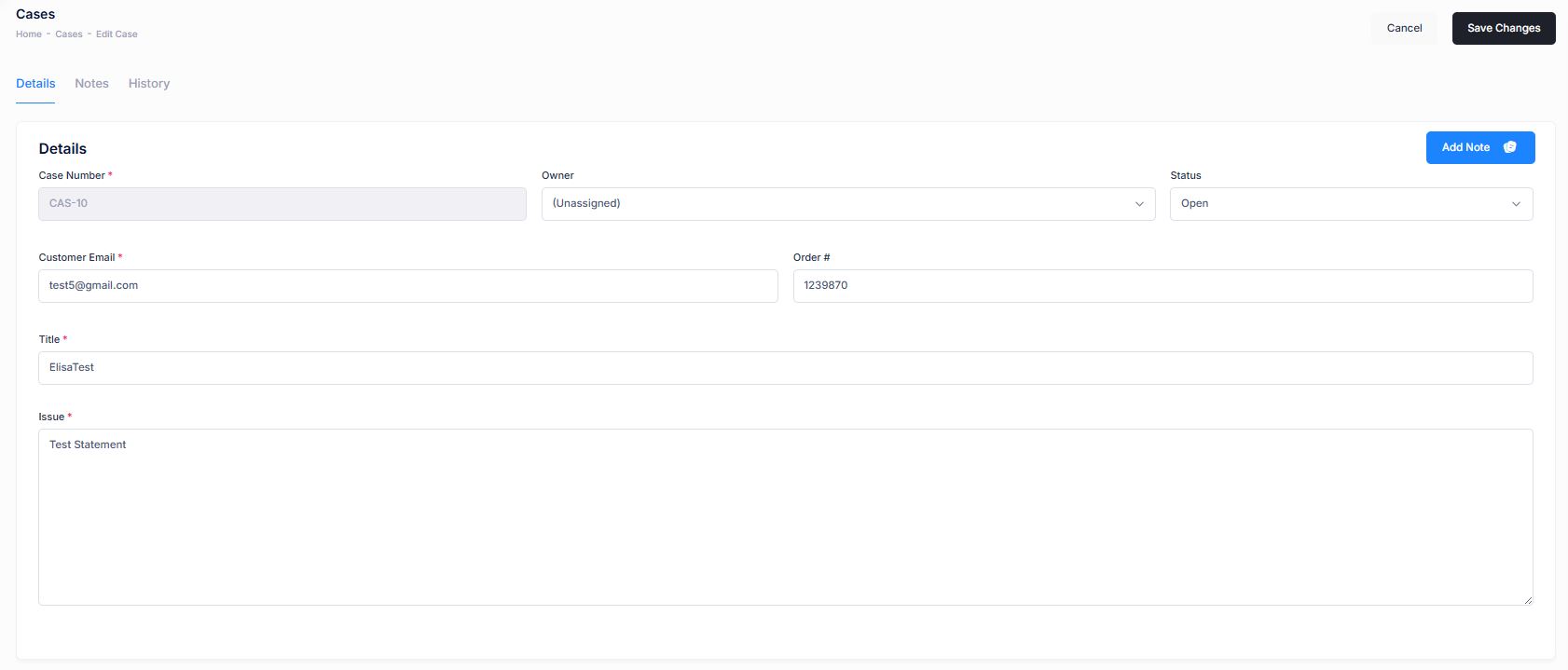
The details screen allows you to manage the case information, including the requestor, basic information about the request, and its status. In addition, the history of activity can be seen here along with providing the ability to add notes.
| Property | Description |
|---|---|
| Case # | Unique value generated with each Case creation. |
| Owner | As a case is created the customer service rep can assign the case to another user in mA7. If no one is assigned it will show as “Unassigned”. |
| Status |
The current status of the case. Available values are:
|
| Customer Email | The email address of the requestor. |
| Order # | The order number this request is concerning (if available). |
| Title | A short description of the request. |
| Issue | A detailed explanation of the issue and what is being asked. |
Details / Notes / History
This section details the notes that have been added along with providing a shortcut to adding a new note
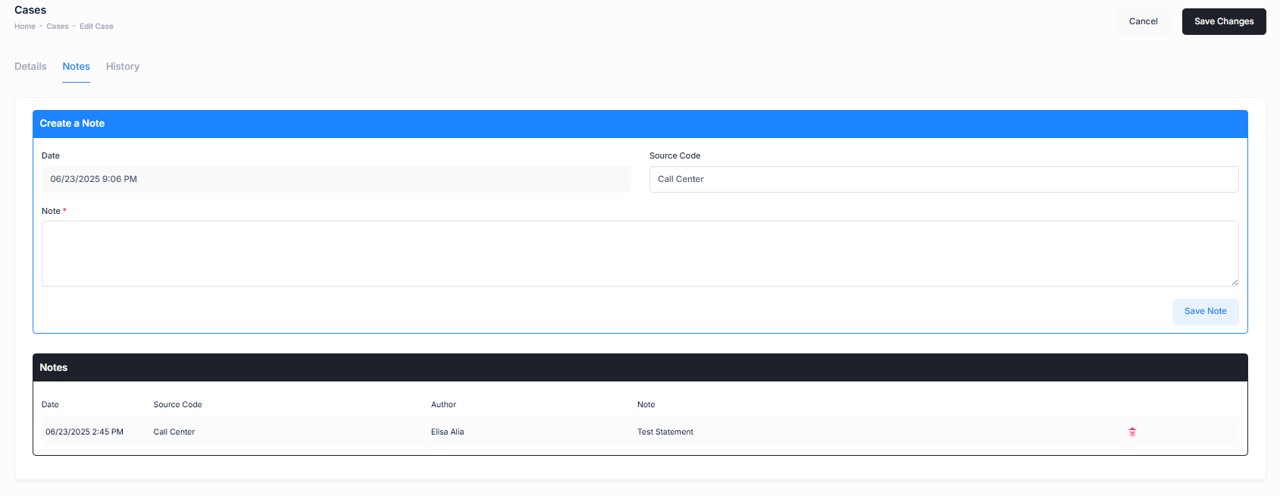
For more details on Notes - go to: Orders/Notes
Details / Notes / History
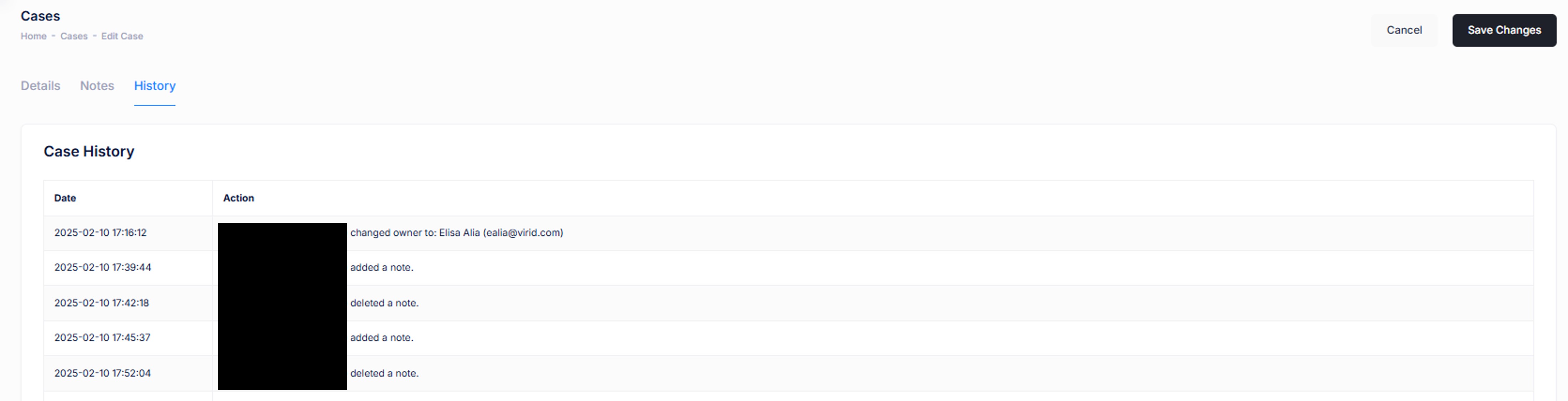
This section details the history of activities and interactions that have occurred with this case, since its creation.